Dragonfly Manual Version 3© Page 38
The forms contained in Dragonfly™ are designed to cross populate data onto related forms.
Additionally, certain data inputs that are created in one module/tool cause automatic updating
of related forms. When an edit occurs in one form or through the use of a module/tool, related
fields are also edited on the related form sets.
Completing the ICS 201 Incident Briefing Form
Steps for completing the form:
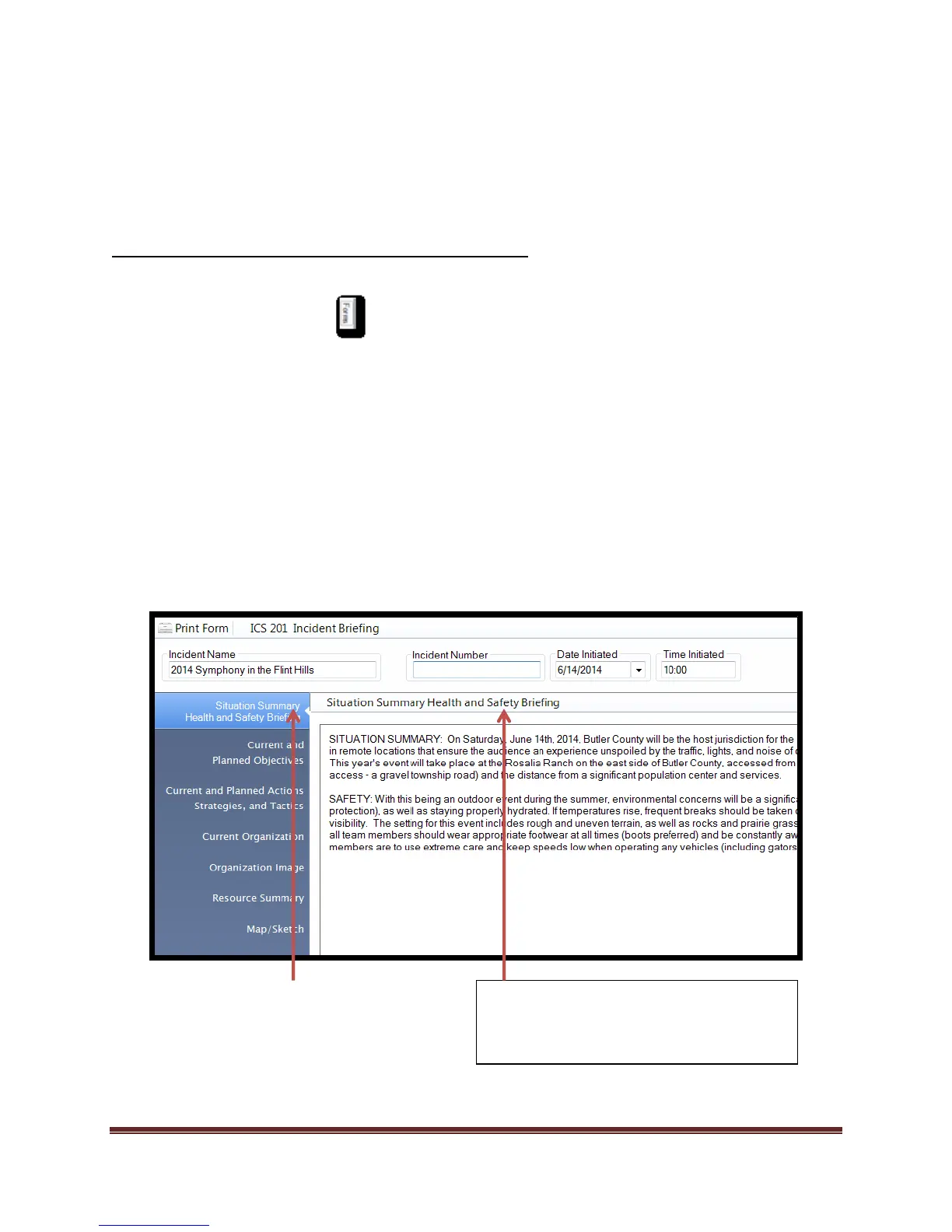
1. Select the Forms tab
2. Double click on the ICS 201 form. This will open the form for editing.*
3. Name the Incident.
4. Assign an Incident number if required/desired.
5. Set the initiation date.
6. Set the time initiated.
7. Select the Situation Summary Health and Safety Briefing and enter data in the text fields.
8. Select Current and Planned Objectives and enter data.
9. Select Current Organization and set image.
10. Select Organization Image and review the Organization chart for correctness.
11. Select Map/Sketch and import or add map.
*When a block is active and ready for
editing, a light blue highlight will appear.
Additionally, the block name will appear
directly above the field that is collecting the
data.



 To Next Page