24
4
4
.
.
2
2
C
C
h
h
e
e
c
c
k
k
i
i
n
n
g
g
I
I
f
f
t
t
h
h
e
e
N
N
e
e
t
t
w
w
o
o
r
r
k
k
C
C
o
o
n
n
n
n
e
e
c
c
t
t
i
i
o
o
n
n
S
S
e
e
t
t
t
t
i
i
n
n
g
g
s
s
o
o
n
n
Y
Y
o
o
u
u
r
r
C
C
o
o
m
m
p
p
u
u
t
t
e
e
r
r
I
I
s
s
O
O
K
K
o
o
r
r
N
N
o
o
t
t
Sometimes the link failure occurs due to the wrong network connection settings. After
trying the above section, if the link is stilled failed, please do the steps listed below to
make sure the network connection settings is OK.
F
F
o
o
r
r
W
W
i
i
n
n
d
d
o
o
w
w
s
s
The example is based on Windows XP. As to the examples for other
operation systems, please refer to the similar steps or find support notes in
www.draytek.com.
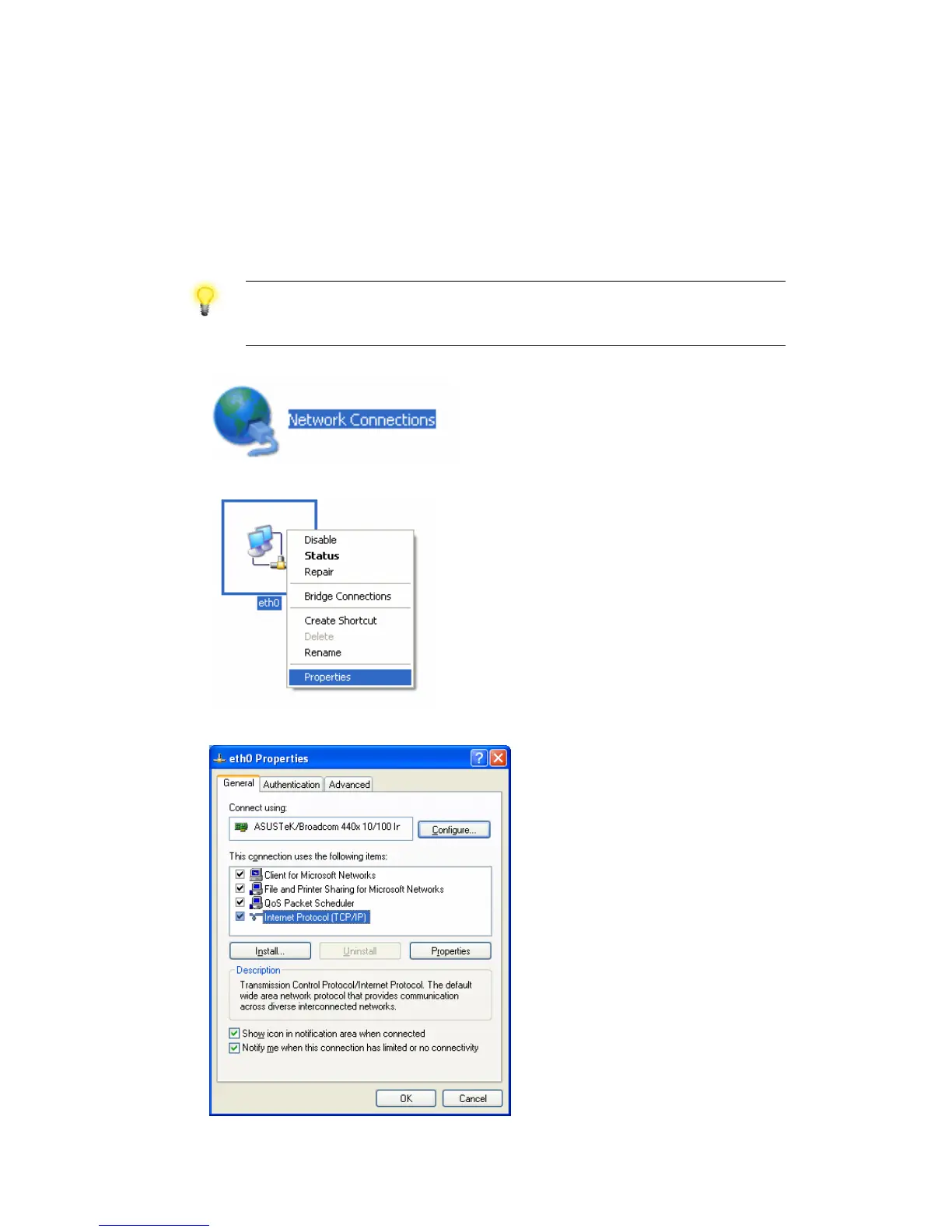
1. Go to Control Panel and then double-click on Network Connections.
2. Right-click on Local Area Connection and click on Properties.
3. Select Internet Protocol (TCP/IP) and then click Properties.




 To Next Page