EasyManua.ls Logo

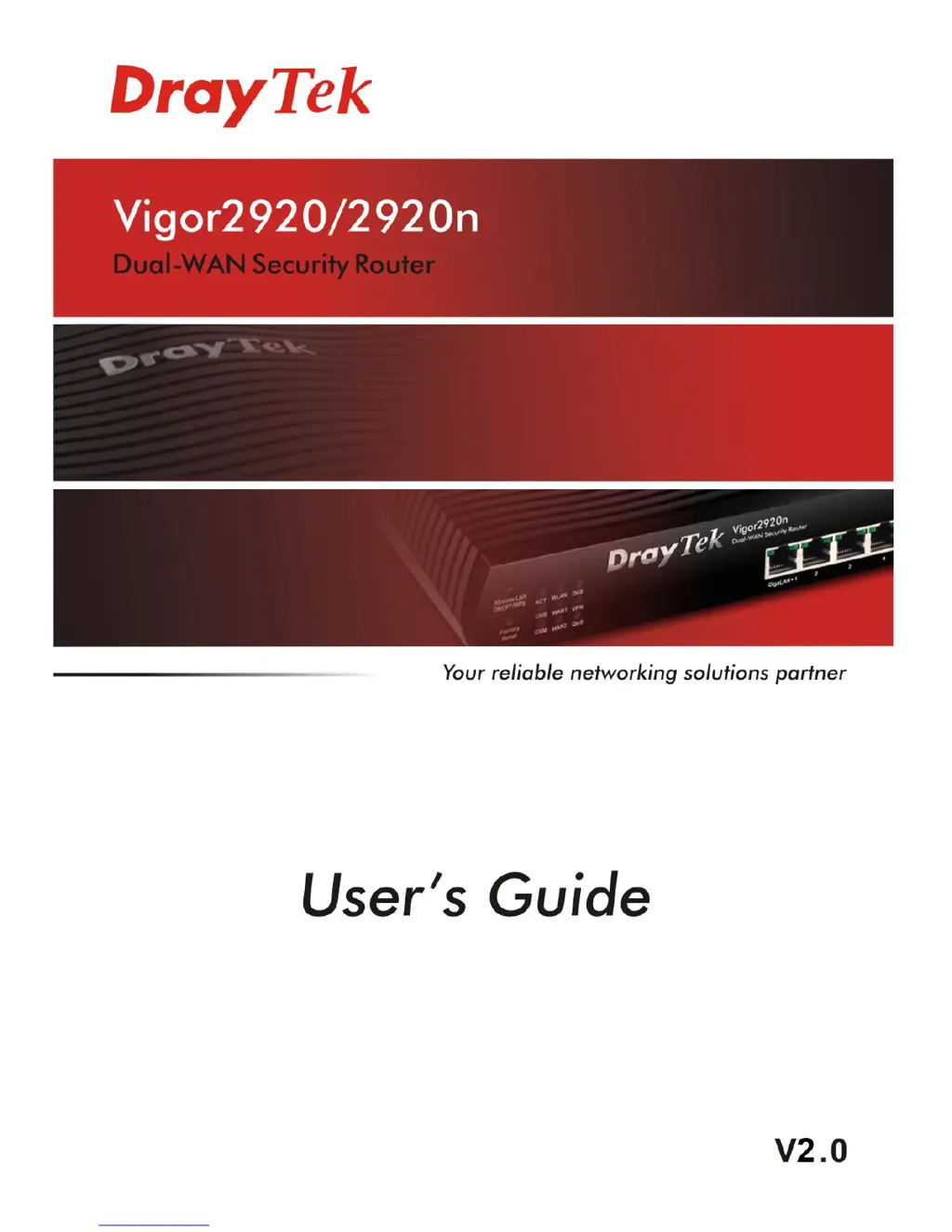
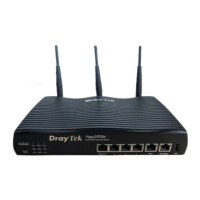
Draytek Vigor2920n - User Manual

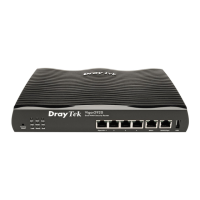
Draytek Vigor2920n
355 pages
Print Icon
To Next Page IconTo Next Page
Loading...

Table of Contents

Questions and Answers

  • R
    robinshannonAug 10, 2025
    How to check ISP settings on Draytek Vigor2920n?
    • A
      Abigail DavisAug 10, 2025
      To ensure your Draytek Network Router's ISP settings are correct, verify that the 'Enable' option for Broadband Access and PPTP Link is selected. Confirm that 'WAN IP Network Settings' is properly configured. If you specify an IP address, ensure the 'IP Address', 'Subnet Mask', and 'Gateway' match the values provided by your ISP. Also, if applicable, check that the 'PPTP Server', 'Username', and 'Password' are correctly set according to your ISP's credentials. Always ensure the values you enter align with your ISP's specifications.
  • S
    Scott ChapmanAug 16, 2025
    What to do if I have problems with 3G network connection on Draytek Vigor2920n?
    • G
      garnerannaAug 16, 2025
      If you're experiencing issues with your Draytek Network Router's 3G network connection, and the USB LED isn't lit, try removing and reinserting the modem. If that doesn't work, restart the router. Also, use the 3G USB Modem utility to disable the PIN code. Refer to the 3G USB Modem manual to verify if the modem is connected to the Internet via HSDPA mode.
  • T
    tammy95Aug 21, 2025
    Why can't I ping my Draytek Vigor2920n Network Router?
    • E
      emilysmithAug 22, 2025
      If you cannot ping your Draytek Network Router from your computer, check your computer's IP address. It's recommended to configure your network connection to obtain an IP address automatically.
  • J
    Julia BaileyAug 27, 2025
    How to reset Draytek Network Router to factory settings?
    • V
      Valerie MillerAug 27, 2025
      To reset your Draytek Network Router to its factory default settings, note that this function is available only in Admin Mode. You can either choose 'Using factory default configuration' and click 'OK' within the admin interface, or press the 'Factory Reset' button for more than 5 seconds.
  • L
    Lisa GeorgeSep 2, 2025
    How to check network connection settings on my computer for Draytek Vigor2920n Network Router?
    • A
      Anthony HarperSep 2, 2025
      To ensure your computer's network connection settings are correct for your Draytek Network Router, set your computer to 'Obtain an IP address automatically' and 'Obtain DNS server address automatically'.

Draytek Vigor2920n Specifications

General IconGeneral
ModelVigor2920n
CategoryNetwork Router
Wireless Standards802.11b/g/n
Wireless SpeedUp to 300 Mbps
FirewallYes
VPN SupportYes
QoSYes
LAN Ports4 x Gigabit Ethernet
VPNIPSec, PPTP, L2TP
USB Port1

Related product manuals