Drobo Mini Getting Started Guide 21
1.
Plug one end of the Thunderbolt cable into the back of your Drobo Mini.
2. Do one of the following:
•
Plug the other end of the cable into your host computer, so that the Drobo Mini is the first
peripheral in the daisy-chain. Be sure to connect the next Thunderbolt-enabled peripheral
or non-Thunderbolt display monitor to the second port on your Drobo Mini, as needed to
extend the chain.
•
Plug the other end of your cable into another Thunderbolt-enabled device that is
attached to your host computer. You can optionally connect another Thunderbolt-enabled
peripheral or non-Thunderbolt display monitor to the second port on your Drobo Mini, as
needed to extend the chain.
3.
Connect the plug of the power supply into a power source so that the LED light located on the
other end (the end which plugs into your Drobo Mini) lights green.
Note: We recommend plugging into an uninterruptible power supply (UPS) or surge
protector. For more information, see
Using Power Protection.
4.
Align the green LED light of the power connector with the white dot on the back of the Drobo
Mini, push the connector securely into place, and then rotate it to the right until the green LED
light faces down.
Locking the power cord into place prevents it from slipping out if you move the device. You
are now ready to turn on your Drobo device and format the drives.
Formatting the Drives
After installing Drobo Dashboard, inserting the drives into your Drobo Mini and connecting cables,
you are ready to turn on your Drobo device and format the drives.
Before following steps for this, however, it is important to know what file system format and
volume size you will choose when you format the drives.
Selecting a File System and Volume Size for Your Drobo Mini
When you turn on your Drobo Mini, you will be prompted to format the drives in your Drobo Mini
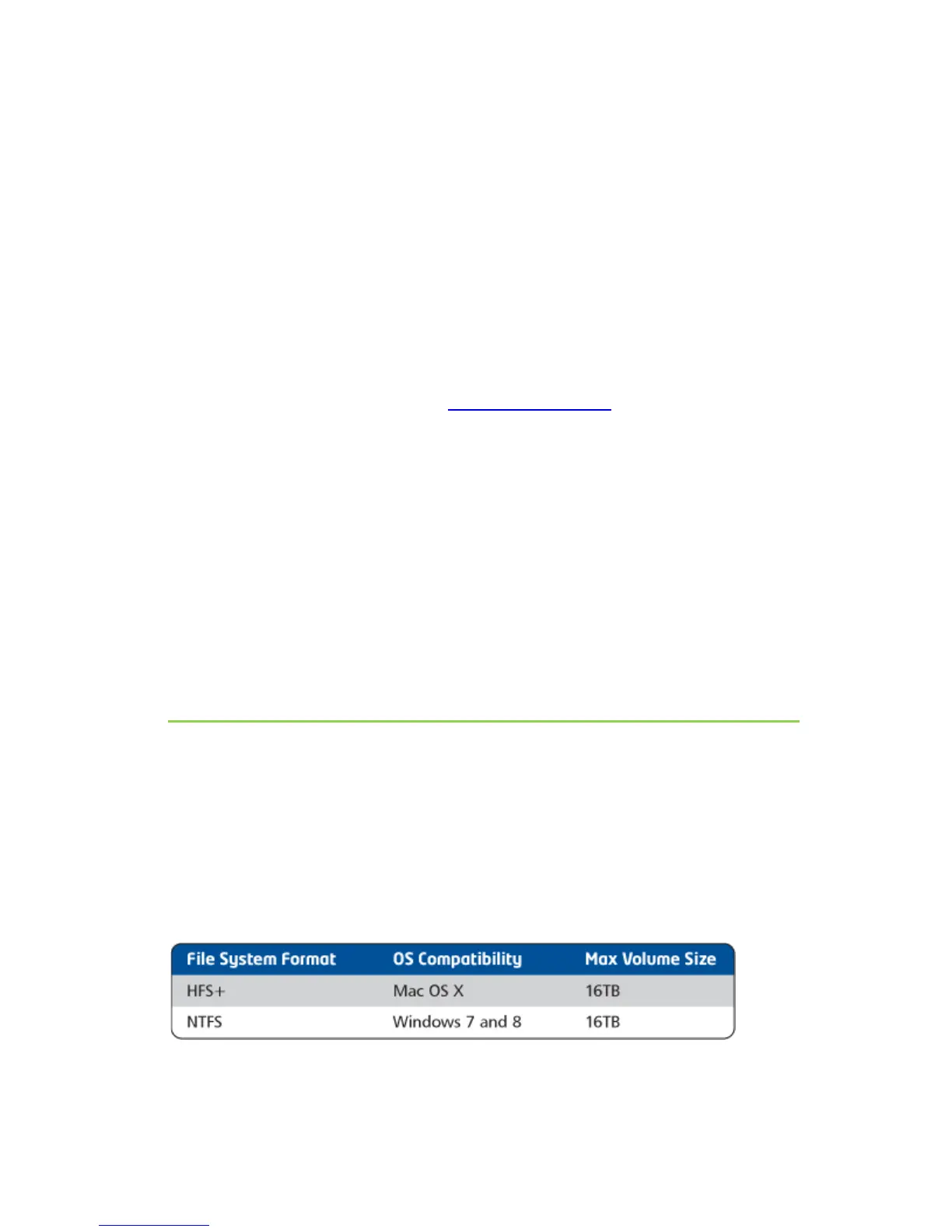
with a particular file system. What file system formats are available to you depend on your
operating system. (See Figure 1 below.)
You will also be formatting your Drobo Mini into at least one volume, and you will need to choose
a size for that volume. A volume is a storage area that has been formatted with a file system
format your operating system can recognize. In Windows, volumes are sometimes called “logical
drives” or “partitions.”
The largest volume size you are allowed depends on the file system format you choose and the
total capacity of the drives in your Drobo device. The following table (Figure 1) shows the
maximum volume size allowed for each file system format.
Figure 1: Table of file system formats and maximum volume sizes



 To Next Page