Drobo Mini Getting Started Guide 29
Checking for Software Updates Automatically
The following steps keep your Drobo Dashboard and your Drobo device’s firmware up to date
automatically.
1. If it’s not already running, launch Drobo Dashboard from the host computer and select the
appropriate Drobo device on the All Drobos page.
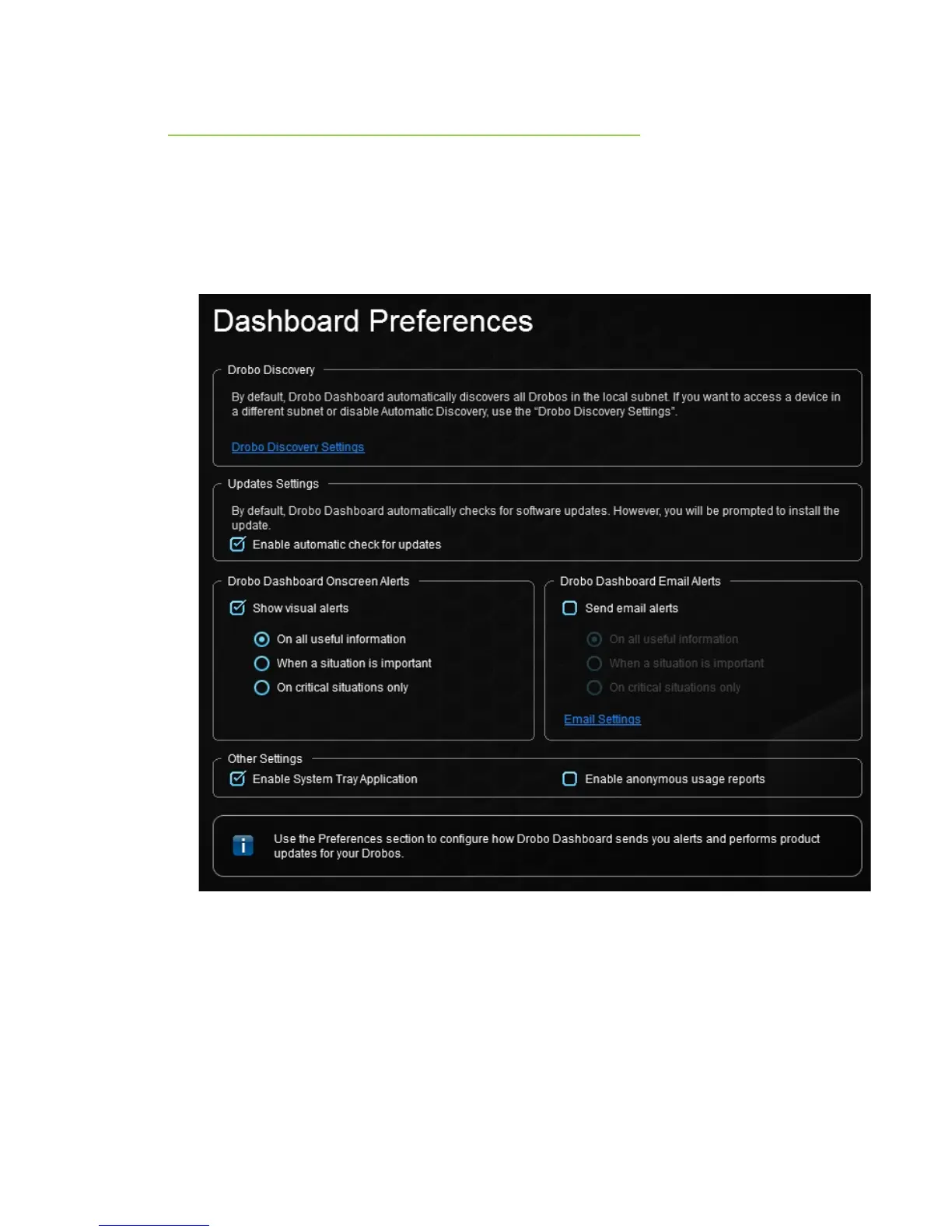
2. Click Dashboard Preferences on the Navigation menu.
The Dashboard Preferences page opens.
3. Ensure that the Enable automatic check for updates check box is selected, and then click
the OK button.
You can also deselect the Enable automatic check for updates check box, though we
recommend that you keep it selected.
4. When one or more software updates are available, a message opens, asking if you would like
to install the update(s). If so, click the Yes button and follow the prompts to install them.



 To Next Page