HD PVR Viewer’s Guide – UEC Page 30 of 62
➌
Record a programme using the Channel Grid
While viewing TV (either Live TV or in playback), press any of the arrow keys to display a Channel
Grid. Select the channel on which you would like to schedule a recording and press i (to display
the extended info). Select a programme to record and press REC.
What Now?
o If the programme has already started, a recording icon
will display next to the programme title.
o If the programme has already started, the recording will
automatically stop at the end of the programme and will be
listed in the Playlist with an alert icon (indicating a partial
recording).
o If the programme has not yet started, a scheduled recording
icon
will display next to the programme title and the
programme will be listed in the Scheduled Recordings
screen.
PVR Recording Icon
What else can I do?
o You can delete scheduled recordings (see page 34).
What else could happen?
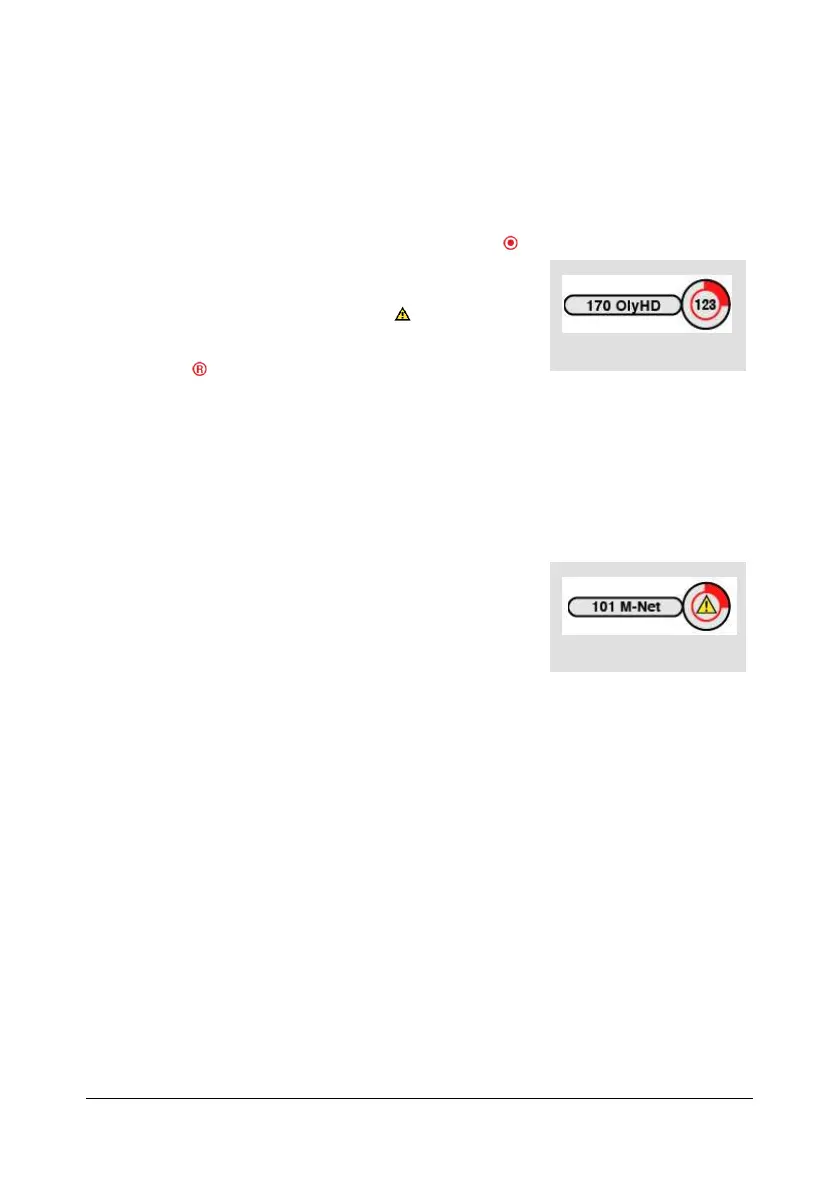
o If the programme has already started, the PVR Recording
Error icon (indicating a problem) may appear (see page 26).
o If the recording request conflicts with existing recordings, a
pop-up will indicate that the recording cannot be scheduled.
o If the maximum number of scheduled recordings has been
reached, a pop-up will indicate that the recording cannot be
scheduled. You will need to delete some scheduled
recordings first.
PVR Recording Error Icon



 To Next Page