14
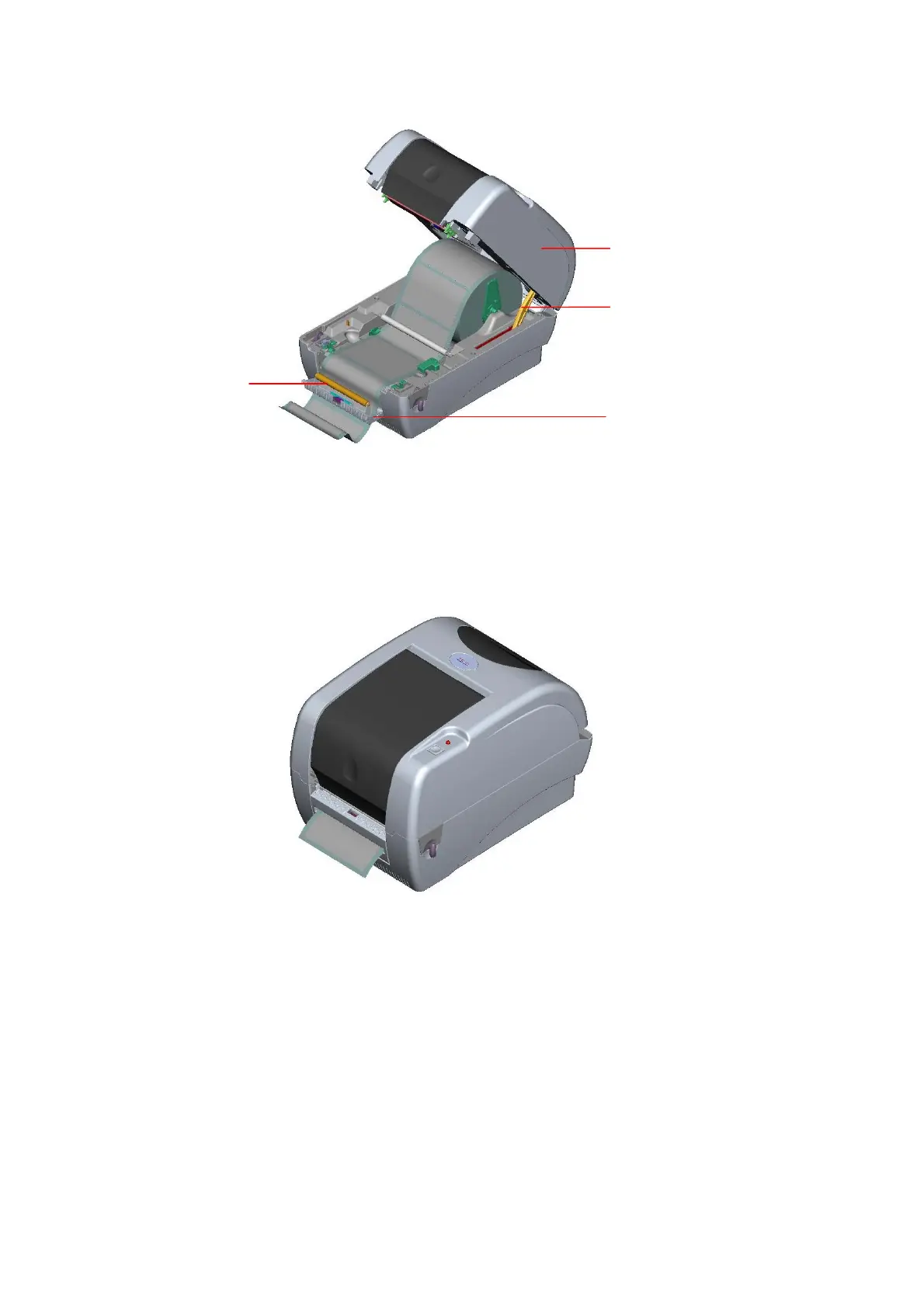
Fig. 20 Lead the paper through the backing paper opening, beneath the roller
8. Push the peel-off panel back to the printer.
9. Close the top cover by lifting up the top cover support and close the top cover slowly.
Note: Pull the label outward tightly after closing the top cover.
Fig. 21 Complete label installation for peel-off mode
3.6 Cutter Module Installation (Option)
1. Pull the top cover open levers to open the top cover.
2. Remove the front panel from the lower cover.
Roller
Top Cover
Top Cover Support
Peel-off panel



 To Next Page