GraphicProducts.com | 800-788-5572
Loading Supplies | 9
LOADING SUPPLIES
To load your Toro Max with printing ribbon (“ink”) and
label stock, you will need to fully raise the hinged cover.
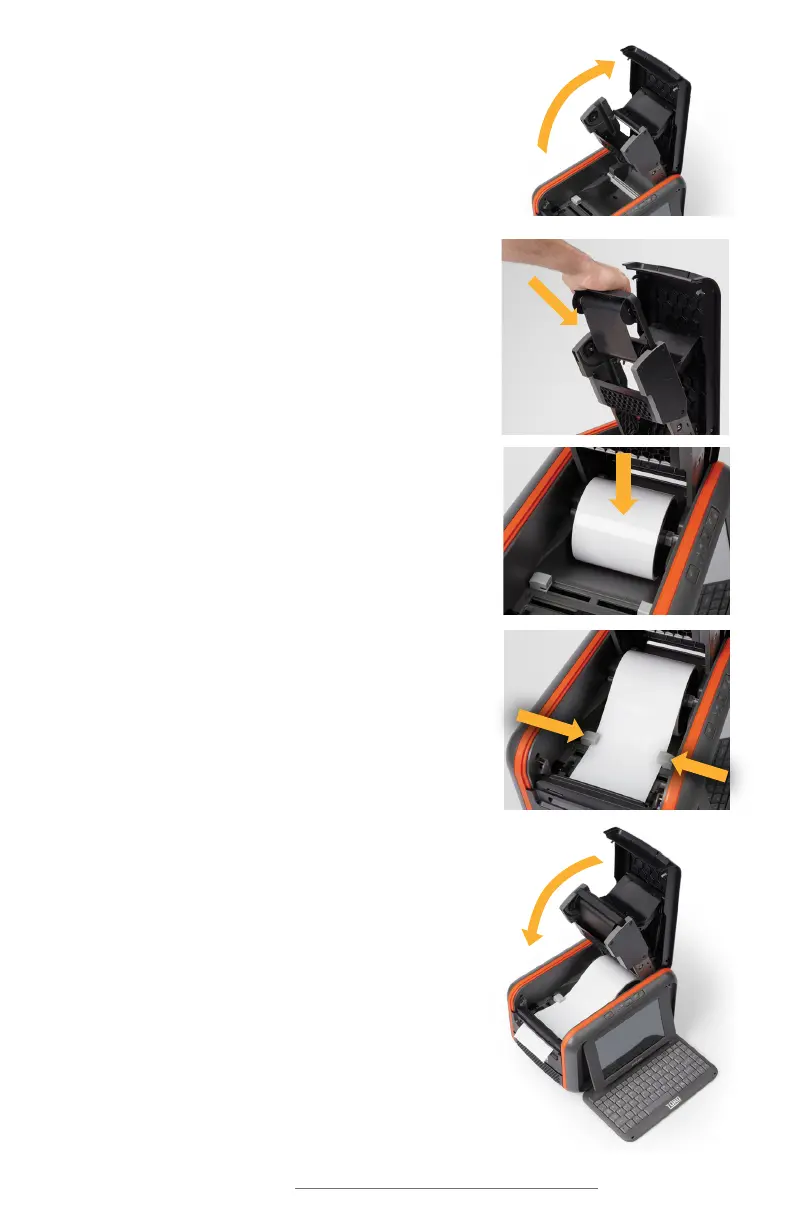
1. Lift the cover release latch and raise the cover of
the printer; the ribbon rails will raise automatically.
Make sure the cover and rails are fully raised
before continuing.
2. Slide the ribbon cartridge into the slot in the rails.
The cartridge will only fit the correct way, and a
magnet will hold it in place. (To remove a ribbon
cartridge, simply pull it out.)
3. Place the roll of label stock onto the supply spindle;
for narrower supplies, hold the label stock roughly
centered on the spindle by sliding a fixing tab onto
the spindle from each side. Rest the supply in the
supply well, with the spindle fitting into its slots.
Fresh label stock should feed toward the cutter
module, with the printable surface facing upward.
4. Slide the movable gray guides apart, and feed the
end of the label stock forward to reach over the
platen roller. (You can flip the cutter module down
for more room; simply pull the top edge away from
the body of the printer.)
5. Slide the movable gray guides together so they
hold the label stock neatly centered in the
printer, without bending or wrinkling the label
stock.
6. If you lowered the cutter module, lift it back into
its ready position; it will snap into place. Finally,
lower the cover until it latches closed; the ribbon
rails will lower into place automatically.
Your Toro Max will recognize the supplies you have
loaded and automatically adjust its print settings for
the best quality. Now you’re ready to design and
print custom labels!
4



 To Next Page