6
Adding Font Styles
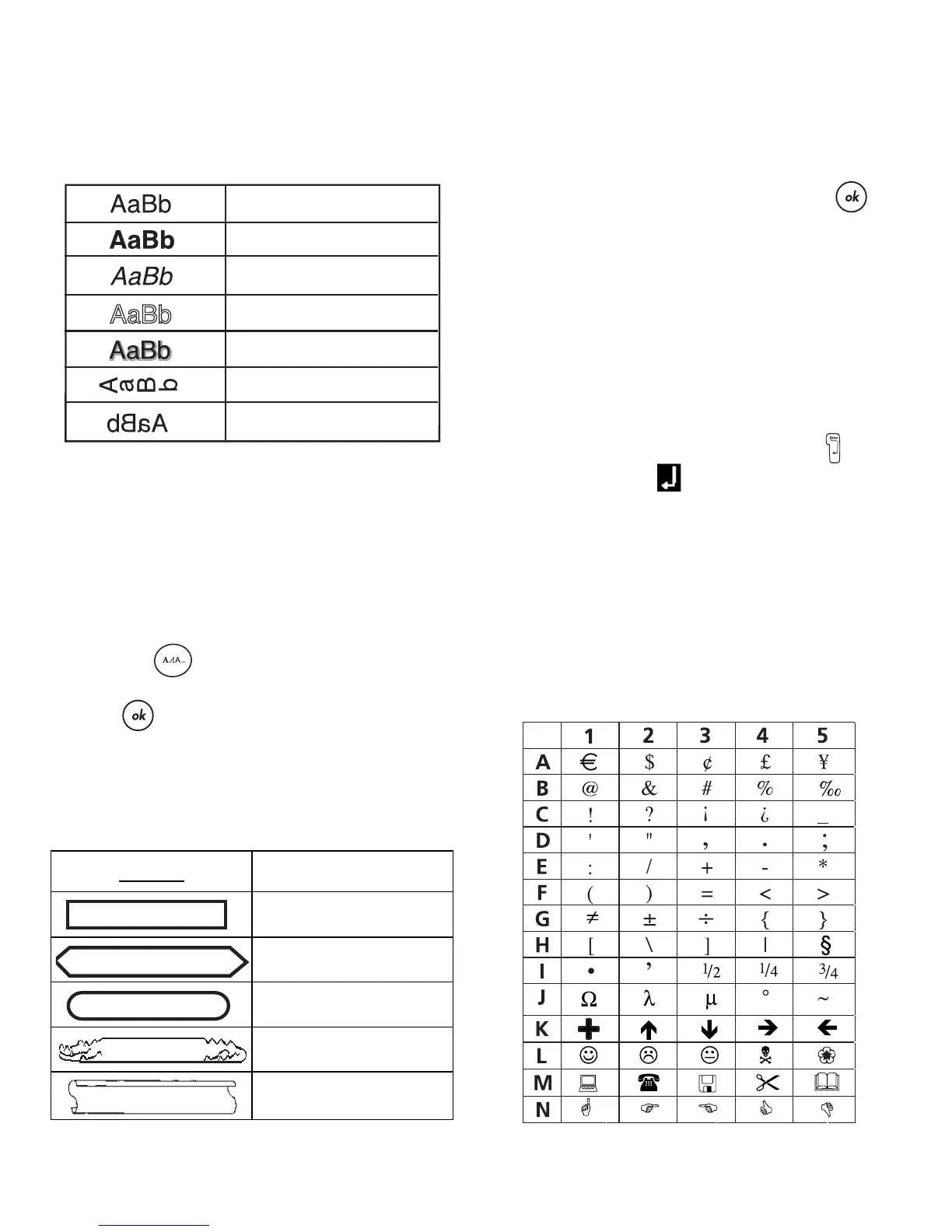
You can choose from six different font styles in
addition to Normal:
Figure 7
When you select a style, that style applies to all
characters. Styles can be used with alphanumeric
characters and symbols. See Using Symbols and
Special Characters on page 6 for more
information on printing symbols.
To set the font style
1. Press the key.
2. Use the arrow keys to select a style and then
press .
Adding Box and Underline Styles
You can further highlight your text by choosing a
box or underline style.
Figure 8
A label can be underlined or enclosed in a box, but
not both together.
To add an underline or box style
1. Press the
>
key.
2. Select underline or a box style and press .
On multi-line labels, both lines are underlined. In
box-style mode, all the lines are enclosed in one
box style.
Creating Multiple-Line Labels
You can print a maximum of two lines on
3/8" (9 mm) and 1/2" (12 mm) labels.
To create a multiple-line label
1. Type the text for the first line, and press . A
new line character is displayed at the end of
the first line, but will not print on the label.
2. Type the text for the second line.
Using Symbols and
Special Characters
Symbols and other special characters can be
added to your labels.
Figure 9
DYMO
Underline
Square Box
Pointed Box
Rounded Box
Crocodile Box
Scroll Box
Normal
Bold
Italic
Outline
Shadow
Vertical
Mirror
DYMO
DYMO
DYMO
DYMO
DYMO








 To Next Page