3
2. Installing the Software
NOTE Do not connect the printer to your computer until instructed to do so during
the software installation.
To install the software on a Windows system
1 Insert the LabelWriter CD into your CD-ROM drive. After a few seconds, the
installation screen appears.
If the installation screen does not appear:
a. Click Start, then Run on the Windows taskbar. The Run dialog box
appears.
b. Enter D:\install.exe (where D is the letter assigned to the CD-ROM drive)
and click OK.
2 Click Install and follow the instructions in the installer.
To install the software on a Mac OS system
1 Insert the DYMO LabelWriter CD into the CD-ROM drive.
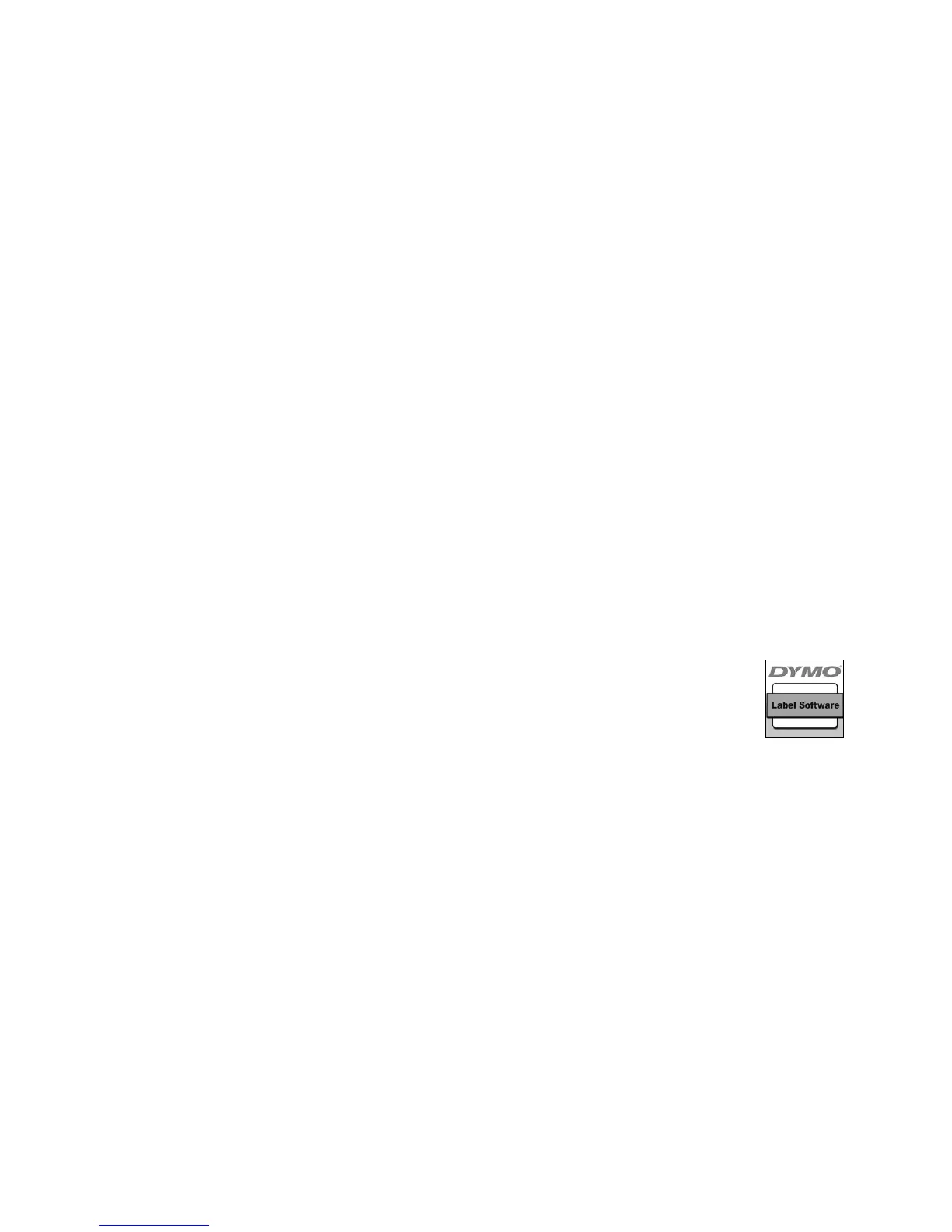
After a few seconds, the DYMO Label Software Installer
icon appears. See Figure 3.
2 Double-click the Installer icon and follow the instructions.
If you do not see your printer in the printer list when the installation is
complete, refer to the ReadMe file for instructions on how to add the printer.



 To Next Page
 Loading...