25
XTL
®
300
User Guide
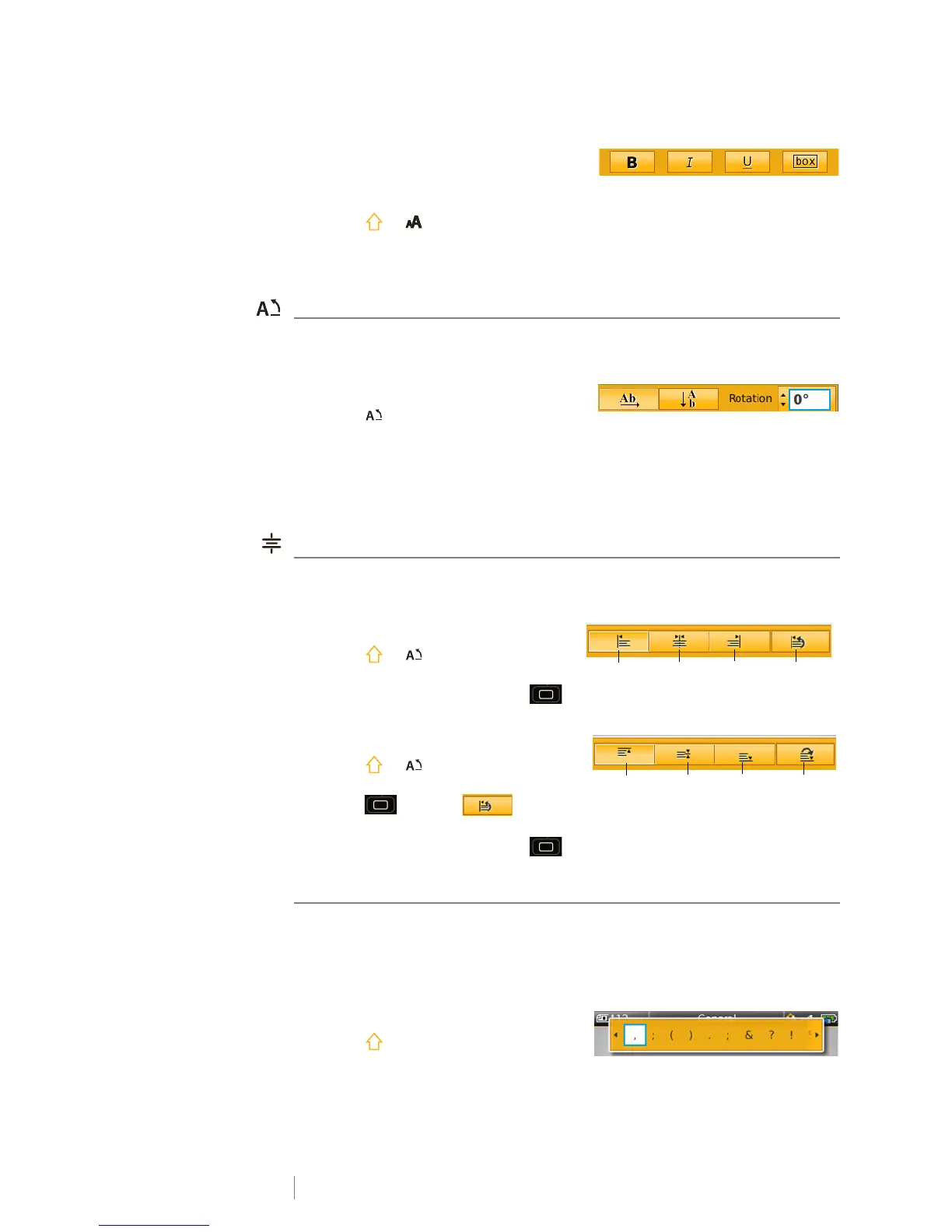
To change the text style.
1 Select some text.
To apply the style to all the text, select the text box.
2 Press + .
The Text Style tool appears.
3 Use the function keys to select one or more styles.
Rotating the Text
The text on your label can appear horizontally or vertically. You can also rotate the
text in 90 degree increments.
To rotate the text
1 Press .
The Text Orientation tool appears.
2 Use the function keys to select an orientation.
3 Use or to select a rotation.
To create a vertical label, see Creating a Vertical Label on page 26.
Aligning the Text
The text on your label can be aligned left, center, or right, vertically and
horizontally.
To align the text horizontally
1 Press + .
The Text Alignment tool appears.
2 Press one of the function keys
to select an alignment.
To align the text vertically
1 Press + .
The Text Alignment tool appears.
2 Press to select to show
the vertical alignment choices.
3 Press one of the function keys to select a vertical alignment.
Inserting Punctuation
Punctuation characters can be inserted on your label. Once inserted, the
character is treated the same as any other text.
Refer to Symbols on page 49 for the complete list of punctuation characters
available.
To insert a punctuation
1 Press + any numeric key.
The Symbols tool appears.
2 Use or to scroll through the list of characters available.
Align
left
Align
center
Align
right
Show vertical
alignment
Align
top
Align
center
Align
bottom
Show
horizontal
alignment








 To Next Page