30
XTL
®
300
User Guide
Select the characters to serialize.
Set the increment: value to increase for each increment in the series.
Set the count: number of times to increment the series which creates new
cells or labels depending on the type of label you are creating.
You can use serialization to:
Auto-fill multi-cell labels such as patch panel, breaker, distribution panel, 110-
block, or terminal block labels. The cells are filled by each increment in the
series. If necessary, additional cells are created.
Create a series of labels by incrementing the data. A new label is created for
each increment in the series.
To start serialization, the cursor must be in a text box that can be serialized or a
barcode must be selected.
You can select up to five characters for serialization. And, you can choose to
create the series sequentially. (A1, A2, A3, B1, B2, B3...)
Serialization creates new labels or, as in the case of a patch panel label, fills the
existing cells on the label and, if necessary, creates new labels.
You can view the series as you add and change the values.
To create a series
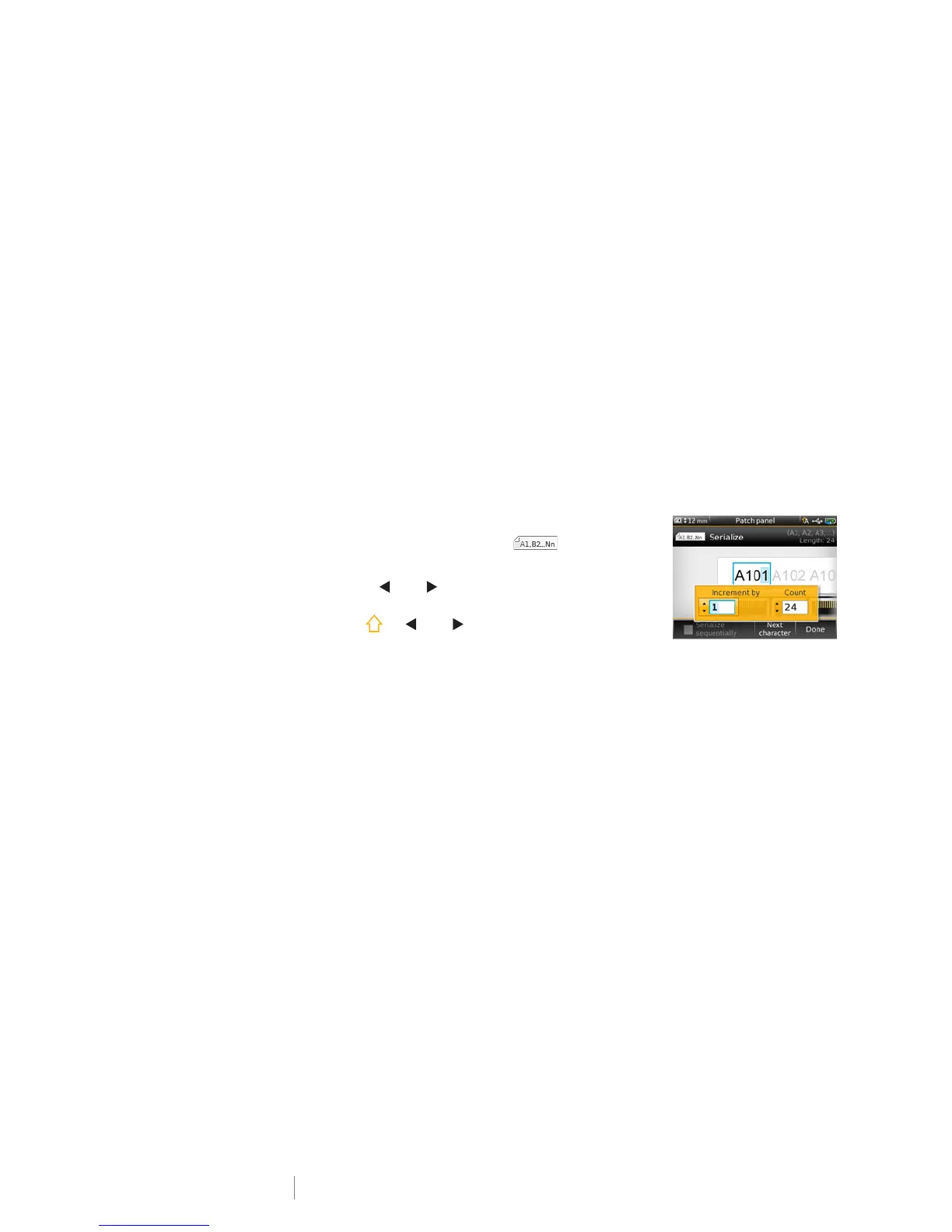
1 From the edit screen, select .
The Serialization tool appears.
2 Use the and to select the character to
serialize.
Press + and to expand the selection to
more than one character.
3 Select values for Increment by and Count.
4 To serialize multiple characters at the same time, select Next character and
repeat steps 2 and 3.
5 To serialize a character sequentially, select the Serialize sequentially check
box.
6 Select Done when finished.
When serialization is complete, the cursor is positioned at the end of the new
series.








 To Next Page