EasyManua.ls Logo

Dynex DX-L32-10A - User Manual

Dynex DX-L32-10A
40 pages
Print Icon
To Next Page IconTo Next Page
Loading...
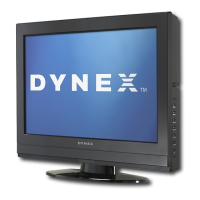
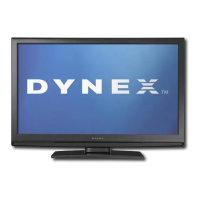
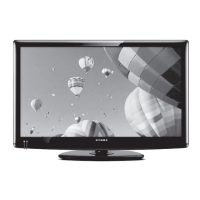
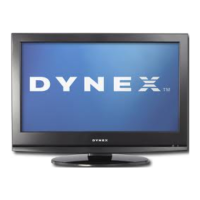
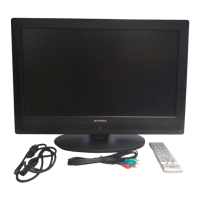
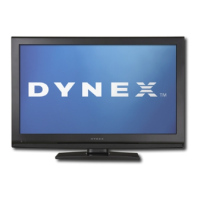
32" LCD TV
DX-L32-10A
USER GUIDE

Table of Contents

Other manuals for Dynex DX-L32-10A

Questions and Answers

  • M
    Michael ParkerAug 18, 2025
    Why is my Dynex DX-L32-10A LCD TV remote control not working?
    • L
      lisafarmerAug 19, 2025
      If your Dynex LCD TV remote control isn't working, try these steps: First, ensure the TV's power cord is plugged in. Check for any obstructions between the remote and the TV's remote control sensor. Make sure the batteries are correctly installed. If it still doesn't work, replace the batteries with new ones.
  • S
    sanchezshaneAug 21, 2025
    What to do if my Dynex DX-L32-10A has no picture and no sound?
    • D
      daniel43Aug 21, 2025
      If your Dynex LCD TV has no picture and no sound, ensure the power cord is properly plugged in. Then, press the POWER button on either the TV or the remote control. Verify that the correct video input source is selected. You might also want to try changing the channel, as the station itself could be experiencing technical difficulties.
  • T
    Tyler PhillipsAug 23, 2025
    What to do if my Dynex DX-L32-10A has good picture but no sound?
    • W
      westjamesAug 23, 2025
      If your Dynex LCD TV has a good picture but no sound, first ensure that the sound is not muted. Also, check that the sound mode is set to either Stereo or Mono.
  • J
    Julia SilvaAug 26, 2025
    What to do if my Dynex DX-L32-10A LCD TV displays a dark, poor picture but the sound is good?
    • M
      Mr. Charles RiosAug 26, 2025
      If your Dynex LCD TV screen is lit but the picture is dark or poor and the sound is good, try the following: Adjust the brightness settings. Ensure that the correct picture mode is selected. Verify that the antenna or cable TV connection is correctly and securely connected.
  • M
    Megan BrownAug 27, 2025
    What to do if the control buttons on my Dynex LCD TV do not work?
    • J
      James CannonAug 28, 2025
      If the control buttons on your Dynex LCD TV are not working, disconnect the power cord, wait a few seconds, then reconnect the power cord and turn on the TV.
  • S
    Samuel SullivanAug 30, 2025
    How to fix audio noise on Dynex DX-L32-10A LCD TV?
    • S
      Sherry MclaughlinAug 30, 2025
      To address audio noise on your Dynex LCD TV, ensure there is no interference from infrared equipment like cordless phones or headphones. If such equipment is nearby, move it away from the TV to see if the noise disappears.
  • A
    Angela HortonSep 1, 2025
    What to do if I forgot the password on my Dynex DX-L32-10A LCD TV?
    • J
      josephwoodSep 1, 2025
      If you've forgotten the password on your Dynex LCD TV, enter 9999 to access parental controls, then set a new password.
  • L
    Lee DixonSep 3, 2025
    What to do if my Dynex DX-L32-10A LCD TV only shows snow (noise) on the screen?
    • D
      Diane CarterSep 3, 2025
      If your Dynex LCD TV screen only displays snow or noise, try changing to another channel as the station may be experiencing problems. Also, make sure the antenna or cable TV is connected correctly and securely.
  • L
    Laura SmithSep 6, 2025
    Why some settings cannot be accessed on Dynex DX-L32-10A LCD TV?
    • J
      James HendersonSep 6, 2025
      If a setting is grayed out on your Dynex LCD TV, it means that the setting is not available in the current video input mode.
  • N
    Nicholas CoxSep 8, 2025
    What to do if my Dynex DX-L32-10A LCD TV has one or more channels that do not display?
    • W
      walexanderSep 8, 2025
      If one or more channels do not display on your Dynex LCD TV, ensure that the channels are not blocked or hidden.

Summary

CHILD SAFETY

Tune Into Safety

Provides essential safety tips for TV placement, preventing tip-overs, and child safety.

Wall Mounting Safety

Covers guidelines for secure wall mounting, including using rated mounts and professional help.

Important Safety Instructions

Safety Warnings and Precautions

Details hazards like electric shock, lightning, power lines, and LCD panel safety.

Replacement Parts and Safety Checks

Emphasizes using manufacturer-specified parts and performing safety checks after service.

Power Source Guidelines

Instructs users to operate the TV only from the indicated power source type.

Cautions and Warnings

Damage Requiring Service

Lists conditions like damaged cords or liquid spills that require professional servicing.

Outdoor Antenna Grounding

Provides information on grounding outdoor antenna systems for protection against surges.

Condensation and Other Warnings

Advises on managing condensation and notes mobile phone, end-of-life, and pixel information.

Stand Installation and Removal

Installing the TV Stand

Detailed instructions for attaching the TV stand to the display.

Wall-Mount Bracket Installation

Guidance on removing the stand and attaching a wall-mount bracket using screws.

TV Components Overview

Front and Side Component Identification

Identifies components and buttons on the front and side of the TV.

Back Panel Connections

Power and Audio Ports

Details AC power input, headphone jack, and audio output connections on the back panel.

Video Input Ports (HDMI, AV, Component, S-Video)

Explains connections for HDMI, AV, Component, and S-Video devices.

Computer and RF Inputs

Covers VGA/audio connections for computers and RF input for antennas.

Remote Control Operations

Basic Operation Buttons (Power, Input, Volume, Menu, Enter)

Describes the function of primary buttons like Power, Input, Volume, Menu, and Enter.

Channel and Information Buttons

Details buttons for channel selection, guide, recall, and favorite lists.

Special Function Buttons (MTS;SAP, CCD, ZOOM, PICTURE, VIDEO, TV)

Explains buttons for audio modes, closed captioning, aspect ratio, and input selection.

Remote Control Usage

Installing Remote Control Batteries

Provides step-by-step instructions for inserting batteries into the remote control.

Aiming the Remote Control

Explains how to point the remote control towards the TV's sensor for operation.

Making Connections

Universal Remote Programming

Guides users on programming a universal remote using provided codes for TV operation.

Selecting a TV Location

Offers advice on choosing an optimal location for the TV to reduce eye strain and reflections.

Connecting the Power Cord

Details the process of connecting the TV's power cord to the outlet for operation.

Connecting External Devices

Antenna, Cable TV, Satellite Box Connection

Explains connecting an antenna, cable, or satellite box using a coaxial cable to the RF jack.

Connecting a VCR

Provides instructions for connecting a VCR using standard AV cables to the AV1 input.

Connecting AV and HDMI Devices

Camcorder and Game Console Connection

Guides on connecting camcorders or game consoles via AV2 or HDMI for playback.

HDMI Device Connection

Instructions for connecting devices like Blu-ray players or game consoles via HDMI for high-quality output.

Component Video Device Connection

Details connecting devices using component video cables for enhanced picture quality.

Connecting Video Sources

S-Video Device Connection

Explains connecting S-Video devices using an S-Video cable and audio cables to the AV1 jacks.

Computer Connection (VGA)

Guides on connecting a computer via VGA and audio cables for display on the TV.

Initial TV Setup

Connecting Headphones

Instructions for plugging headphones into the TV's headphone jack for private listening.

Connecting an Audio Amplifier

Guides on connecting the TV audio output to an external audio amplifier for enhanced sound.

First Time TV Setup Wizard

Guides through the initial setup wizard for language, time zone, and auto scan channel search.

Understanding TV Basics

Turning TV On and Off

Explains how to turn the TV on, off, and put it into standby mode using the power button.

Selecting Video Input Source

Details how to use the INPUT button to switch between different video sources and devices.

On-Screen Menu Overview

Shows examples of the Picture and Audio menus for adjusting TV settings.

Navigating Menus and Channels

Navigating TV Menus

Explains how to use the MENU, ENTER, and navigation buttons to control menus and select options.

Selecting TV Channels

Details methods for changing channels using number buttons, CH buttons, RECALL, and FAVORITE lists.

Picture Adjustment

Digital Sub-Channels Explained

Explains what digital sub-channels are and how they are indicated with numbers and dots.

Adjusting Volume and Basic Picture Settings

Guides on controlling volume and adjusting picture settings like brightness, contrast, and color.

Adjusting TV Picture Settings

Explains how to access and adjust picture settings via the Picture menu for optimal viewing.

Advanced Picture Settings

Advanced Video Settings

Details how to adjust Color Temp, Zoom Mode, Noise Reduction, Overscan, and Adaptive Contrast.

Adjusting Computer Image Settings

Guides on adjusting picture settings specifically for a connected computer display via VGA.

Sound Adjustment

Adjusting General Sound Settings

Explains how to adjust Sound Mode, Bass, Treble, Balance, Surround, and AVC for optimal audio.

Selecting Audio Mode

Details how to select audio modes like MONO, STEREO, SAP for analog channels and audio tracks for digital.

Channel Settings Management

Playing TV Audio Only

Instructions on how to turn off the TV picture to listen to audio only.

Automatic Channel Scanning

Guides on performing an automatic scan to find and tune available TV channels.

Channel List Management

Hiding Channels

Explains how to delete channels from the list so they are skipped when browsing.

Selecting Signal Source

Details how to select the signal source for channel scanning or viewing different inputs.

Customizing Channel Lists

Setting Up Favorite Channels

Guides on creating a list of favorite channels for quick access via the FAVORITE button.

Labeling Channels

Explains how to label or relabel channels for easier identification in the channel list.

Parental Controls Setup

Enabling Parental Controls

Instructions on how to turn the parental control feature on or off and set up system lock.

Checking DTV Signal Strength

Explains how to check the DTV signal strength for better picture quality and reception.

Parental Controls Configuration

Setting or Changing Parental Password

Guides on setting or changing the password required to access and modify parental controls.

Setting Parental Control Levels

Setting Rating Levels

Explains how to block content based on TV or movie ratings (U.S. and Canadian) for age-appropriate viewing.

Rating Information Management

Downloading Rating Information

Guides on downloading rating information to use with parental controls for content blocking.

Closed Captioning Features

Turning Closed Captioning On;Off

Instructions on how to turn closed captioning on or off using the menu or CCD button.

Selecting Closed Captioning Mode

Details how to select different closed captioning modes like basic, CC on Mute, or advanced selections.

Customizing Closed Captioning

Customizing DTV Closed Captioning Styles

Guides on customizing DTV closed captioning display styles, including font and color options.

Time and Timer Settings

Setting the Clock

Instructions for setting the TV's internal clock, time zone, and daylight saving time.

Setting the Sleep Timer

Explains how to set the sleep timer to automatically turn off the TV after a specified duration.

Menu Settings Adjustment

Menu Language and Transparency

Guides on selecting the on-screen menu language and adjusting the transparency level of menus.

Input Source Management

Labeling Input Sources

Explains how to add custom labels to TV input sources for easier identification.

Restoring Default Settings

Guides on resetting most customized TV settings to their factory defaults.

Troubleshooting Guide

Video and Audio Troubleshooting

Provides solutions for common video and audio problems like no picture, no sound, or poor quality.

Remote Control Troubleshooting

Offers solutions for issues where the remote control is not working correctly.

General Troubleshooting

Addresses common issues such as channels not displaying, forgotten passwords, or inaccessible settings.

Maintenance, Specifications, and Legal Notices

Cleaning the TV

Provides instructions on how to clean the TV screen and surfaces safely and effectively.

Technical Specifications

Lists technical details such as panel type, dimensions, power consumption, and input/output ports.

FCC and Regulatory Information

Covers FCC compliance, warnings, and Canadian regulatory statements for the device.

Legal Notices and Warranty

One-Year Limited Warranty

Outlines the terms, coverage, and limitations of the product's one-year limited warranty.

Dynex DX-L32-10A Specifications

General IconGeneral
Screen Size32 inches
Display TypeLCD
Resolution1366 x 768
Aspect Ratio16:9
HDMI Ports3
USB Ports1
Refresh Rate60 Hz
Contrast Ratio1000:1
Response Time8 ms
InputsComponent, Composite
Viewing Angle178°

Related product manuals