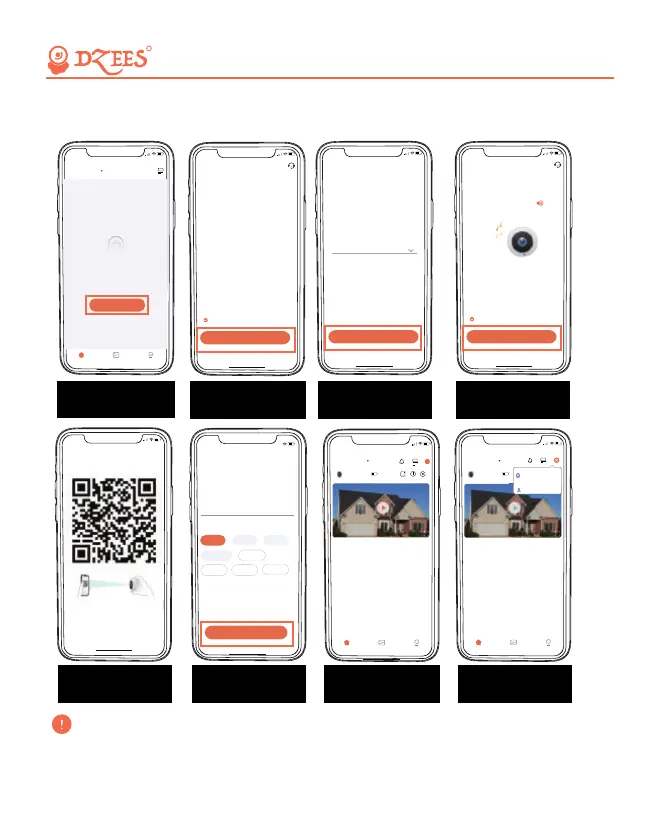
5.2 Connect Camera to App
Sign in Dzees Home App,
add the camera.
Turn on camera Confirm connection mode
5:45
All camera
Add Camera NOW!
Home Library User
No camera
you have not added any camera yet.
Add another cameraSetup done
Name the camera and
mark location
5:39
....
Set the camera name
and Location
Location
Camera Name
Smart Camera
Edit
Finish
Garden
Default location
Back doorFront door
Living room
Bedroom Office
+
Connect to Wi-Fi
(Choose 2.4GHz Wi-Fi
and input correct password)
All about Your Smart Security
R
Turn on your camera
and scan QR code
5:46
<
Continue
Scan QR code to connect
5:46
<
Next Step
Cannot turn on?
Turn on the camera according to
the camera body guide
I hear the scanning sound or see the light on.
Please press the power button or
connect a power source until you
hear a scanning sound or see the
light on.
14:04
<
Next Step
Didn't hear the scanning sound?
Confirm whether the camera is
emitting a beeping sound
I heard the scanning sound
"Ding Dong Ding Dong"
If you can't hear 'Ding Dong Ding Dong', please double-click the
power button to enter the network configuration mode again.
6-12 inches
After the connection is successful,it will
automatically jump to the next step.
5:48
Home Library User
5:48
All camera
Home Library User
Smart Camera
Add a new camera
Add Friend's Camera
5:46
<
Next Step
Add a new camera
Please enter the network name(SSID) and
Learn more
Junan
Password
5GHz Wi-Fi and enterprise Wi-Fi are not supported.
password to be connected to the camera.Currently
All camera
Smart Camera
+
07


 To Next Page