E-max Gaming Corporation, Inc.
25
5.5 Using the Toolbar
The system Toolbar located at the bottom of the Live Game Screen allows you to change games,
advertisements, marquees and caller preferences. First, let’s navigate to a new game in this schedule.
Touching the NEXT on the toolbar will move you
forward to the next game or the next part of the
current game. The NEXT button will become
disabled when you reach the last part of the last
game in the schedule.
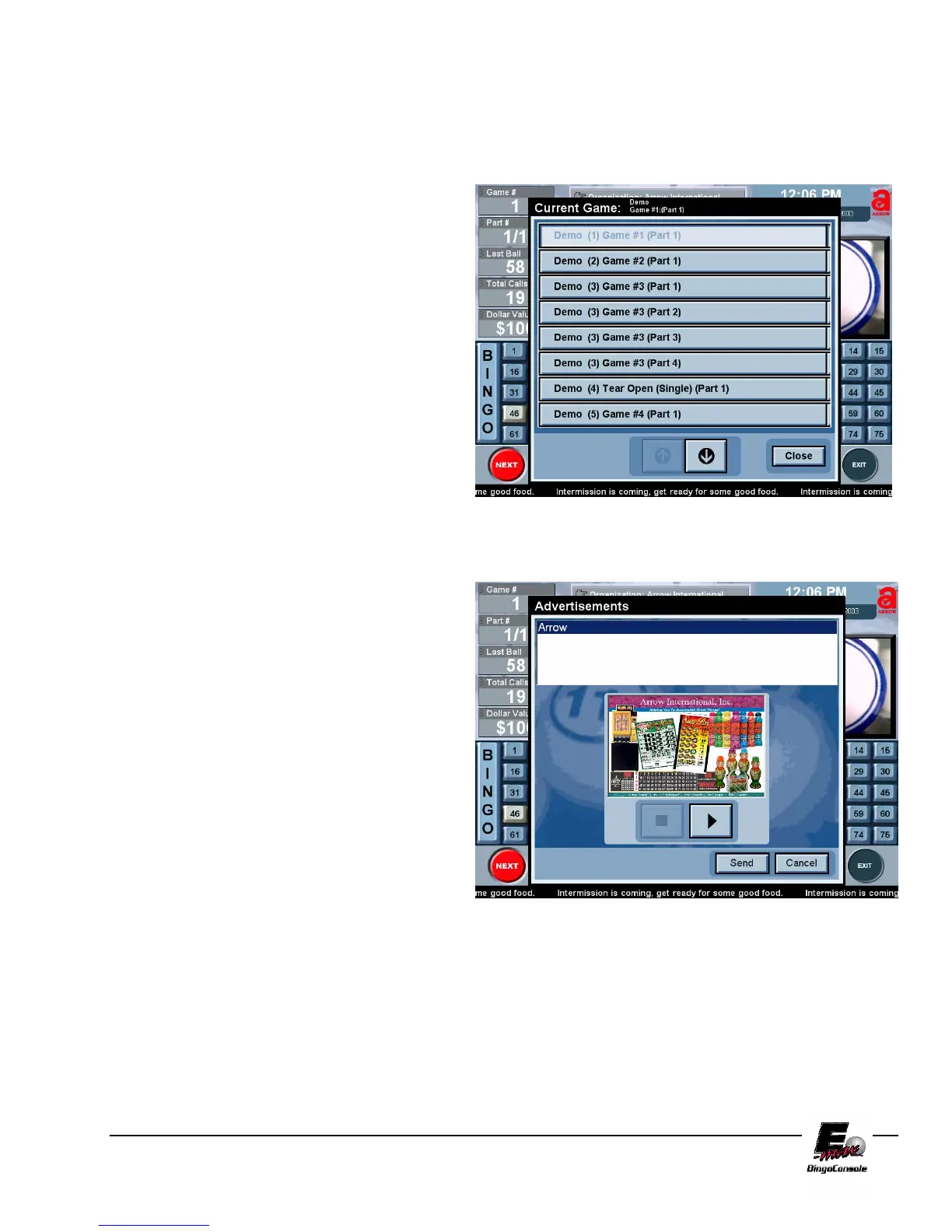
Touch the SELECT button on the Live Game
Screen. This will bring up the Game Selection
screen. This screen is a scrollable list of all the
games in the schedule. The current game being
played is displayed at the top of the screen. To
change the current game, scroll the game you wish
to play using the arrow buttons at the bottom of
the screen, and select the desired game from the
list. (Figure 5.7)
The ADVERT button brings up the
Advertisements screen where you can select an
advertisement to be played immediately. (Figure
5.8). The advertisement will be displayed on the
Live Video Window in real time when the SEND
button is touched. (To add advertisements see
Chapter 6 System Programming)
Figure 5.8
Figure 5.7



 To Next Page