E-max Gaming Corporation, Inc.
31
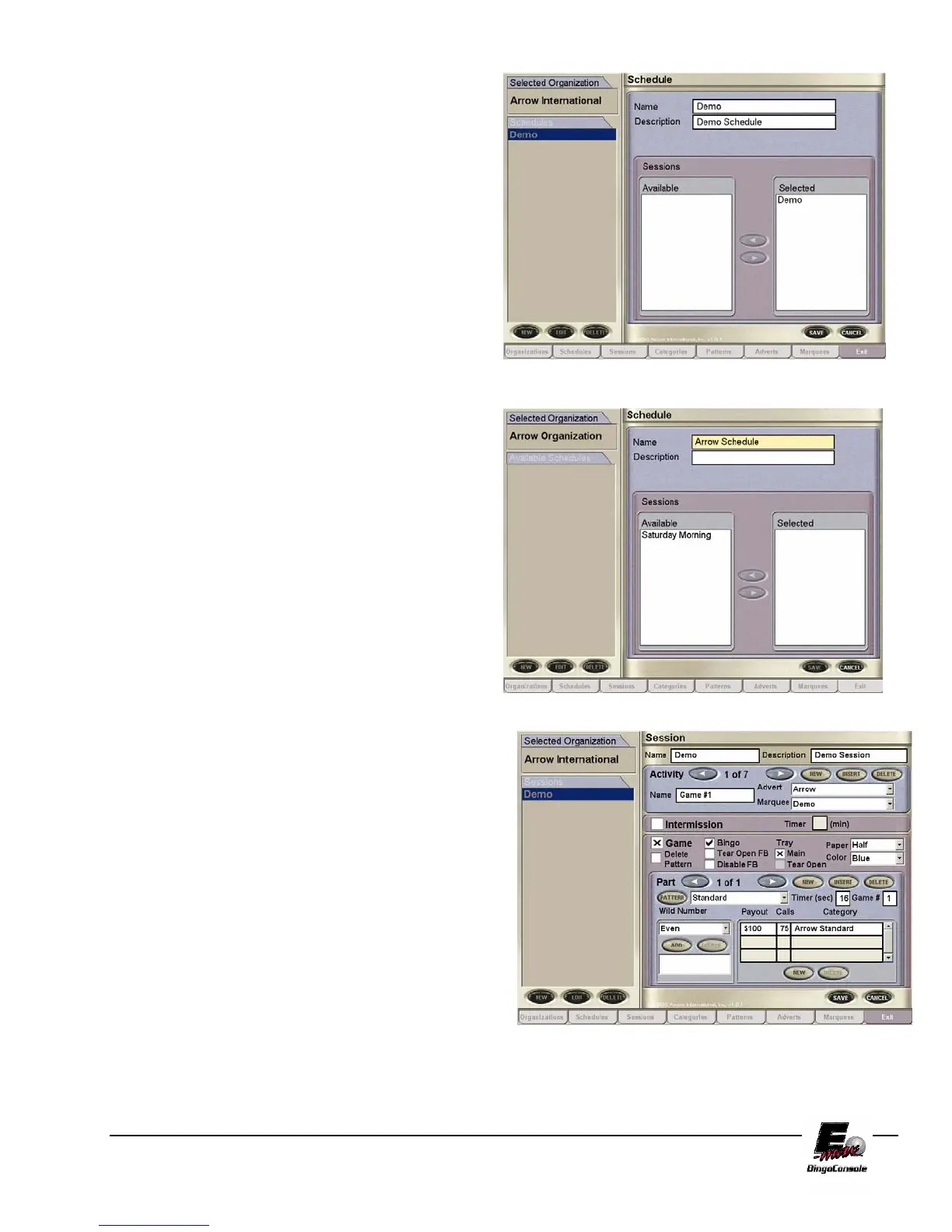
To create a schedule(s) touch the Schedules tab.
The Schedules screen is now displayed (Figure
6.4).
To create a new schedule, touch the NEW button
and type in Arrow Schedule in the Schedule Name
Screen and touch the OK button.
To select the previously loaded Quick Tour session
Demo, touch it then touch the right arrow button
and touch SAVE. This will move the Demo session
to the available sessions for Arrow International
Organization (Figure 6.5).
To edit and or create new sessions touch the
Sessions tab (Figure 6.6). This will display the
Sessions screen. In the sessions screen you can
create a new session, edit an existing session or
delete a session.
Figure 6.4
Figure 6.5
Figure 6.6



 To Next Page