3 GAUGE SETUP & NAVIGATION
The nGauge offers the ability to monitor vehicle sensors for real time display and data logging. Data sample rates will vary by vehicle.
This rate is a fixed amount and the total of active signals being monitored and logged will share this sample rate.
3.1 NAVIGATING GAUGES
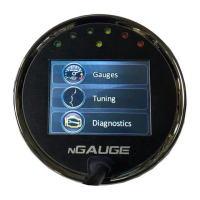
From the Main Menu tap [Gauges].
Tap on the [<] and [>] buttons to view other gauge display layouts.
3.2 ASSIGN A SIGNAL TO A GAUGE
Be sure the New Vehicle Setup (see section: 2.2 New Vehicle Setup/Find Signals) has been completed before assigning signals to a
gauge.
Ensure gauge is connected to vehicle through Gauges, Connect and Key is ON
1. Tap on the gauge region where the signal will be displayed.
2. Use the [<] or [>] to locate and select the signal you wish to monitor.
3. Tap [√] to save signal to nGauge.
3.3 CHANGE A SIGNAL DISPLAY
Ensure gauge is connected to vehicle through Gauges, Connect and Key is ON
1. Tap on the display tab
2. Use the [up] or [down] arrows to locate and select the attribute you wish to change.
3. Change the name, unit, color or high/low value range
4. Tap [√] to save signal to nGauge.
3.4 SET GAUGE LOW WARNING / HIGH WARNING-OPTIONAL
For the round gauges, the low and high warnings appear with fixed colors similar to a “redline” implementation. For the other gauges,
the value displayed by the gauge will change color when it reaches the warning thresholds. The color in the non-round gauges is
customizable via the Low/Normal/High Color selections in the Display menu.
To set a High/Low Warning:
1. Tap on the gauge where a High/Low Warning is to be set.
2. Tap [Display].
3. Tap on [High Warning] or [Low Warning].
4. Type in the desired upper or lower warning level number. Tap [+/-] to make the value negative.
5. Tap [√].
6. Tap [Return] to go back to the gauges.


 To Next Page