24
waypoint number it just used. Wait a few seconds
and the menu will clear automatically. Press the
EXIT key to erase the cursor.
Saving Your Present Position as a Waypoint
(Select Number Method)
The method shown above doesn’t let you choose
the waypoint number. You can pick the waypoint
number, then save your present position. To do
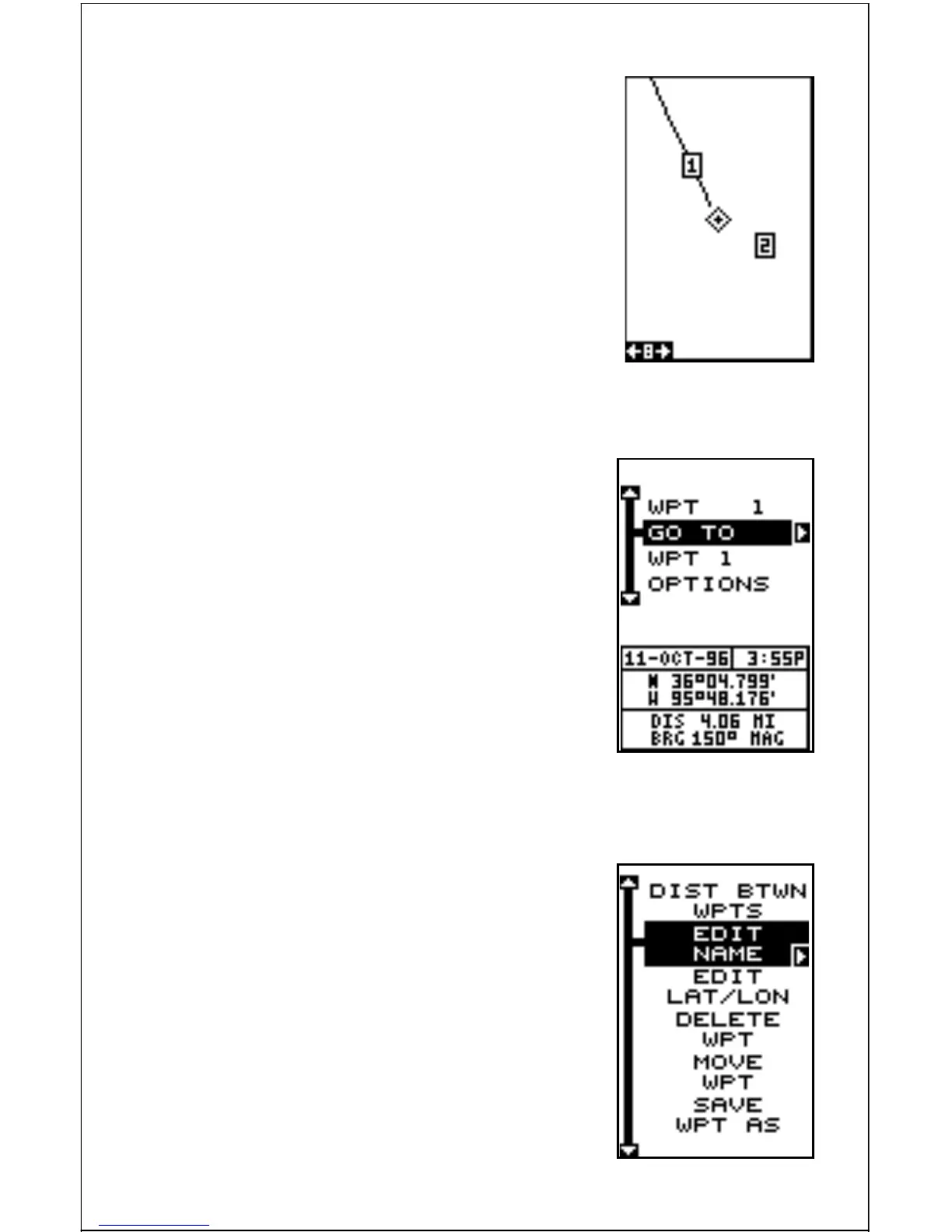
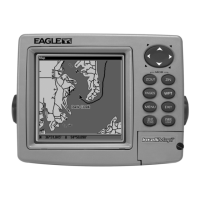
this, first press the WPT key once. A screen simi-
lar to the one at right appears.
Now press the up arrow key once. This is the
waypoint number selection menu. Press the left
or right arrow keys until the waypoint number ap-
pears that you wish to store your present posi-
tion. In this example, we’re going to store a posi-
tion as waypoint number 6.
Now press the down arrow key until the “WPT Options” label is high-
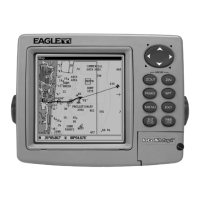
lighted. Press the right arrow key. A screen simi-
lar to the one shown at right appears.
Highlight the “SaveWPT As” label (shown at the
bottom of the menu) and press the right arrow
key when you’re at the location you wish to save.
This saves your present position under the way-
point number you selected on the first page.
Saving Cursor Position as a Waypoint
(Select Number Method)
To save the cursor position under a specific way-
point number, first position the cursor at the de-



 To Next Page