English
English
14
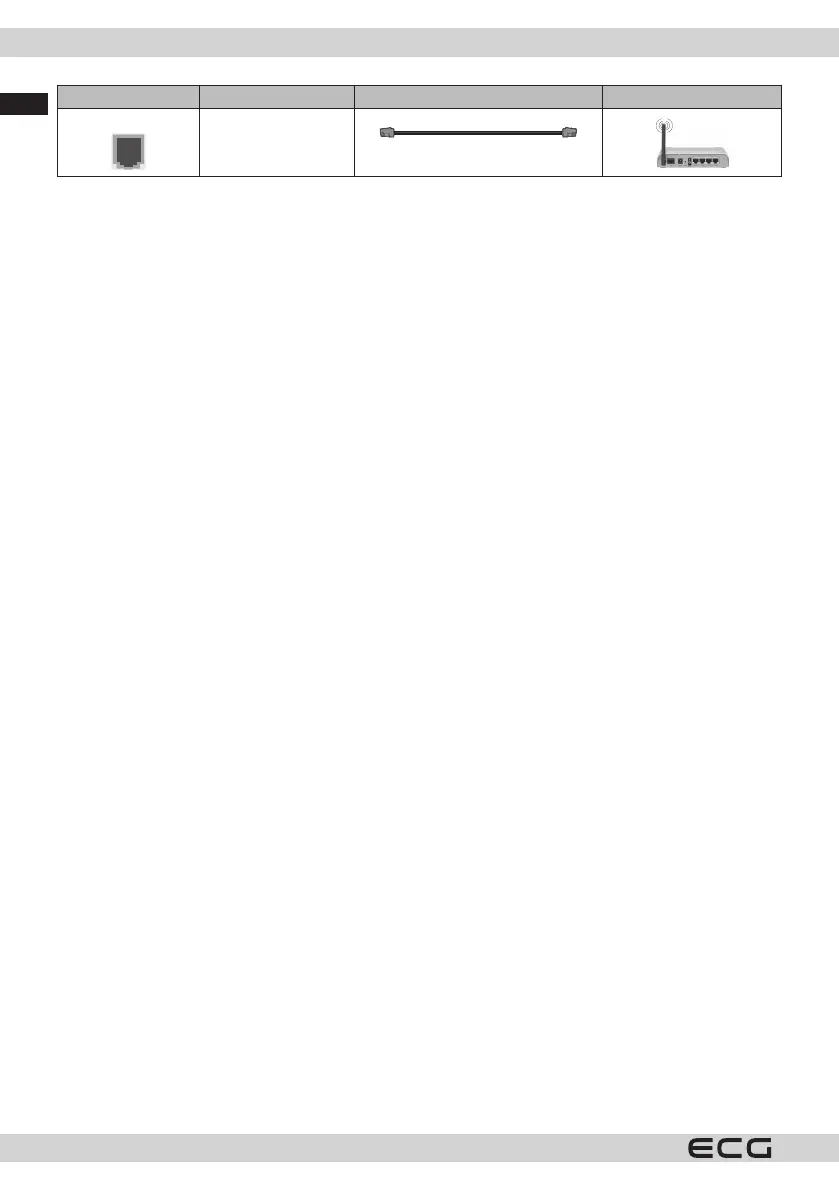
Connection Type Cables Facilities
Ethernet connection
(rear)
LAN/Ethernet cable
You can use a YPbPr to VGA cable to connect the YPbPr signal through the VGA input. VGA and YPbPr cannot be
used together. To enable PC/YPbPr audio, use the rear audio inputs with the YPbPr/PC audio cable to connect
the audio. When using the wall mounting kit (available from external dealers if not included), we recommend
that you connect all cables to the back of the TV before wall mounting. Insert or remove the CI unit only when
the TV is OFF. You should refer to the module's instruction manual for setup details. Each USB input on the TV
supports devices up to 500mA. Connecting devices above 500mA can damage your TV. When connecting your
device to your TV using an HDMI cable that provides sucient parasitic RF immunity, you will need to use a
shielded HDMI cable with a ferity (quality) HDMI cable.
WARNING: To connect a device to the TV, make sure the TV and the device are switched o before making any
connection. Once the connection is made, you can switch on the units and use them
INSTALLATION AND SETUP
First time installation
The rst time you turn it on, the Selection screen appears. Select the desired language and press OK. In the
following steps of the installation wizard, use the directional buttons and the OKbutton to set your preferences.
After selecting the language, you will be asked if you want to change the access settings. Highlight Yes and
press OK to change. For detailed information about the available options, see System menu contents.
On the next screen, set your country preferences. Depending on your Country settings, you may be prompted
to set and conrm your PIN at this time. The PIN code selected cannot be 0000. You will need to enter it later
whenever you are prompted for your PIN during menu operations.
Note: The type of M7 operator (digital satellite service provider) will be dened in accordance with the
Language and Country selection you made during Initial Installation.
At this point, you can activate Store Mode. This option congures your TV's storage settings and will be used
depending on the TV model on which the supported features may appear as an information banner at the top
side of the screen. This option is for in-store display purposes only. For home use, it is recommended to select
Home Mode. This option will be available in Settings > System > More, and you can change your preferences
for this setting later. Specify your choice and press OK to continue.
The image mode selection screen appears. If you want your TV to use less energy and be more environmentally
friendly, select Natural and press OKto continue. You can change your selection later using the Mode option
in Settings > Picture.
At this point, depending on your TV model, you may see the Privacy Settings menu. Use this menu to set
your permissions. Highlight a feature and press OK to turn it on or o. Before making any changes, carefully
read the relevant on-screen explanation for each highlighted function. Press the Right directional button to
highlight the text and use the Program +/- or Up/Down directional buttons to scroll up and down to read
the full text. You will be able to change your preferences at any time later in Settings > System > Privacy >
Privacy settings. If Internet Connection is disabled, the Network/Internet Settings screen is skipped and
does not appear.
Highlight the Next button and press the OK button on the remote control to continue. The Network/Internet
Settingsmenu will appear on the screen. To congure the network connection, see Connection. If you want
your TV to consume less power in standby mode, you can turn o the Network Standby feature by setting it
to O. When you have nished setting up, highlight the Next button and press OK to continue.
On the next screen, you can set the types of broadcasts to search, encrypted channel search and time zone
preferences (depending on the country selected). In addition, you can set the type of broadcast as your


 To Next Page