English
English
9
• HbbTV
• Ethernet (LAN) for internet connection
High Dynamic Range (HDR) / Hybrid Log-Gamma (HLG)
With this feature, the TV can reproduce a greater dynamic range of luminance by capturing and then combining
several dierent exposures. HDR/HLG promises better image quality with brighter, more realistic highlights,
more realistic colours and other improvements. It delivers the look that the lmmakers were trying to achieve,
allowing hidden areas of dark shadows and sunlight to come through with full clarity, color and detail. HDR/
HLG content is supported via native and portal applications, HDMI, USB inputs and via DVB-S broadcasting.
Included accessories
• Remote controller
• Batteries: 2 x AAA
• Operating manual
• Network cable
Emergency notications
If the TV does not receive any signal (e.g. from an antenna or HDMI source) for 3 minutes, it will switch to
standby mode. When the TV is switched on again, the following message appears: "The TV automatically
switches to standby mode because it hasn't received any signal for a long time." You can disable this feature by
setting the No signal timer option in Settings > Devicesaccordingly.
The Automatic TV o option (in Settings > System > More) can be set to between 1 and 8 hours by default.
If this setting is not set to O and the TV has been left on and not operated after the set time has elapsed, it
will switch to standby mode after the set time has elapsed. When the TV is switched on again, the following
message appears: "The TV automatically switches to standby mode because no operation has been performed
for a long time." A dialog box appears before the TV switches to standby mode. If you do not press any
buttons, the TV will switch to standby mode after 5 minutes. To immediately put the TV into standby mode,
highlight the Yes button and press OK. If you highlight No and press OK, the TV will remain active. You can also
deactivate the Auto Shutdownfeature in the dialog box. Mark Disable and press OK, the TV will remain active
and the function will be cancelled. You can re-enable the feature by changing the settings for Auto Power O
in Settings > System > More.
CONTROL BUTTONS AND TV OPERATION
Note: The position of the control buttons may vary depending on the model.
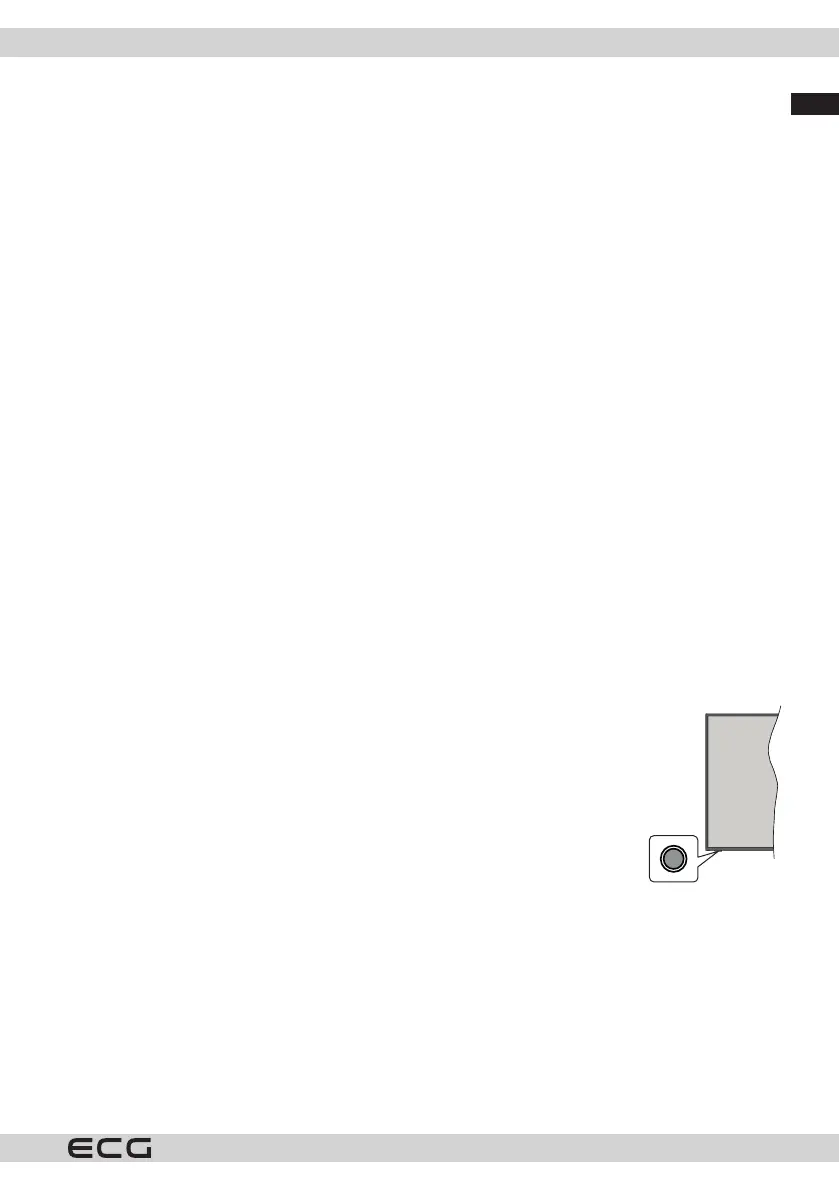
Your TV has a single control button. This button allows you to control functions on the TV
such as Power/Source/Programs and TV.
One-button control
• Press the control button to display the function selection menu.
• Then press the button one at a time to focus on the option you need.
• Hold the button for 2 seconds to activate the selected option. The colour of the
option icon will change when activated.
• Press the button again to use this function or to enter a submenu.
• To select a dierent function, you must rst deactivate the last activated option.
• Press and hold the button to deactivate it. The colour of the option icon changes when you deactivate it.
• To close the function menu, do not press the button for approximately 5 seconds. The menu of feature
options disappears.
Turning o the TV: Press the control button to display the function options menu, the focus will be in Standby
mode. Hold the button for 2 seconds to activate this option. The colour of the option icon will change when
activated. Press the button again to turn o the TV.
Turning on the TV: Press the control button and the TV will switch on.



 To Next Page