English
English
18
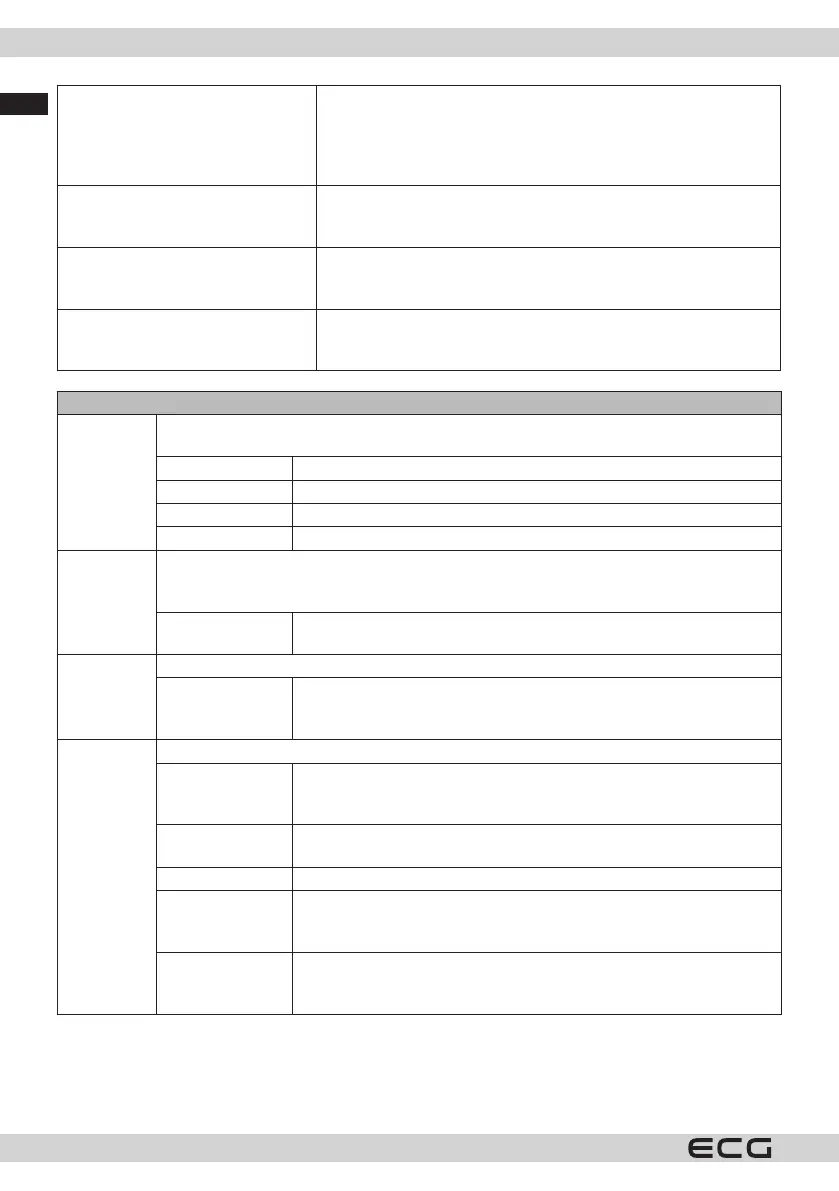
Audio and Video Sharing This feature allows you to share les stored on your smartphone
or tablet. If you have a compatible smartphone or tablet and have
the necessary software installed on it, you can share/play photos
on your TV. If you share the software, see the instructions for more
information.
Timer without signal If the TV does not receive any signal (e.g. from an antenna or HDMI
source) for 3 minutes, it will switch to standby mode. You can enable
or disable this feature by setting this option accordingly.
CEC With this setting, you can enable or disable the CEC function
completely. Use the Left or Right buttons to activate or deactivate
the selected option.
Automatic CEC switch-on This feature allows you to connect an HDMI-CEC compatible device
to turn on the TV and automatically switch to its input source. Use the
Left or Right buttons to activate or deactivate the selected option.
Picture menu
Mode The image mode can be changed to suit your needs. The picture mode can be set to one of
the following options: Cinema, Game (optional), Sports, Dynamic and Natural.
Contrast Adjusts the lightness and darkness of the image.
Brightness Adjusts the brightness of the screen.
Sharpness Adjusts the sharpness of the object displayed on the screen.
Colour Adjusts the colour.
Save Power To set Energy Saver as Custom, Minimum, Medium, Maximum, Auto,
Screen o or O.
Note: The available options may be inactive depending on the Mode selected.
Rear backlight This setting controls the light level of the screen. The backlight function
will be active if Power Saving is set to an option other than Custom.
Image
format
Sets the desired image size format.
Scrolling images This option varies depending on the Zoom Image setting Highlight and
press OK, then use the directional buttons to move the image up or
down.
PC position Only appears when the input source is set to VGA/PC.
Automatic
position
If the image is not centered in VGA mode, use this option to
automatically adjust the image position. Press the OK button to start
the automatic settings.
Horizontal
positions
This feature places the image horizontally on the right or left side of the
screen.
Vertical positions This function shifts the image vertically up or down.
Point clock
frequency
The Spot Clock setting adjusts the interference that appears as vertical
bars in high-density presentations. For example, tables, paragraphs or
text in a small font.
Phase Depending on the input source (computer, etc.), you may see a blurred
or distorted image on the screen. You can use this feature and clean up
the image by trial and error.


 To Next Page