and green LED on side rail; Press Start key to restart the treadmill; At pause status,
press and hold Stop key, the treadmill stops, the belt does not run with Green LED
on foot rail.
3. Incline key: click ▲, the incline is adding; click ▼, the incline is decreasing (incline
range: 0-15), and it will also display in Echelon APPs;
4. Speed key: click + to add the speed; click – to decrease the speed (speed range:
0.6-12.5mph), and it will also display in Echelon APPs.
5. Safety key: when the safety key is pulled out, the treadmill stops with flash Red
LED; when the safety key is inserted, press Start key or click the blue icon resume
workout in APPs to restart the treadmill.
6. Hand pulse: when power on, put both hands on the hand pulse, the heart rate will
be displayed on PULSE window in LED; If connected to Echelon APPs, it will show
in APPS, and LED on side rail will change color following heart rate zone (Note: This
value is not used as medical data, only for workout reference.)
7. LED on side rail off: the treadmill goes to sleep mode.
8. Speakers: It has a pair of speakers over Bluetooth. Connect your player or phone
over Bluetooth to the treadmill and play the music.
Below works on Keypress Button instruction by LED treadmill itself, without
connecting Echelon APPs:
Target mode
At standby mode, Press Mode key to input training target. The target will count down
after the start. Press Mode key to switch among time, distance and calories. Then
press UP/DOWN keys of speed or incline to adjust the targets. Once any of the
targets, time, distance and calories reach zero, the treadmill will end the work session
and stop the motor. Then the treadmill will recover to standby mode.
At target mode, anytime press Program key, the treadmill will enter the Program
function.
Program
In standby mode, Press Program key to select programs from 1 to 10. The selected
program will show at the CALORIES window, the startup incline of the selected
program will show at the INCLINE window, and the startup speed of the selected
program will show at the SPEED window.
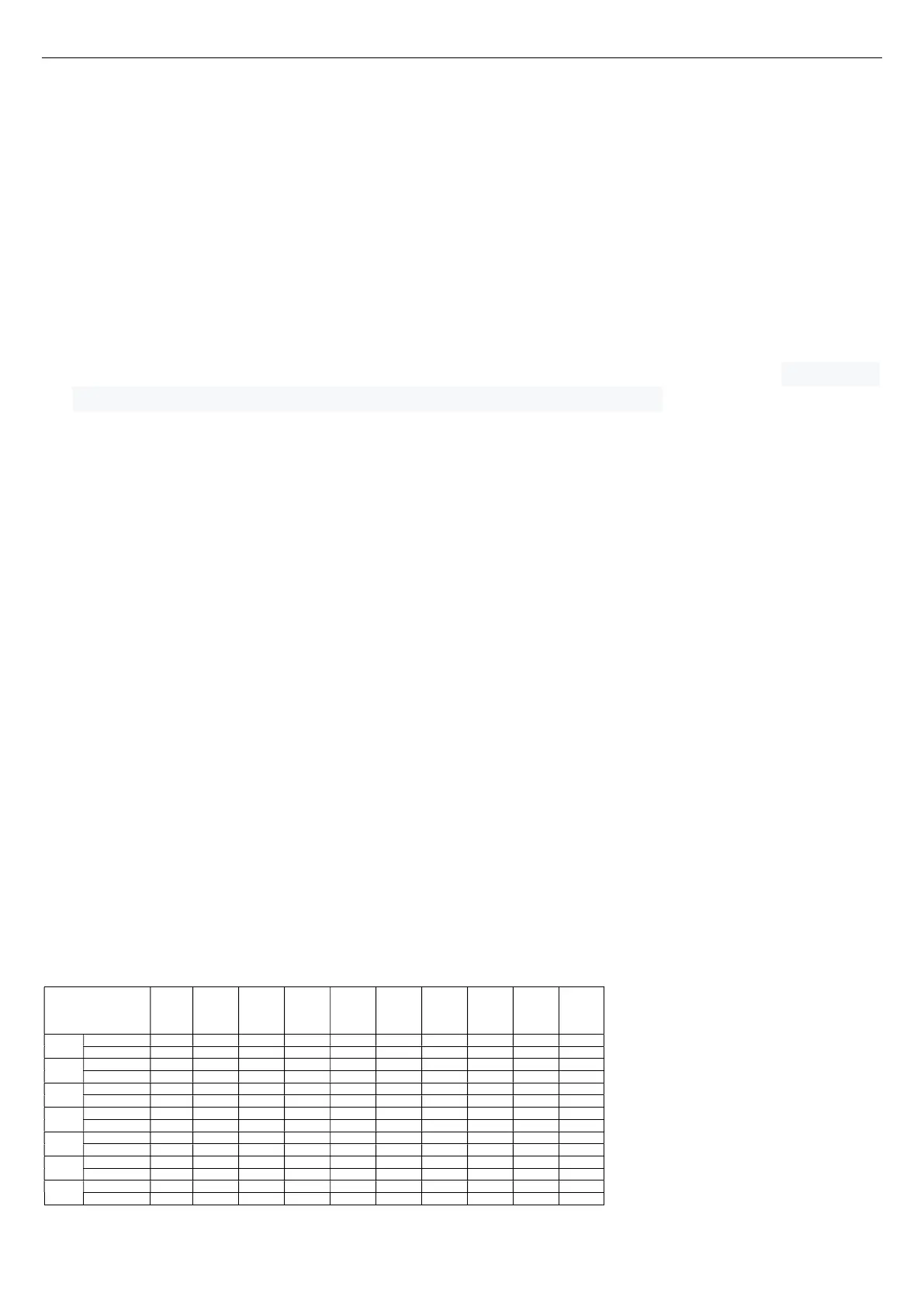
Below are the profiles for each program:
Segment
Program
1 2 3 4 5 6 7 8 9 10
P1
P2
P3
P4
P5
P6
P7


 To Next Page
 Loading...