52
Drawing 45
5.7.1. PROGRAMMING SCHEDULES.
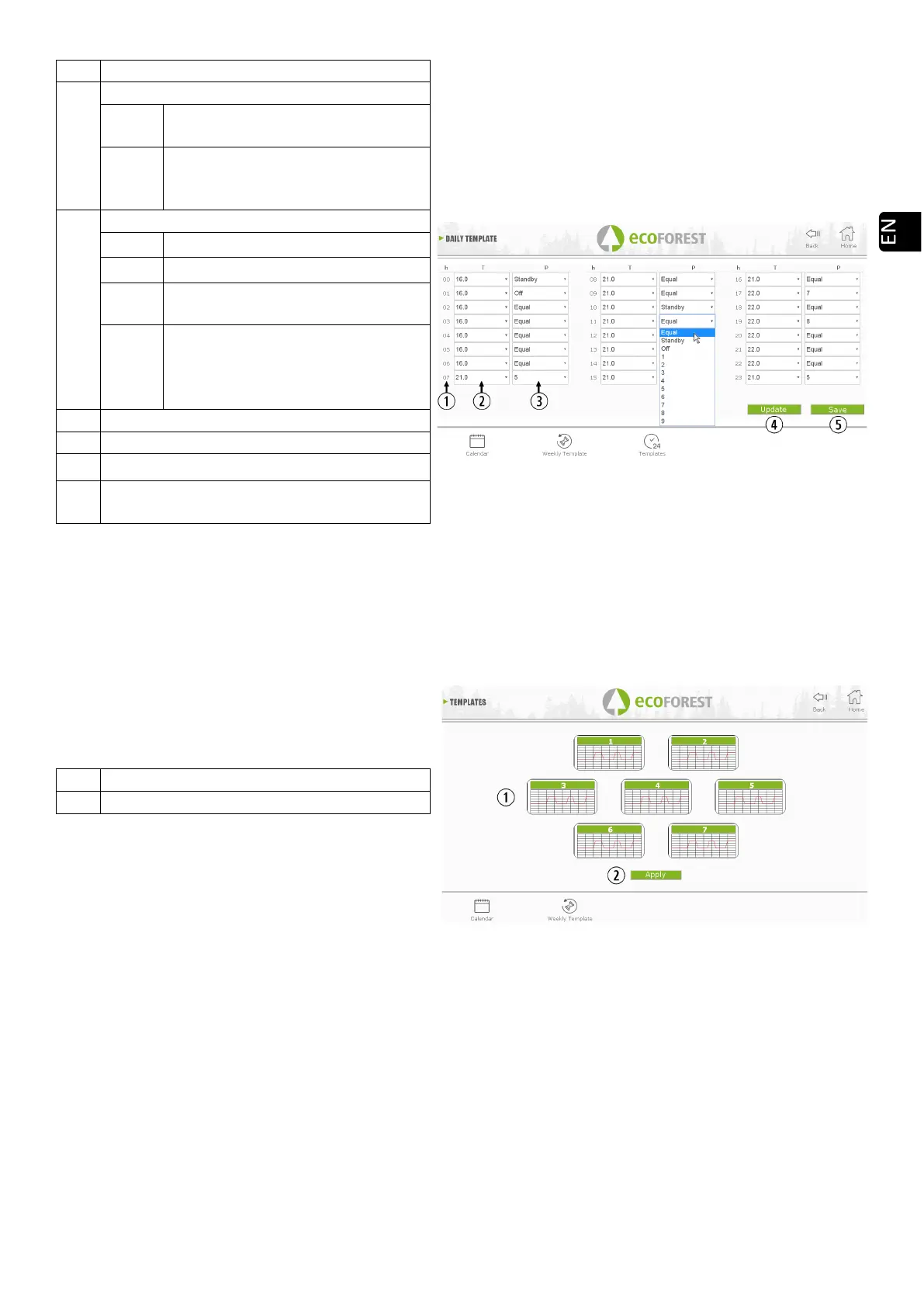
In order to configure any of the schedules, the desired Schedule shall be selected and the desired parameters
shall be varied or configured in the same way as applied to the daily programming explained in the previous section.
Is important to validate such programming by selecting the saving option after the programming has been
performed.
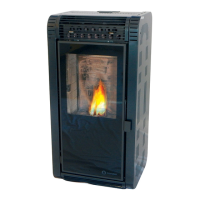
Drawing 46
5.7.2. WEEKLY PROGRAMMING USING SCHEDULES.
In order to have access to the weekly programming we have to press its icon and we will have access to the
programming screen. There we shall indicate which schedule we want to use for each week day. We have to save the
programming and after, we have to enable the programming as indicated in point of figure 42.
This new weekly template will be applied to every day from the current day.
Time slots (de las 00 a las 23h).
Equal
Uses the value configured in the
previous time slot.
12-40
Temperature set point (0.5 °C
interval). In air stoves, it only involves
the Temperature mode.
Same as the previous slot.
It only satisfies DHW demand.
OFF
Machine switched off. Stby mode is
not observed.
1-9
Power level. Power command. If by
configuration it depends on other
demands that are satisfied, the
machine will remain in standby.
Save programming (IMPORTANT)
Water Models with DHW
**
Only shown when setting up a template, not
shown in Daily Schedule.
Apply this change to previous programming.



 To Next Page