51
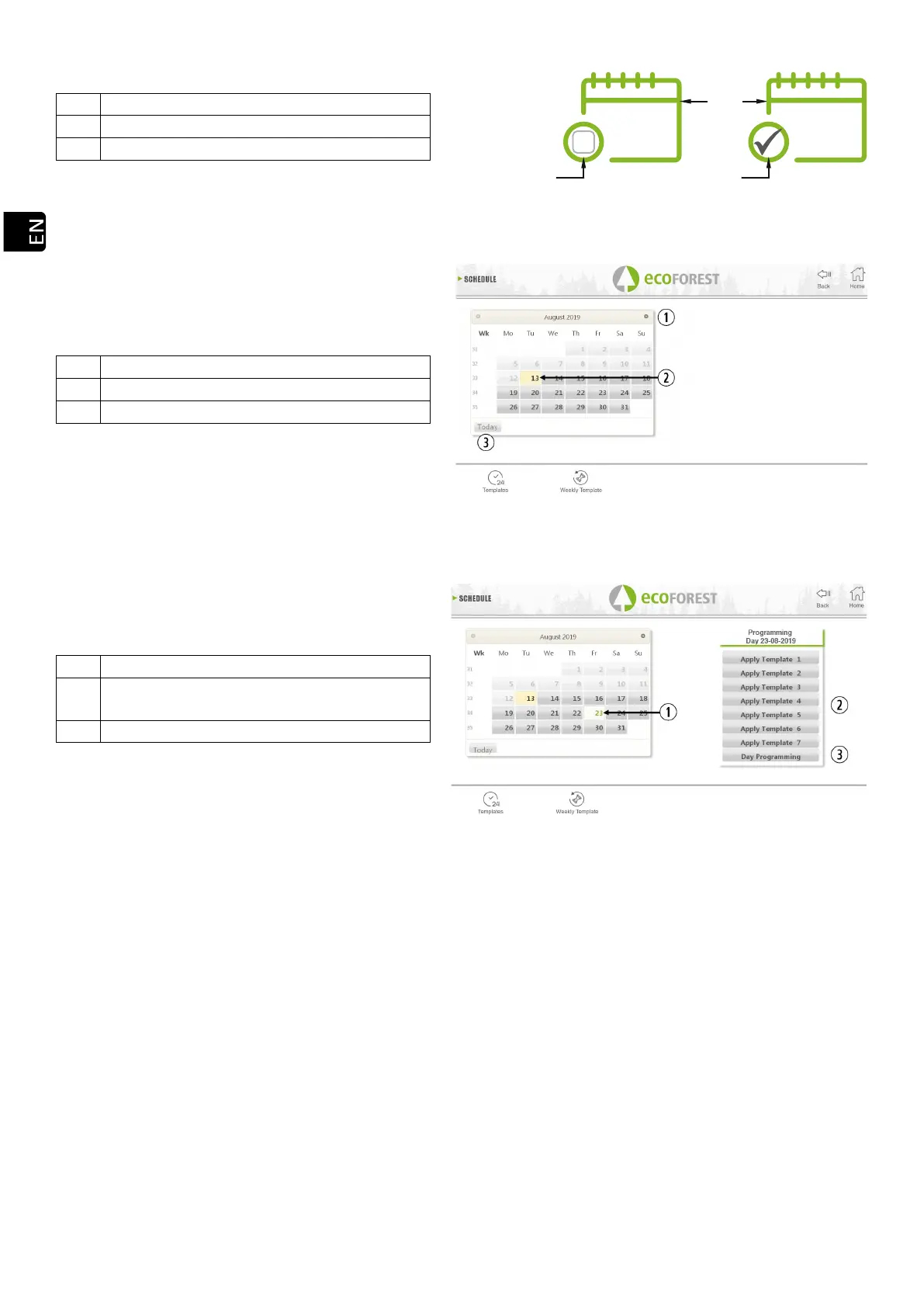
Drawing 42
By pressing the before mentioned icon, we will have access to the programming templates screen.
Drawing 43
In order to select the daily schedule, we only have to press the day we want to programme, for instance the
23 august 2019 and a new screen will be displayed as shown below:
Drawing 44
The main differences between point and point is that, the first one includes programmes predefined by
the manufacturer, which, even though they are modifiable, they are already memorised so the user can apply it easily.
The “daily programming” will let us modify the schedule predefined for the selected day.
If we only want to programme a certain day, we have to press the icon indicating “Daily programming” (),
and we will have access to the programming schedule predefined for the selected day:
Month navigation bar. (60 days).
Templates available to assign to the selected
day.
Display settings applied to the selected day.



 To Next Page