Basic Operation
Element Basic User Guide
Page 14 of 21
4.2 DETECTOR COOLING
By default, detector cooling is “Off” until it is started by the user. When the cooling is started, in the
Element software, the detector should cool down in about 2 minutes.
4.2.1 ELEMENT NOTIFIER DETECTOR STATUS.
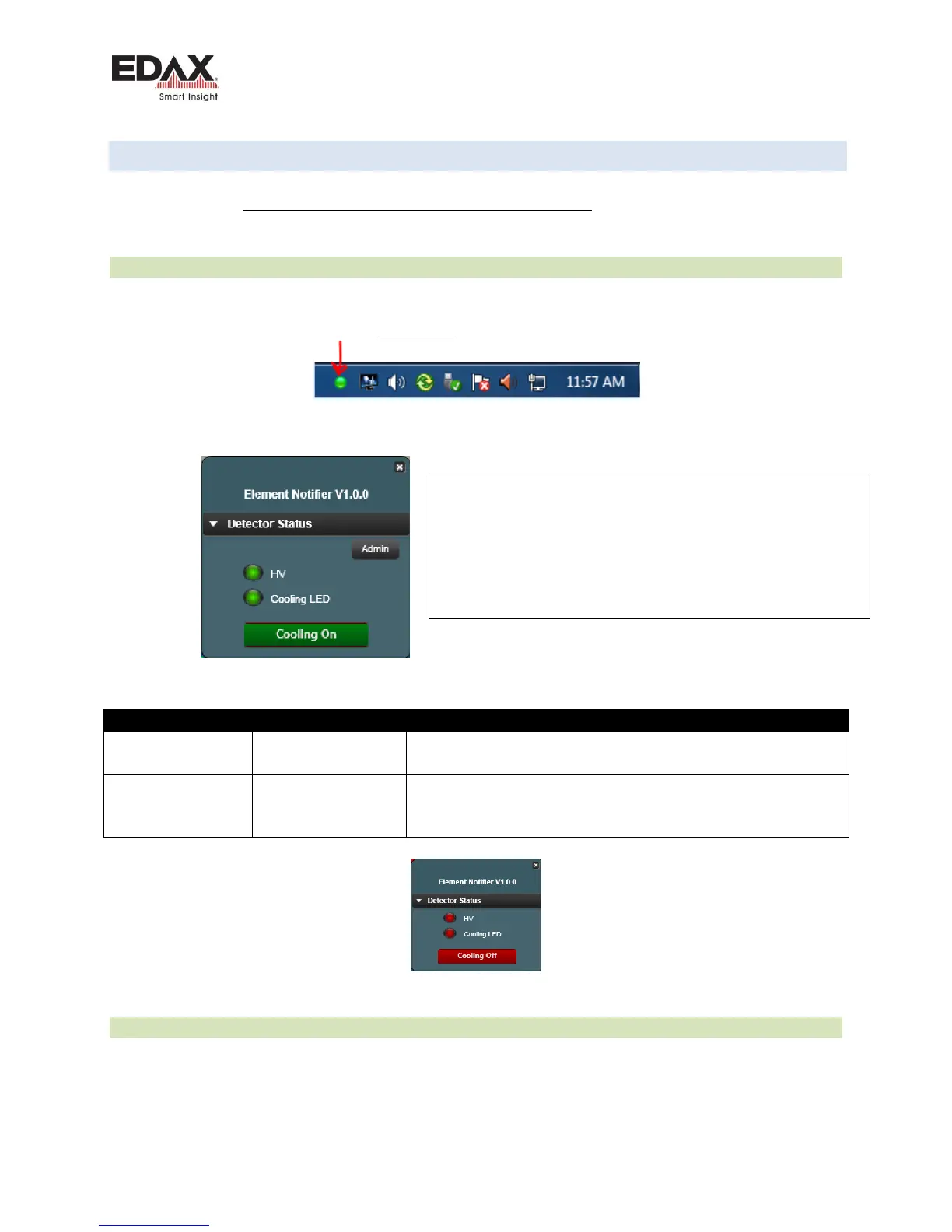
When TEAM Element starts, it will automatically start the Element Notifier cooling utility in the system
tray as seen below. Left click on the Red dot/Green dot to control the detector cooling. The dot changes
color when cold vs warm. Click on the Cooling On button to start cooling.
□ The following window will be displayed:
Figure 2 - Element Notifier in the System Tray to turn Detector Cooling On
Clicking on this Cooling On button will turn off the cooling
and the button changes to Cooling Off.
Clicking on this Cooling Off Red button will stay Red until
both the HV and Cooling LED become steady Green. Then
the button will change to Cooling On and turn Green.
Figure 3 - Element Notifier showing cooling off
4.2.2 TURN DETECTOR COOLING ON
Click on the Cooling On button in the Element Notifier to start or to stop detector cooling. The button will change
states when it is clicked on. (Cooling control is done through the USB connection.)
There are 3 cooling states for the detector. Cooling LED:
Red – Warm, no cooling applied.
Yellow – Cooling is in progress, the detector should reach
the proper operating temperature in a minute or two.
Green – Cooling has reached the recommended value, the
detector is ready to collect spectral data.



 To Next Page