Troubleshooting
Element Basic User Guide
Page 20 of 21
6 TROUBLESHOOTING
6.1 REMOTE DIAGNOSTICS
When possible, it may be useful to use a remote access program such as Teamviewer
to diagnose the system before an on-site visit. Remote access will allow an EDAX
engineer to examine log files, diagnose system operation and allow service-level
updates and adjustments to the detector. Using clues from remote diagnostics will
allow parts to be ordered in advance for an on-site visit if an on-site visit is required.
6.2 DETECTOR PROBLEMS
The detector is connected, and communicates with the software with a network connection. It is
possible a spontaneous computer glitch can cause a loss of communication with the detector. A typical
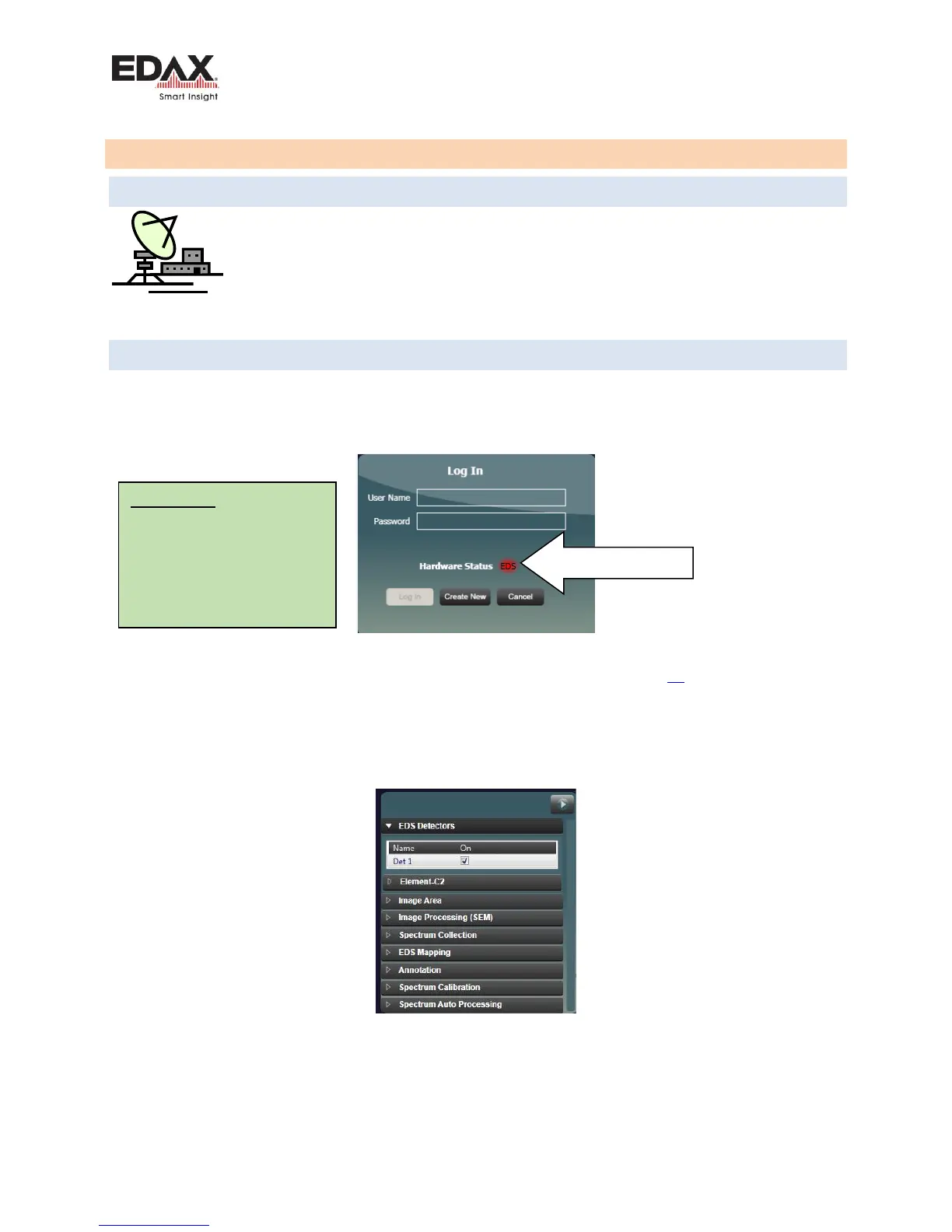
Element software login may show a RED indicator for the EDS hardware, as shown below, or display a
message about DPP service failing to start:
Figure 5 – TEAM Element Login - RED Hardware Status
In this case, power off the detector using the switch on the sDPP Box (see page 13) then reboot the PC.
Then power the detector back on when Windows has started.
If the detector shown in the Advanced Properties is not an Element detector, it could also be an
indication of loss of communication with the detector.
Figure 6 – Element Detector in Softwre
Power off the detector using the switch on the DPP Box for the detector.
Reboot the PC.
Then turn the DPP Box power back on.
Common fix
Power PC Off
Power Detector OFF
Check cable connections
Power PC Back ON
Power the Detector ON



 To Next Page