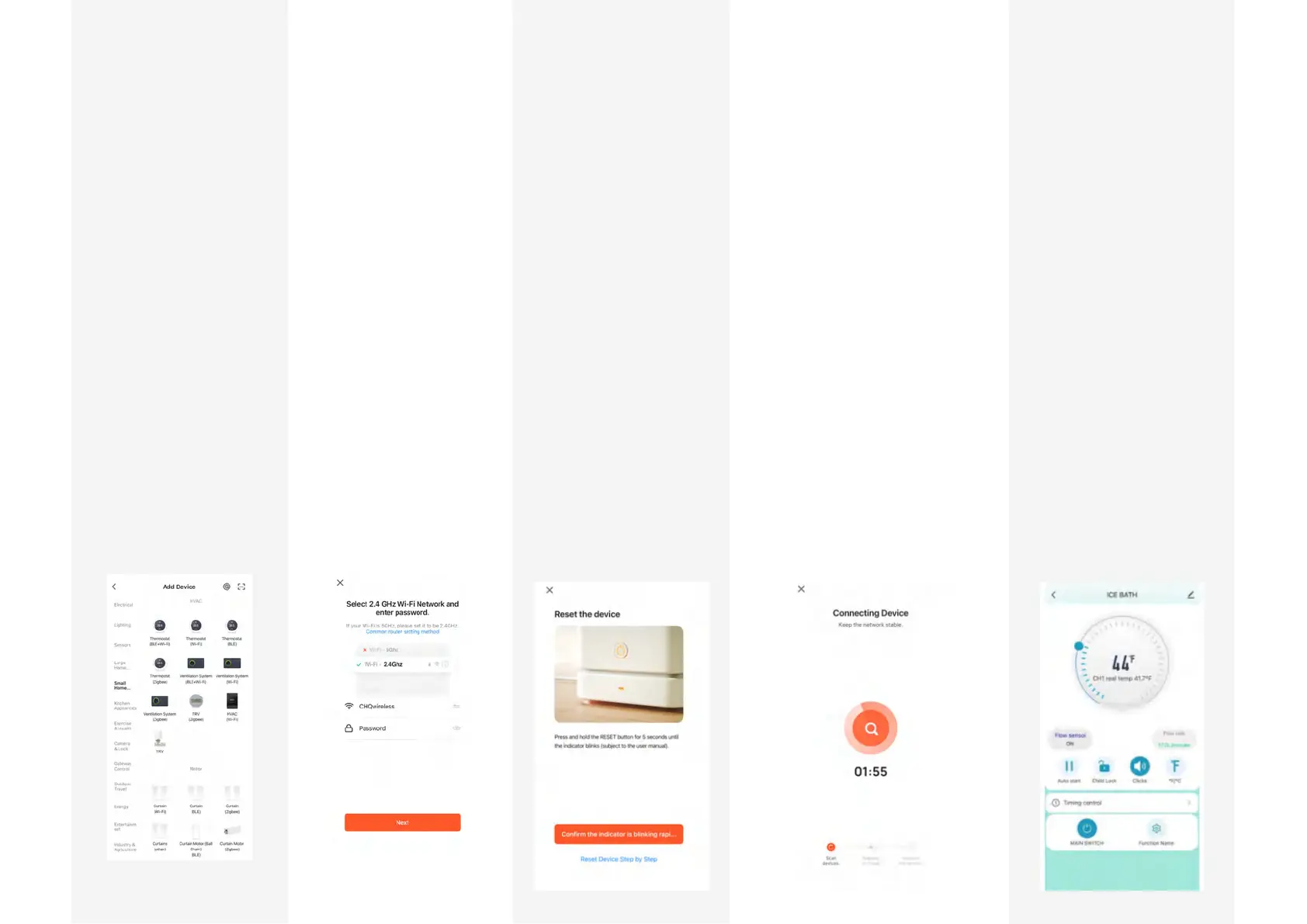
STEP 7 –STEP 4 –
From the following
menu, select “Small
Home Appliance”
on the left sidebar
menu and then
select “Thermostat
(Wi-Fi).”
STEP 5 –
Next, the Wi-Fi Network
screen will prompt to
confirm the wireless
network that should be
set up and request the
password for the
network. These should
be entered and double-
checked before moving
onto the next screen.
STEP 6 –
Now you may turn on
the Chiller if not already
by insuring GFCI is in
“on” position and
pressing power button
(#1) on Control Panel
until the display turns
on.
Then press and hold the
“W” button (#4) for 5
seconds until the Wi-Fi
indicator on the display
flashes rapidly.
STEP 8 –
STEP 9 –
Once the Wi-Fi indicator is
flashing rapidly, you may return
to the Tuya Smart app and
confirm that the indicator is
“blinking quickly.” If the
indicator is not blinking rapidly,
then retry step 6.
The app will now attempt to
connect to the Chiller. This may
take up to 2 minutes. If the
attempt fails, you will be
informed that connection has
failed and it will ask if you want
to retry.
You may retry this step and if it
fails again, then check that you
are using a 2.4 GHz wireless band
and confirm that the network
name and password are correct.
Your Chiller should now be
connected successfully.
You may change the name
of the device by selecting
the pen and paper icon
next to the original name.
From here, you will see the
Chiller in your home screen
and can select the device to
see the control page. Use
the circular slider to select
your desired set point from
anywhere you have cell
service!
06 App Instructions
17


 To Next Page