EasyManua.ls Logo

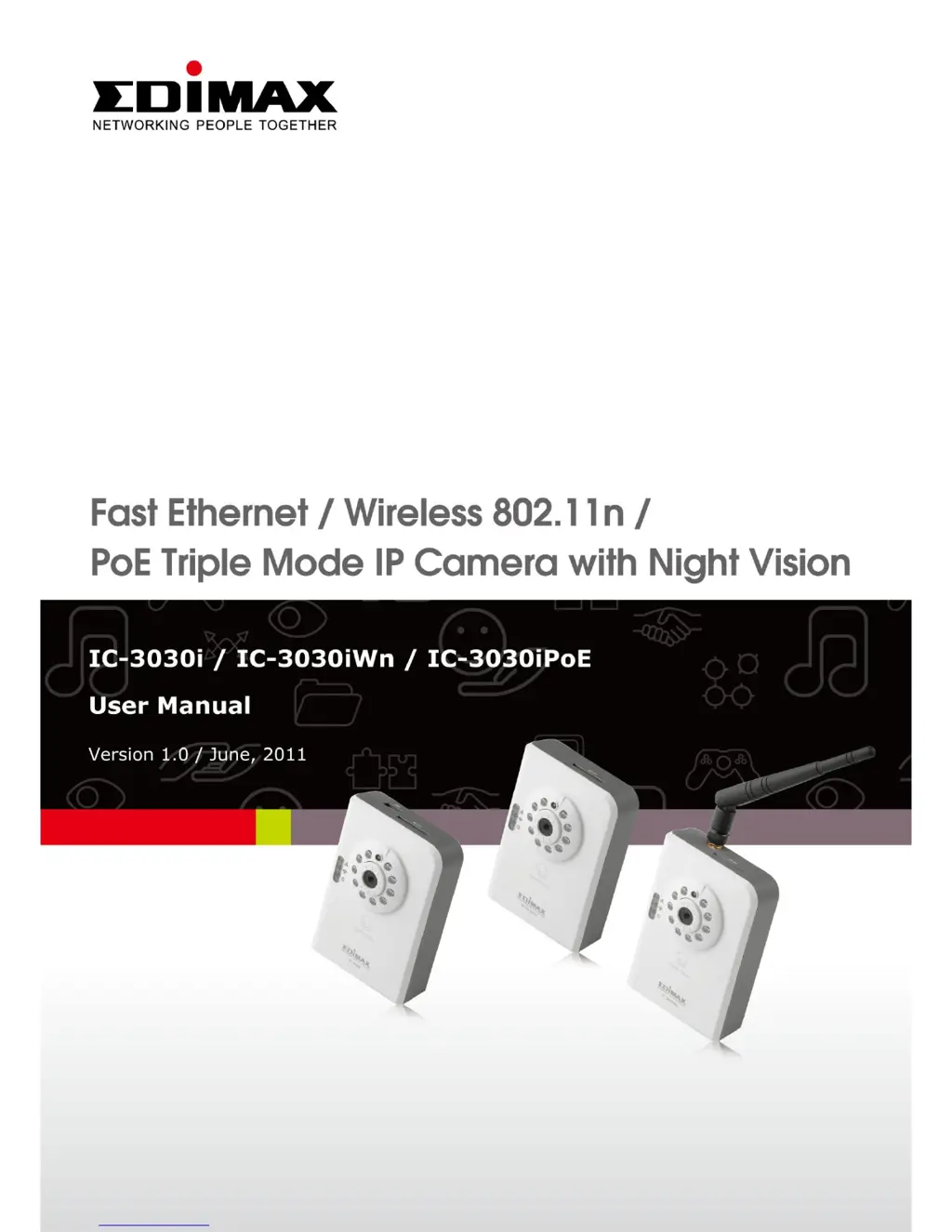
Edimax IC-3030i - User Manual

Edimax IC-3030i
127 pages
Print Icon
To Next Page IconTo Next Page
Loading...

Questions and Answers

  • S
    Sandra MannAug 12, 2025
    How to fix Edimax IP Camera connection issues?
    • A
      Antonio DurhamAug 12, 2025
      If you're trying to connect to the Edimax IP Camera from the Internet, ensure the port it uses isn't blocked by a firewall or other software/hardware. Confirm the IP address setting of your computer. If it's not in the same subnet, communication will fail. Also, ensure the IP address used to connect to the IP camera is correct. If you've forgotten the IP address, reset the IP camera to its factory default (192.168.2.3) using the reset button at the bottom. Verify the IP camera is correctly powered (the Power LED should be on). If these steps don't work, contact your dealer.
  • T
    Theresa ManningAug 16, 2025
    Why is the image refreshing so slowly on my Edimax IP Camera?
    • J
      Jerry MillerAug 16, 2025
      To address a slow image refresh on your Edimax IP Camera: * Try setting a higher frame rate (if it's not already at 30). * Lower the resolution. * If connecting from the Internet, a slow connection might be the cause. * Adjust the antenna for better wireless reception, ensuring it's perpendicular to the ground and not too far from the computer or wireless access point. * Adjust the MTU setting if using PPPoE to connect to the Internet.
  • A
    Ariana ThompsonAug 19, 2025
    What to do if Edimax IP Camera is not responding?
    • S
      Shannon MontgomeryAug 20, 2025
      If your Edimax IP Camera is not responding: * Check the network cable or wireless connection to ensure it's connected. * Unplug the power adapter from the wall socket, wait 10 seconds, and plug it back in. * If the IP camera is powered on (Power LED is on) and the IP address is correct, contact the dealer.
  • A
    aariasAug 25, 2025
    How to fix a fuzzy image on Edimax IP Camera?
    • T
      Tonya MercadoAug 25, 2025
      If the image from your Edimax IP Camera appears fuzzy, try the following: * Adjust the focus ring on the camera until the image is clear. * Clean the lens with a soft cloth. * Adjust the brightness setting. * If possible, switch on any lights in the area where the camera is located to see if the image improves.
  • S
    Scott MoralesAug 27, 2025
    What to do if Edimax IP Camera doesn't send images by Email or FTP?
    • S
      Sarah WashingtonAug 27, 2025
      If you're not receiving images via email or FTP from your Edimax IP Camera, check the following: * If sending via email, ensure it's not blocked by anti-spam mechanisms. * Verify you have sufficient permissions for FTP uploading. * Confirm the username and password for the SMTP server are correct if authentication is required. * Check the log for FTP upload or email sending failures for clues on solving the problem. * Change the threshold to a more sensitive setting.
  • J
    Jennifer BarnesAug 30, 2025
    Why does my Edimax IP Camera make strange sounds when using pan/tilt?
    • T
      Thomas MunozAug 31, 2025
      If you hear a strange sound when using the pan/tilt function on your Edimax IP Camera: * Check for any obstructions jamming the camera and remove them. * If the camera doesn't respond to pan/tilt commands, the servo motor inside might be dead.
  • A
    amanda13Sep 3, 2025
    Why is there no sound from the camera when using 'Speak to IPCam' on Edimax IP Camera?
    • J
      Joseph CalderonSep 3, 2025
      An external speaker is required to playback the voice received at computer side when using the 'Speak to IPCam' function on your Edimax IP Camera.
  • S
    Steven LarsonSep 7, 2025
    How to fix Edimax IP Camera video playback issues?
    • P
      psmithSep 7, 2025
      Please make sure you’ve installed MPEG4 decoder. If not, please download it from ffdshow, it’s a free open codec, to be able to play recorded video or the video with voice from your Edimax IP Camera.

Summary

IP Camera Overview and Setup

Key Features and Capabilities

Details the main functionalities and advantages of the IP camera.

Camera Hardware Components

Front View Component Identification

Identifies and describes components visible from the front of the camera.

Top View Component Identification

Identifies and describes components visible from the top of the camera.

Bottom View Component Identification

Identifies and describes components visible from the bottom of the camera.

Back View Component Identification

Identifies and describes components visible from the back of the camera.

LED Indicator Status Meanings

IP Camera Installation Procedure

Network Configuration and IP Address Discovery

Locating the IP Address

Explains how to find the camera's IP address using PC settings.

Using Camera Admin Software

Guides on using software to locate the camera on the network.

Accessing the Web Management Interface

Web Interface: Camera Settings

Video Encoding Options (MJPEG, MPEG4, H.264)

Explains video settings for MJPEG, MPEG4, and H.264 codecs.

Night Vision and IR LED Control

Controls the IR LEDs for enhanced night vision capabilities.

Web Interface: Network Settings

Wired LAN Connection Setup

Configures wired network connection parameters like IP address and port.

Wireless WLAN Connection Setup

Configures wireless network connection, including SSID and encryption.

Web Interface: Motion Detection

Basic Motion Detection Configuration

Sets up basic motion detection parameters like interval and recording time.

System Information and Status

Firmware Updates and System Utilities

Manages firmware, resets settings, reboots, and controls LED lights.

User Account Management

Using Surveillance Software

Configuring IP Cameras in the Software

Steps to connect and configure IP cameras within the surveillance software.

Appendix: Specifications and Troubleshooting

Troubleshooting Common Issues

Provides solutions for common problems like connection or image issues.

Edimax IC-3030i Specifications

General IconGeneral
ModelIC-3030i
CategoryIP Camera
Sensor1/4" CMOS
Max Resolution640 x 480
Night VisionYes
Frame Rate30 fps
AudioBuilt-in microphone
WirelessIEEE 802.11b/g/n
Lens3.6mm
Video CompressionMJPEG
Network InterfaceEthernet
Power Supply5V DC
Operating Temperature0°C to 40°C
StorageMicro SD card slot
Supported ProtocolsHTTP, FTP, SMTP
Mobile SupportiOS and Android

Related product manuals