EasyManua.ls Logo

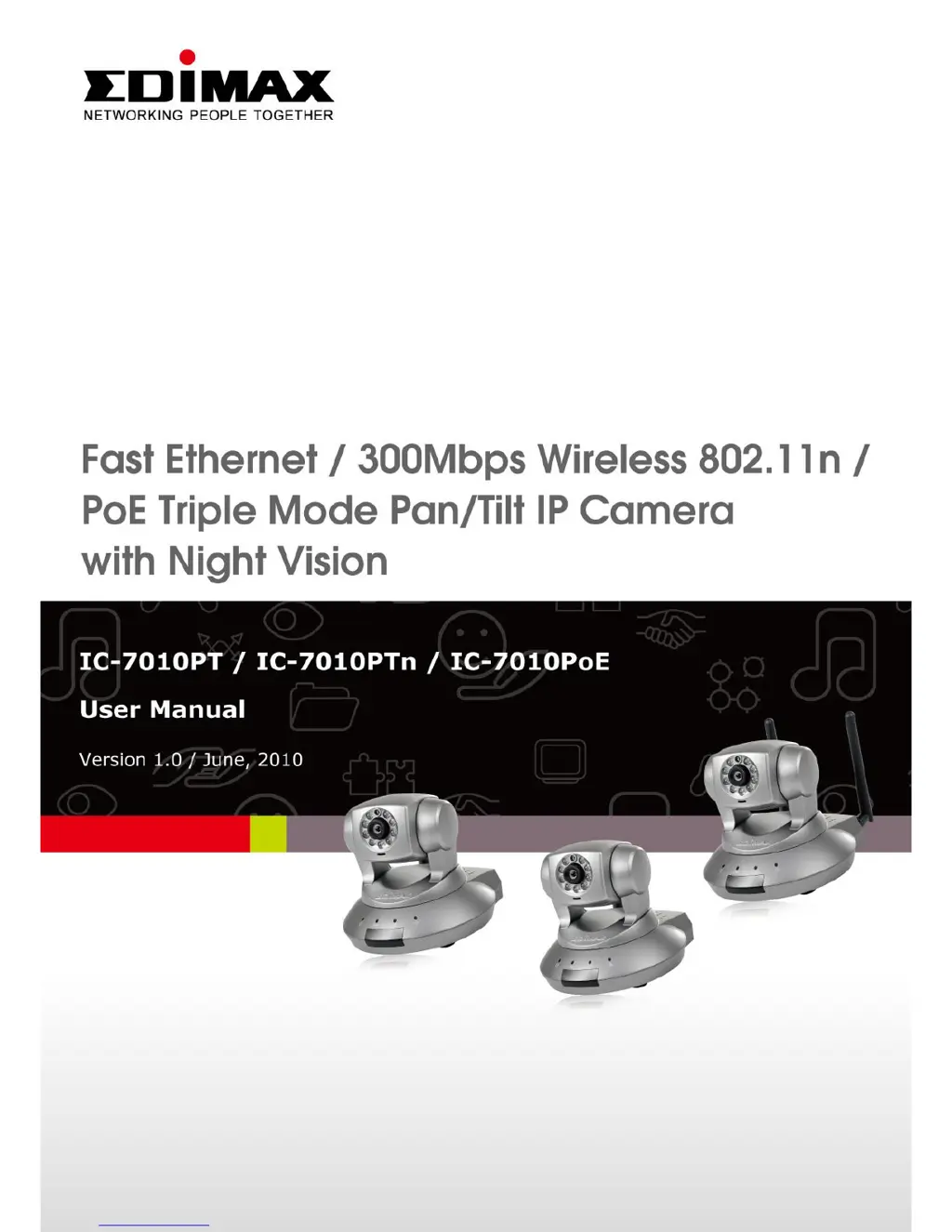
Edimax IC-7010PT - User Manual

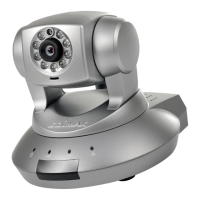
Edimax IC-7010PT
136 pages
Print Icon
To Next Page IconTo Next Page
Loading...
1

Other manuals for Edimax IC-7010PT

Questions and Answers

  • J
    Julia GreenAug 10, 2025
    Why is the image refreshing so slowly on my Edimax IP Camera?
    • W
      whitekatherineAug 10, 2025
      If your Edimax IP camera's image refreshes slowly, try increasing the frame rate, aiming for 30 if it's lower. Alternatively, reduce the resolution. If you're accessing the camera over the internet, a slow connection might be the cause; consider using a lower frame rate or resolution. Adjust the antenna for optimal wireless reception, ensuring it's perpendicular to the ground and not too far from the access point. Lastly, adjust the 'MTU' setting if you use PPPoE, consulting your ISP or network administrator for guidance.
  • K
    keith15Aug 17, 2025
    What to do if Edimax IC-7010PT is not responding?
    • S
      Sherry HortonAug 18, 2025
      If your Edimax IP camera is unresponsive, first check the network cable or wireless connection. If those are fine, try unplugging the power adapter from the wall socket, waiting 10 seconds, and then plugging it back in to reset the device.
  • C
    carlshawAug 26, 2025
    Why is the image from my Edimax IC-7010PT IP Camera fuzzy?
    • N
      Norman CarlsonAug 26, 2025
      If images from your Edimax IP Camera appear fuzzy, begin by adjusting the focus ring until the image sharpens. Clean the lens with a soft, dry cloth, using water if necessary, but avoid alcohol or chemical solutions. Adjust the brightness settings and ensure adequate lighting in the camera's environment.
  • E
    Elizabeth CarterSep 2, 2025
    Why are images not being sent by Email or FTP from my Edimax IC-7010PT?
    • J
      Jeffrey HornSep 2, 2025
      If your Edimax IP camera fails to send images via email or FTP, ensure that emails aren't being blocked by anti-spam filters. Verify you have sufficient FTP upload permissions by testing with the 'Upload a test file' button. If your SMTP server requires authentication, double-check the username and password using the 'Send a test Email' button. Review the logs for any failed FTP uploads or email sending attempts for clues. You might also try adjusting the threshold to a more sensitive setting.

Summary

Chapter I: Familiar with your Internet IP Camera

1.1 Package Contents

Lists items included in the IP camera package for verification upon purchase.

1.4 Key Components Overview

Identifies and describes the various physical components and indicators of the IP camera.

1.5 Installation Guide

Step-by-step guide on how to physically install and connect the IP camera to your network.

1.8 Web Management Login

Steps to access and log into the camera's web-based control panel for configuration.

Chapter II: Using Web Management Interface

2.1 Camera Settings

Adjusts basic camera parameters like pan/tilt speed, video type, and image quality settings.

2.2 Video Settings

Configures video encoding, resolution, frame rate, OSD, and night vision for optimal image display.

2.4 Network Settings

Configures LAN, WLAN, DDNS, UPnP, and RTSP for camera connectivity and remote access.

2.5 Motion Detection

Sets up motion detection sensitivity, regions, and triggers for recording or notifications.

Chapter III: Using Surveillance Software

3-1 Installing Surveillance Software

Instructions for installing the PC software used to monitor multiple IP cameras.

3-2 Using Surveillance Software

Overview of the surveillance software interface and its main components for operation.

3-3 Configuring Surveillance Software

Guides users through setting up cameras, schedules, audio, and motion recording within the software.

3-11 Video Playback

Guides on searching and playing back recorded video files stored on the system.

Chapter IV: View IP Camera Over Internet with iPhone

Chapter V: Appendix

5.1 Specifications

Technical specifications of the IP camera, including resolution, sensor, and connectivity details.

5.3 Troubleshooting

Common issues and their solutions for IP camera connectivity, performance, and image quality problems.

Edimax IC-7010PT Specifications

General IconGeneral
ModelIC-7010PT
CategoryIP Camera
Sensor1/4" CMOS
Minimum Illumination0.5 Lux
Day/NightYes
IR LEDs6
IR Range10m
Frame Rate30 fps
Network Interface10/100Mbps Ethernet
Operating Temperature-10°C to 50°C
Pan/TiltYes
Night VisionYes
Sensor typeCMOS
Resolution1280x720
Lens3.6mm
Power over EthernetYes
Power SupplyDC 5V
Video CompressionH.264, MJPEG
Operating Humidity20% to 80%

Related product manuals