EasyManua.ls Logo

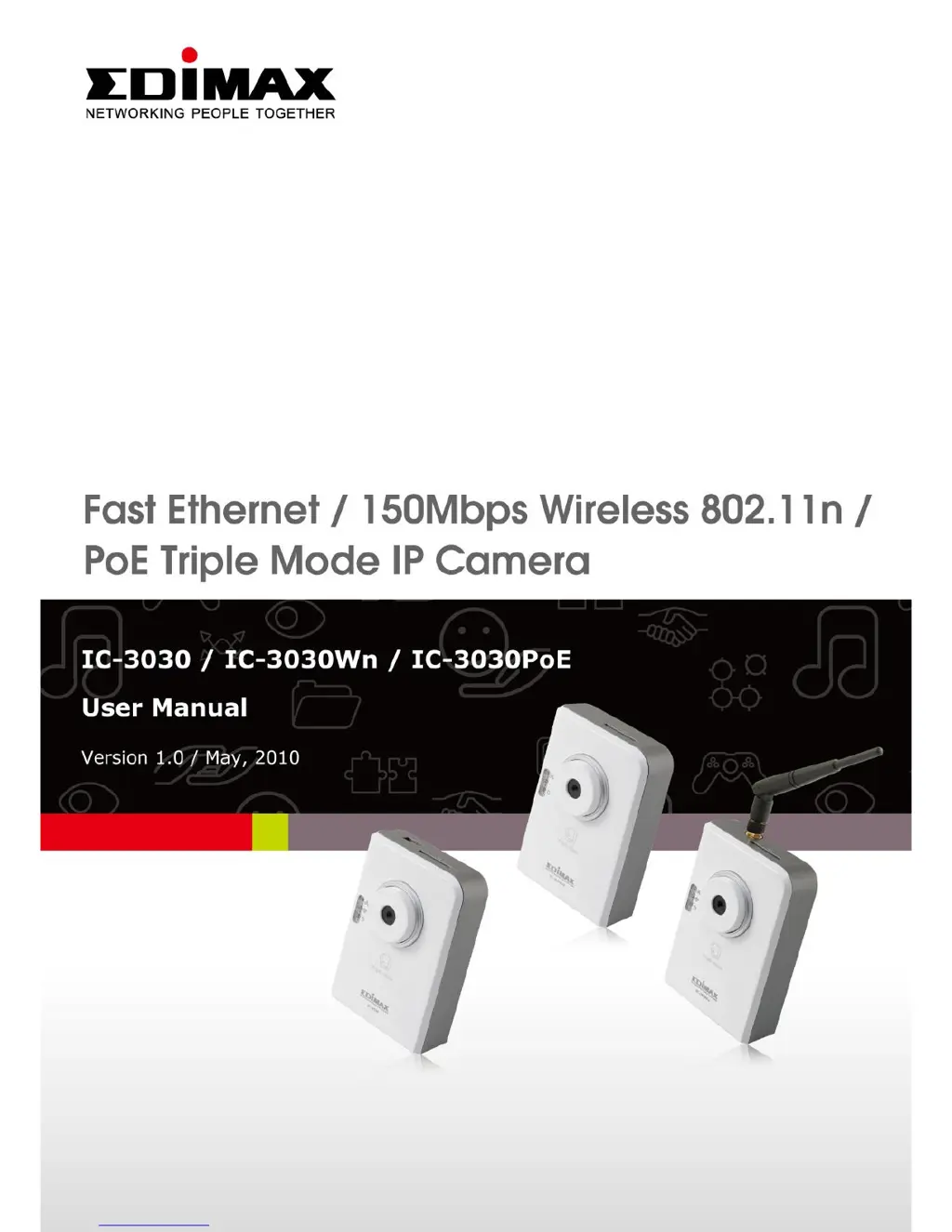
Edimax IC-3030 - User Manual

Edimax IC-3030
129 pages
Print Icon
To Next Page IconTo Next Page
Loading...
1

Other manuals for Edimax IC-3030

Questions and Answers

  • K
    karajenkinsAug 8, 2025
    How to fix Edimax IC-3030 when it cannot connect?
    • R
      Rebecca MartinezAug 8, 2025
      If you're unable to connect to your Edimax IP Camera, ensure the 'Power' LED is on, indicating it's correctly powered. Verify that the IP address you're using to connect is correct and that your computer's IP address is in the same subnet. If connecting via the Internet, confirm that the video and HTTP ports used by the IP camera are not blocked by a firewall. If you've forgotten the IP address, reset the camera to its factory default of 192.168.2.3 by pressing and holding the reset button for 5 seconds, then try connecting again.
  • A
    Anthony RyanAug 13, 2025
    Why is my Edimax IC-3030 IP Camera image refreshing so slow?
    • W
      Whitney Garcia MDAug 14, 2025
      If your Edimax IP Camera's image is refreshing slowly, and you are connecting to the camera from the Internet, this could be due to a slow Internet connection. In this case, use a lower frame rate or resolution. If using a wireless connection, adjust the antenna to be perpendicular to the ground, ensuring the distance between the IP camera and your computer or wireless access point isn't too far. You can also try a higher frame rate setting (if it’s not 30) or a lower resolution. If you're using PPPoE to connect to the Internet, try adjusting the 'MTU' setting, consulting your ISP or network administrator for assistance.
  • P
    Phillip KimAug 18, 2025
    Why I cannot connect to my Edimax IC-3030 IP Camera?
    • J
      Jason FosterAug 18, 2025
      There could be several reasons why you can't connect to your Edimax IP Camera. First, confirm that your computer's IP address settings are in the same subnet as the camera. Ensure the IP address you're using to connect to the camera is correct. If you've forgotten the camera's IP address, reset it to the factory default value (192.168.2.3) by pressing and holding the reset button for 5 seconds. Also, ensure the camera is correctly powered and, if connecting via the Internet, that the ports the camera uses are not blocked by a firewall.
  • A
    Alejandro LeeAug 23, 2025
    What to do if my Edimax IC-3030 IP Camera image refreshes very slowly?
    • A
      andersonwilliamAug 23, 2025
      If your Edimax IP camera image refreshes slowly, try these solutions: * If the frame rate setting is not 30, try a higher frame rate. * Try a lower resolution. * If connecting from the Internet, a slow Internet connection could be the cause; use a lower frame rate/resolution. * Adjust the antenna if using a wireless connection, ensuring it is perpendicular to the ground and not too far from the computer/wireless access point. * If using PPPoE, adjust the “MTU” setting.
  • J
    James PetersAug 28, 2025
    How to fix a fuzzy image on my Edimax IC-3030?
    • L
      lauren10Aug 28, 2025
      To fix a fuzzy image on your Edimax IP Camera, adjust the focus ring on the camera until the image becomes clear. Also, clean the lens with a soft cloth, using water if necessary (but avoid alcohol or other chemical solutions). You can also try adjusting the brightness setting or ensuring there is adequate light in the camera's location.
  • L
    Leslie MorrisSep 2, 2025
    What to do if my Edimax IC-3030 doesn't send images by Email or FTP?
    • P
      Phillip ParkerSep 2, 2025
      If your Edimax IP camera isn't sending images via Email or FTP, ensure that Emails aren't blocked by anti-spam mechanisms. Verify you have sufficient permissions for FTP uploading. If your SMTP server requires authentication, make sure the username and password are correct. Check the log for any FTP upload or Email sending failures, which may provide clues to the problem. You can also try changing the threshold to a more sensitive setting.

Summary

Chapter I: Familiar with your Internet IP Camera

1.5 Camera Installation

Provides step-by-step instructions for setting up the IP camera, including connections.

1.6 Locate the IP Address of this IP Camera

Guides users on how to find the IP camera's address and configure computer network settings.

1.8 Log Onto Web Management Interface

Details the process of accessing the camera's web-based management interface.

Chapter II: Using Web Management Interface

2.3 Network Settings

Covers network configuration including LAN, WLAN, Dynamic DNS, and UPnP settings.

2.4 Motion Detection

Sets up motion detection parameters, regions, and notification methods like email or FTP.

Chapter III: Using Surveillance Software

3-3 Configure IP camera surveillance software

Details the configuration steps for cameras, general settings, display layout, and more within the software.

Chapter V: How to View IP Camera over the Internet with iPhone

Step 3: Configure the 1 st Camera based on the following:

Provides configuration details for the first IP camera, including network and port settings.

Step 4: Configuration for iPhone.

Guides on configuring the iPhone to access the IP camera remotely over the internet.

Chapter V: Appendix

5.2 How to apply for a free DNS account in the http:;;www.dyndns.org

Explains the process of obtaining and configuring a free Dynamic DNS account for remote access.

5.3 Troubleshooting

Offers solutions to common problems encountered with the IP camera and its features.

Edimax IC-3030 Specifications

General IconGeneral
BrandEdimax
ModelIC-3030
CategoryIP Camera
LanguageEnglish

Related product manuals