
 To Next Page
J
Jonathan ChaneyAug 23, 2025
Why can't I select items in the Setting menu of my Eizo Monitor?
- DDavid WardAug 23, 2025
Items displayed with gray text in the Setting menu of your Eizo monitor cannot be changed.

Why can't I select items in the Setting menu of my Eizo Monitor?
Items displayed with gray text in the Setting menu of your Eizo monitor cannot be changed.
Why does noise appear on the screen of my Eizo ElexScan EV2480?
If noise appears on the screen of your Eizo monitor: * Set 'Overdrive' to 'Off' in the Setting menu. * Be aware that when inputting HDCP system signals, normal images may not be displayed immediately.
Why are images not displayed over the entire area of the screen on my Eizo ElexScan EV2480?
If images are not displayed over the entire screen area on your Eizo monitor: * Try changing the 'Picture Expansion' setting in the Setting menu. * Ensure the PC's resolution setting matches the monitor's resolution.
Why is the color shown on the screen of my Eizo ElexScan EV2480 not correct?
If the color shown on your Eizo monitor is not correct, try changing the 'Input Color Format' in the Setting menu.
Why do the positions of windows and icons shift when my Eizo ElexScan EV2480 Monitor is turned off or restored from power saving mode?
To prevent windows and icons from shifting when your Eizo monitor is turned off or restored from power saving mode, turn the setting 'On' for 'Compatibility Mode' in the 'Administrator Settings' menu.
Why does my Eizo Monitor show a message that the USB port is disabled?
To solve the problem, check whether 'USB' in the 'Administrator Settings' menu is set to 'On'.
How to resolve afterimages appearing on my Eizo Monitor?
Afterimages are a characteristic of LCD monitors. To minimize this on your Eizo monitor: * Avoid displaying the same image for extended periods. * Use a screen saver or the power saving function. * Change the image or turn off the power for several hours to remove the afterimage.
What to do if text is blurred on my Eizo ElexScan EV2480?
If the text on your Eizo monitor appears blurred: * Ensure that your PC is configured to meet the resolution and vertical scan frequency requirements of the monitor. * Set the magnification of display on the OS to '100%'. If using multiple monitors, set the magnification to '100%' on all monitors.
Why does the brightness change on my Eizo ElexScan EV2480 Monitor by itself?
If the brightness on your Eizo monitor changes automatically, try turning the Auto EcoView setting to 'Off'.
How to fix a too bright or too dark screen on my Eizo ElexScan EV2480 Monitor?
To adjust a screen that is too bright or too dark on your Eizo monitor: * Use the 'Brightness' or 'Contrast' settings in the Setting menu. * If the screen is too bright, try turning 'On' the Auto EcoView setting. This allows the monitor to automatically adjust the screen brightness based on ambient lighting.
Details key product capabilities like USB-C, power delivery, flexibility, and power saving.
Explains advanced functions including Color, Signal, Preference, Language, and Information settings.
Describes functions like Auto Input Detection, Compatibility Mode, USB, On-Screen Logo, and Key Lock.
Provides solutions for issues where the monitor displays no image or shows error messages.
Addresses common display issues like incorrect brightness, blurriness, afterimages, and color inaccuracies.
Covers miscellaneous issues such as menu access, audio output, USB device malfunction, and power delivery.
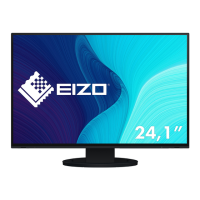
Provides detailed technical specifications of the monitor, including panel, video, USB, audio, and power.
 General
| Screen Size | 23.8 inches |
|---|---|
| Resolution | 1920 x 1080 (Full HD) |
| Panel Type | IPS |
| Aspect Ratio | 16:9 |
| Brightness | 250 cd/m² |
| Contrast Ratio | 1000:1 |
| Response Time | 5 ms (Gray-to-Gray) |
| Refresh Rate | 60 Hz |
| VESA Mount | 100 x 100 mm |
| Pivot | Yes |
| Inputs | DisplayPort, HDMI |
| Viewing Angle | 178° (horizontal) / 178° (vertical) |
| Speakers | 1.0 W |
| Color Gamut | sRGB |