EasyManua.ls Logo

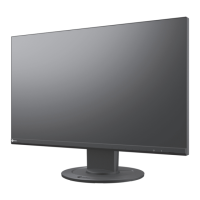
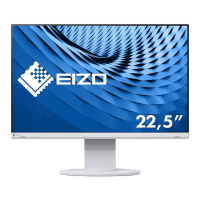
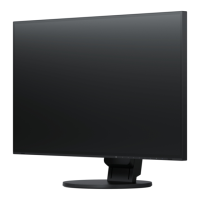
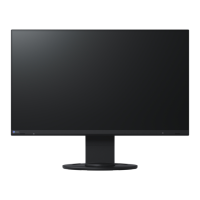
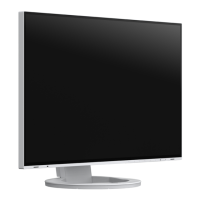
Eizo FlexScan EV2316W - User Manual

Eizo FlexScan EV2316W
86 pages
Print Icon
To Next Page IconTo Next Page
Loading...
Important
Please read PRECAUTIONS, this Users Manual, and the Setup Guide
(separate volume) carefully to familiarize yourself with safe and
effective usage.
Please refer to the Setup Guide for basic information ranging from
connection of the monitor to a PC to using the monitor.
The latest Users Manual is available for download from our web site:
http://www.eizoglobal.com

Table of Contents

Questions and Answers

  • A
    Anne HamiltonSep 13, 2025
    What to do if there is no audio output from my Eizo FlexScan EV2316W?
    • J
      Jerry MiddletonSep 13, 2025
      If you're not getting any sound from your Eizo monitor, try these steps: * Make sure the stereo mini jack cable is properly connected. * Check that the volume isn't set to 0. * Verify the settings on your PC and in your audio playback software. * If you're using a DisplayPort signal, check the 'Source' setting.
  • H
    hjohnsonAug 25, 2025
    How to adjust brightness on Eizo FlexScan EV2316W?
    • B
      Bonnie GonzalezAug 25, 2025
      If your Eizo monitor screen appears too bright or too dark, you can adjust it by using the 'Brightness' or 'Contrast' settings in the Setting menu. You can also turn on Auto EcoView.
  • M
    Matthew WyattAug 25, 2025
    Why can't I access the Setting menu on my Eizo FlexScan EV2316W?
    • C
      Carla ClarkAug 26, 2025
      If the Setting menu doesn't appear on your Eizo monitor, check whether the operation lock function is active.
  • B
    Brian KlineSep 23, 2025
    Why is the 'Smoothing' option grayed out in my Eizo FlexScan EV2316W settings?
    • B
      Bruce SmithSep 23, 2025
      You cannot choose 'smoothing' when the screen is displayed in certain resolutions or settings.
  • S
    Savannah StevensonSep 14, 2025
    Why are my USB devices not working when connected to my Eizo FlexScan EV2316W Monitor?
    • M
      Matthew KingSep 14, 2025
      If USB devices connected to your Eizo monitor aren't working, try the following: * Check that the USB cable is correctly connected. * Try a different USB port. * Reboot your PC. * Ensure your PC and operating system are USB compliant. * Check your PC's BIOS settings for USB configuration.
  • P
    Patrick WilliamsSep 23, 2025
    Why does my Eizo FlexScan EV2316W switch to single display mode when using DisplayPort?
    • Q
      qfarmerSep 23, 2025
      If your Eizo monitor configuration changes to single display mode when using DisplayPort, and you have two monitors connected to one PC, enable the 'DP HotPlug' function.
  • N
    nicholasmorganSep 6, 2025
    Why can't I select 'Smoothing' on the Eizo FlexScan EV2316W Monitor Setting menu 'Screen'?
    • M
      Melissa ShepardSep 6, 2025
      You cannot choose 'smoothing' when the screen is displayed in certain resolutions or settings.
  • M
    Margaret CrossSep 6, 2025
    Why doesn't the auto adjustment function work on my Eizo FlexScan EV2316W Monitor?
    • N
      Nicole WalkerSep 7, 2025
      This function does not work during digital signal input, when an image is displayed only on a part of the screen, or correctly with some graphics boards.
  • R
    Ricky JonesSep 23, 2025
    How to remove interference patterns or pressure marks on Eizo Monitor screen?
    • A
      Alexandra DunnSep 23, 2025
      To address interference patterns or pressure marks on your Eizo monitor screen, leave the monitor displaying a white or black screen.
  • E
    Eric KnightAug 30, 2025
    Why is there no audio output from my Eizo Monitor?
    • M
      Matthew RogersAug 31, 2025
      Check that the stereo mini jack cable is properly connected. Ensure the volume isn't set to 0. Verify the settings on your PC and the audio playback software. If using DisplayPort signal input, check the 'Source' setting.

Summary

Location of Caution Statement

EV2316 W; EV2336 W Caution

Describes caution statements for specific models.

EV2416 W; EV2436 W Caution

Describes caution statements for specific models.

Notice for this monitor

Cleaning

Using the monitor comfortably

Tips for comfortable monitor usage and eye care.

Chapter 1 Introduction

1-1. Features

Overview of the monitor's key features and capabilities.

1-2. Controls and Functions

Details on monitor buttons, sensors, and ports.

1-3. EIZO LCD Utility Disk

Information about bundled software and utilities.

1-4. Basic Operations and Functions

Guide to basic menu operations and settings.

Chapter 2 Adjusting Screens

2-1. Compatible Resolutions

Lists supported resolutions for different monitor models.

2-2. Setting the Resolution

Instructions for changing screen resolution on various OS.

2-3. Adjusting Color

Guidance on color modes, brightness, contrast, and gamma.

2-4. Screen Adjustment

Procedures for adjusting screen display for analog and digital signals.

2-5. Screen Size Changing

How to adjust the image display size.

Chapter 3 Setting Monitor

3-1. Adjusting Volume

How to adjust the monitor's audio volume.

3-2. Selecting Sound Source with DisplayPort

Switching audio input for DisplayPort connections.

3-3. Compensating Viewing Angle Deficiency

Adjusting screen view for viewing from below.

3-4. Enabling; Disabling DDC;CI Communication

Controls interactive monitor-PC communication.

3-5. Locking Operation Buttons

Prevents accidental changes to settings.

3-6. Setting Orientation

How to change menu orientation for portrait mode.

3-7. Showing and Hiding EIZO Logo

Option to display or hide the EIZO logo on screen.

3-8. Changing Setting Menu Display Position

Adjusts the position of the on-screen menu.

3-9. Setting Language

Selects the display language for menus and messages.

3-10. Resetting the Monitor to Default Settings

Restores all monitor settings to factory defaults.

Chapter 4 Power Saving Functions

4-1. Setting Power Saving

Configures power saving modes based on PC status.

Audio Output Settings

Controls audio output during power saving modes.

4-2. Setting Power Indicator

Enables or disables the monitor's power indicator light.

4-3. Enabling; Disabling Automatic Brightness Adjustment

Configures Auto EcoView for automatic brightness control.

EcoView Optimizer 2

Automatically adjusts brightness based on input signal white level.

4-4. Setting Power Saving Mode with EcoView Sense

Configures motion-based power saving using the presence sensor.

4-5. Checking the Power Saving Level

Displays power reduction and CO2 savings.

4-6. Enabling; Disabling Auto Power-OFF

Sets automatic monitor turn-off timer in power saving mode.

Chapter 5 Troubleshooting

5-1. No Picture

Solutions for when the screen displays no image.

Signal Input Error Message

Explains and resolves signal input error messages.

5-2. Imaging Problems (Digital and Analog)

Addresses common display issues like brightness, blurriness, and artifacts.

5-3. Imaging Problems (Digital Only)

Solutions for display issues specific to digital inputs.

5-4. Imaging Problems (Analog Only)

Solutions for display issues specific to analog inputs.

5-5. Other Problems

Troubleshooting for less common issues like menu access or audio output.

Chapter 6 Reference

6-1. Attaching the Optional Arm

Instructions for mounting an external arm or stand.

6-2. Detaching;Attaching Stand Base

Procedures for removing and reattaching the monitor stand base.

6-3. Attaching;Detaching Cable Holder

How to install and remove the cable management holder.

6-4. Connecting Multiple PCs

Guidance on connecting multiple computers to the monitor.

6-5. Making Use of USB (Universal Serial Bus)

Information on using the monitor's built-in USB hub.

6-6. Displaying Monitor Information

How to view model name, serial number, and usage time.

6-7. Specifications (EV2316 W)

Detailed technical specifications for the EV2316W model.

6-7. Specifications (EV2336 W)

Detailed technical specifications for the EV2336W model.

6-7. Specifications (EV2416 W)

Detailed technical specifications for the EV2416W model.

6-7. Specifications (EV2436 W)

Detailed technical specifications for the EV2436W model.

Main Default Settings

Lists the factory default settings for various functions.

Outside Dimensions

Provides dimensional drawings and measurements for specific models.

Accessories

Lists optional accessories like signal cables and cleaning kits.

6-8. Preset Timing

Factory preset analog signal timing specifications.

6-9. Glossary

Definitions of technical terms used in the manual.

Appendix

Trademark Information

Lists registered trademarks and company names.

License Information

Details about font licensing and usage.

ENERGY STAR Compliance

States compliance with ENERGY STAR energy efficiency guidelines.

TCO Standards Compliance

Details compliance with TCO standards for safety and ergonomics.

FCC Declaration of Conformity

Compliance statement for FCC regulations.

Canadian Notice

Compliance statement for Canadian ICES-003 regulations.

Limited Warranty

Terms and conditions of the product warranty.

Recycling Information

Guidelines for product disposal and recycling.

China RoHS Compliance

Information on hazardous substances compliance for China.

Eizo FlexScan EV2316W Specifications

General IconGeneral
Energy efficiency scaleA to G

Related product manuals