EasyManua.ls Logo

Eizo FlexScan EV2736W - User Manual

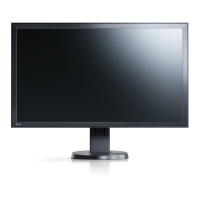
Eizo FlexScan EV2736W
64 pages
Print Icon
To Next Page IconTo Next Page
Loading...
Important
Please read PRECAUTIONS, this Users Manual, and the Setup Guide
(separate volume) carefully to familiarize yourself with safe and
effective usage.
Please refer to the Setup Guide for basic information ranging from
connection of the monitor to a PC to using the monitor.
The latest Users Manual is available for download from our web site:
http://www.eizo.com

Table of Contents

Other manuals for Eizo FlexScan EV2736W

Questions and Answers

  • Z
    zthomasAug 17, 2025
    How to adjust the brightness on my Eizo Monitor if the screen is too bright or dark?
    • B
      Brian BradleyAug 18, 2025
      If your Eizo monitor screen is too bright or too dark, use the “Brightness” or “Contrast” settings in the Setting menu to adjust it. If the screen is too bright, you can also try turning on the Auto EcoView feature.
  • S
    scottwongAug 20, 2025
    How to fix an Eizo Monitor when there is no picture and the power indicator doesn't light up?
    • C
      Cheryl LittleAug 20, 2025
      If your Eizo monitor shows no picture and the power indicator is off, try these steps: First, ensure the power cord is properly connected. Then, turn on the main power switch. Next, press the power button on the monitor. If the issue persists, turn off the main power, wait a few minutes, and then turn it back on.
  • S
    sara51Aug 23, 2025
    Why is there no audio output from my Eizo FlexScan EV2736W?
    • P
      Patrick TuckerAug 23, 2025
      If you're experiencing no audio output from your Eizo monitor, consider the following: Check that the stereo mini jack cable is correctly connected. Ensure the volume isn't set to 0. Verify the settings on your PC and audio playback software. If using DisplayPort, check the “Source” setting.
  • J
    Jennifer JacksonAug 26, 2025
    What to do if USB devices connected to my Eizo FlexScan EV2736W Monitor don't work?
    • M
      Michael WangAug 26, 2025
      If USB devices connected to your Eizo monitor aren't working, try these solutions: Check if the USB cable is correctly connected. Try using a different USB port. Reboot your PC. Also, ensure that your PC and operating system are USB compliant.
  • H
    hgallowayAug 27, 2025
    What to do if my Eizo FlexScan EV2736W Monitor has no picture and the power indicator is lighting orange?
    • J
      jennifercaseAug 28, 2025
      If your Eizo monitor displays no picture but the power indicator is orange, try these steps: Switch the input signal using the appropriate button. Move the mouse or press any key on the keyboard. Check whether the PC is turned on. Come near to the monitor. If the screen is still not displayed, move the mouse or press any key on the keyboard.
  • E
    ewestAug 30, 2025
    How to resolve 'Input Signal Out of Range' on my Eizo FlexScan EV2736W Monitor?
    • M
      Meghan SchwartzAug 30, 2025
      If your Eizo monitor displays a message indicating that the input signal is out of the specified frequency range, check whether your PC is configured to meet the monitor's resolution and vertical scan frequency requirements. You might also need to reboot your PC or select an appropriate setting using your graphics board’s utility.
  • R
    Ronald Beck VSep 2, 2025
    Why are the characters blurred on my Eizo FlexScan EV2736W?
    • F
      Fred FosterSep 2, 2025
      If the characters on your Eizo monitor appear blurred, check whether your PC is configured to meet the monitor's resolution and vertical scan frequency requirements. If you're using a resolution other than the recommended one, use the “Smoothing” and “Screen Size” settings in the Setting menu to adjust the display.
  • C
    Christina KramerSep 4, 2025
    What to do if my Eizo Monitor has no picture, but the power indicator is blue?
    • S
      Scott HernandezSep 4, 2025
      If your Eizo monitor shows no picture, but the power indicator is lighting blue, increase the “Brightness”, “Contrast”, or “Gain” in the Setting menu.
  • B
    Brett FlemingSep 7, 2025
    Why does EcoView Sense on my Eizo FlexScan EV2736W Monitor not work correctly?
    • L
      Laura WilsonSep 7, 2025
      If the EcoView Sense feature on your Eizo monitor isn't working correctly (images remain displayed when you move away or don't reappear when you come near), check the monitor's setting environment. Ensure there's no dirt on the sensor and clean it with a soft cloth if necessary. Also, make sure you are directly in front of the monitor. If the screen remains off, try turning the monitor off and on using its power button.
  • A
    andreacampbellSep 9, 2025
    How to prevent afterimages on my Eizo Monitor?
    • L
      Laura KirbySep 9, 2025
      To prevent afterimages on your Eizo monitor, avoid displaying the same image for a long time. Use the screen saver or power save function to prevent static images from being displayed for extended periods.

Summary

Introduction and Core Features

1-1. Product Features

Overview of the monitor's key capabilities, including screen size, panel type, and connectivity.

1-3. EIZO LCD Utility Disk

Details on included software like ScreenManager Pro for screen adjustment and utility disk contents.

Screen Adjustment and Display Settings

2-1. Compatible Resolutions

Lists supported display resolutions for DVI-D and DisplayPort inputs.

2-2. Setting Display Resolution

Step-by-step guide to adjust screen resolution on Windows and Mac OS.

2-3. Adjusting Color and Image Quality

Guides on adjusting brightness, contrast, gamma, saturation, hue, overdrive, and gain.

Select Display Mode (FineContrast)

How to choose preset display modes like sRGB, Paper, or Movie for optimal viewing.

2-4. Screen Size and Clarity Settings

Options for adjusting image display size and improving text/line clarity.

Monitor Configuration and Management

3-1. Basic Monitor Settings

Configuration options for volume, sound source, DDC/CI, language, and logo display.

3-4. Operation Button Lock

How to prevent accidental changes to monitor settings by locking buttons.

3-6. Setting Menu Display

How to reposition the on-screen display (OSD) menu.

3-8. Resetting to Default Settings

Returns all monitor settings, including color and EcoView Sense, to factory defaults.

Power Saving and Eco Features

4-1. Setting Power Saving Modes

How to enable or disable monitor power saving and manage power indicator status.

4-3. Automatic Brightness Adjustment

Utilizes ambient light sensor to automatically adjust screen brightness.

4-4. EcoView Sense (Presence Detection)

Configures power saving based on user presence using the EcoView Sense function.

4-6. Auto Power-OFF Timer

Automatically turns off the monitor after a set period in power saving mode.

Troubleshooting and Support

5-1. No Picture or Signal Issues

Solutions for common problems like no display or incorrect power indicator status.

5-2. Imaging and Display Problems

Addresses issues like screen brightness, blurred text, afterimages, and display defects.

5-3. Other Operational Problems

Covers issues such as inaccessible menus, no audio, and USB device malfunctions.

Hardware Reference and Connectivity

6-1. Attaching Monitor Stand and Arm

Instructions for mounting the monitor using its stand or an optional VESA arm.

6-3. Cable Management

How to use the included cable holder to organize monitor cables.

6-4. Connecting Multiple PCs

How to configure the monitor to automatically or manually select input signals.

6-5. Using the USB Hub Function

Connecting peripheral USB devices via the monitor's built-in USB hub.

6-7. Technical Specifications

Detailed technical specifications and performance characteristics of the monitor.

Compliance, Warranty, and Safety

Limited Warranty Information

Terms and conditions of the product's warranty coverage and limitations.

Recycling and Disposal Guidelines

Guidelines for environmentally responsible disposal and recycling of the product.

Compliance Information (FCC, RoHS)

Information regarding compliance with regulations like FCC and China RoHS standards.

Eizo FlexScan EV2736W Specifications

General IconGeneral
3DNo
Pixel pitch0.233 x 0.233 mm
Aspect ratio16:9
Response time6 ms
Display diagonal27 \
Display technologyLED
Viewable size, vertical335.6 mm
Contrast ratio (dynamic)-
Contrast ratio (typical)1000:1
Display number of colors16.78 million colors
Viewable size, horizontal596.7 mm
Display brightness (typical)300 cd/m²
Supported graphics resolutions2560 x 1440
HDCPYes
USB hub version2.0
DVI-D ports quantity1
Headphone connectivity3.5 mm
VGA (D-Sub) ports quantity0
USB Type-A downstream ports quantity2
RMS rated power2 W
Number of OSD languages9
Panel mounting interface100 x 100 mm
Power consumption (max)67 W
Power consumption (standby)- W
Power consumption (typical)24 W
Power consumption (PowerSave)0.5 W
CertificationTCO Displays 6.0, ECO Sense Gold, ISO9241-307, TUV/GS, c-Tick, CE, CB, cTUVus, FCC-B, TUV/S, VCCI-B, RoHS, WEEE, CCC, GOST-R
Product colorGray
Operating temperature (T-T)5 - 35 °C
Operating relative humidity (H-H)20 - 80 %
Sustainability certificatesEPEAT Gold, ENERGY STAR
Weight and Dimensions IconWeight and Dimensions
Depth (without stand)65 mm
Width (without stand)640 mm
Height (without stand)379 mm
Weight (without stand)7300 g

Related product manuals