EasyManua.ls Logo

Eizo FlexScan EV2216W - User Manual

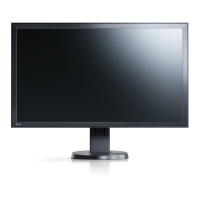
Eizo FlexScan EV2216W
72 pages
Print Icon
To Next Page IconTo Next Page
Loading...
Important
Please read PRECAUTIONS, this Users Manual, and the Setup Guide
(separate volume) carefully to familiarize yourself with safe and
effective usage.
Please refer to the Setup Guide for basic information ranging from
connection of the monitor to a PC to using the monitor.
The latest Users Manual is available for download from our web site:
http://www.eizo.com
Cover

Table of Contents

Questions and Answers

  • D
    Dawn MillerSep 18, 2025
    What to do if interference patterns remain on Eizo FlexScan EV2216W Monitor screen?
    • J
      Jessica JohnsonSep 18, 2025
      If you notice interference patterns or pressure marks on your Eizo monitor screen, leave the monitor displaying a white or black screen. This symptom may disappear over time.
  • K
    Karla SmithAug 25, 2025
    What to do if Eizo FlexScan EV2216W shows input signal out of range message?
    • D
      Darin HallAug 25, 2025
      If your Eizo monitor displays a message indicating that the input signal is out of the specified frequency range, it means the signal isn't being input correctly. Ensure that your PC is configured to meet the monitor's resolution and vertical scan frequency requirements. You can also try rebooting your PC or selecting an appropriate setting using the graphics board’s utility.
  • G
    Gregory HamiltonAug 25, 2025
    How to fix no picture on Eizo Monitor?
    • M
      Miss Ashley SnowAug 26, 2025
      If your Eizo monitor displays no picture, try these steps: * Ensure the power cord is properly connected. * Turn on the main power switch. * Press the power button. * If the issue persists, turn off the main power, wait a few minutes, and turn it back on. * Increase the “Brightness”, “Contrast”, or “Gain” in the Setting menu. * Switch the input signal. * Move the mouse or press any key on the keyboard. * Check that your PC is turned on. * If EcoView Sense is enabled, the monitor may be in power-saving mode; move closer to the monitor or press a key. * If the monitor doesn't recover from power saving mode, turn it off and on again. * If using DisplayPort, the connected device may have a problem. Resolve the device issue, then turn the monitor off and on again.
  • H
    hicksvanessaAug 27, 2025
    What to do if Eizo FlexScan EV2216W Monitor says input signal is out of range?
    • D
      Dennis BryanAug 27, 2025
      If you see a message on your Eizo monitor indicating that the input signal is out of the specified frequency range, it means the signal being sent to the monitor isn't compatible. * Verify that your PC's resolution and vertical scan frequency meet the monitor's requirements. * Reboot your PC. * Use your graphics board's utility to select an appropriate setting.
  • J
    josephwolfeSep 22, 2025
    Why does noise appear on the screen of Eizo Monitor?
    • L
      laurenreedSep 22, 2025
      When entering HDCP signals, the normal images may not be displayed immediately on Eizo Monitor.
  • K
    Kevin ValentineDec 1, 2025
    How to fix Eizo FlexScan EV2216W when there is no picture?
    • J
      John GordonDec 1, 2025
      If your Eizo monitor isn't displaying a picture, here are some things to check: * Ensure the power cord is properly connected and the main power switch is turned on. * Press the power button on the monitor. * Try turning the main power off, waiting a few minutes, and then turning it back on. * Increase the “Brightness”, “Contrast”, or “Gain” in the Setting menu. * Switch the input signal. * Move the mouse or press any key on the keyboard to wake the monitor. * Verify that your PC is turned on. * If EcoView Sense is enabled, the monitor might be in power-saving mode; approach the monitor, move the mouse, or press a key. If that doesn't work, try turning the monitor off and on again. As an alternative, press the power button to turn off the monitor, then hold down the button...
  • N
    Nicole SolomonSep 12, 2025
    Why my USB devices connected to Eizo FlexScan EV2216W do not work?
    • B
      Barbara ThompsonSep 12, 2025
      If USB devices connected to your Eizo monitor aren't working: * Make sure the USB cable is properly connected. * Try a different USB port. If changing the port resolves the issue, contact your local EIZO representative. * Reboot your PC. * Check that your PC and operating system are USB compliant. Consult their manufacturers for USB compliance of the respective devices. * Check the PC’s BIOS setting for USB when using Windows.
  • C
    Christopher HardingSep 12, 2025
    How to prevent afterimages on Eizo FlexScan EV2216W?
    • T
      Thomas Flores Jr.Sep 12, 2025
      Afterimages are a characteristic of LCD monitors. To minimize afterimages on your Eizo monitor: * Avoid displaying the same static image for extended periods. * Utilize a screen saver or the power save function to prevent prolonged display of the same image.
  • A
    alexdaltonSep 5, 2025
    How to remove interference patterns or pressure marks on Eizo FlexScan EV2216W Monitor screen?
    • D
      Dr. Cynthia ClarkSep 5, 2025
      If you notice interference patterns or pressure marks on your Eizo monitor screen, leave the monitor displaying a white or black screen. This symptom may disappear over time.
  • K
    Kyle LaneSep 3, 2025
    How to fix vertical bars or flickering on Eizo Monitor?
    • D
      Daniel ChristianSep 3, 2025
      If you see vertical bars on the screen or part of the image is flickering on your Eizo monitor, use the “Clock” setting in the Setting menu to adjust it.

Summary

Chapter 1 Introduction

1-1. Features

Key characteristics and technologies of the FlexScan EV2216W monitor.

1-2. Controls and Functions

Identification and explanation of front and rear panel buttons, indicators, and ports.

1-4. Basic Operations and Functions

Guide to navigating the setting menu and performing core monitor adjustments.

Chapter 2 Adjusting Screens

2-1. Compatible Resolutions

Lists supported resolutions and signal types for analog and digital inputs.

2-3. Adjusting Color

Details on selecting display modes and performing advanced color adjustments.

2-4. Screen Adjustment

Procedures for automatic and manual screen adjustments for analog signals.

Chapter 3 Setting Monitor

3-3. Compensating viewing angle deficiency

Adjusting screen appearance for improved visibility from different angles.

Chapter 4 Power Saving Functions

4-1. Setting Power Saving

How to activate or deactivate the monitor's power saving features.

4-3. Enabling; Disabling Automatic Brightness Adjustment

Using Auto EcoView for automatic brightness control.

4-4. Setting the power saving mode when a person leaves the monitor

Configuring EcoView Sense for presence-based power saving.

Chapter 5 Troubleshooting

5-1. No picture

Troubleshooting steps for when the screen remains blank or power indicator is abnormal.

5-2. Imaging problems (for both digital and analog)

Solutions for common display issues like brightness, blur, afterimages, or noise.

5-5. Other problems

Solutions for miscellaneous issues like menu access, audio, or USB device functionality.

Chapter 6 Reference

6-7. Specifications

Detailed technical data and performance characteristics of the monitor.

Eizo FlexScan EV2216W Specifications

General IconGeneral
Screen Size22 inches
Resolution1680 x 1050
Aspect Ratio16:10
Panel TypeTN
Brightness250 cd/m²
Contrast Ratio1000:1
Response Time5 ms
Viewing Angle (Horizontal)170°
Viewing Angle (Vertical)160°
Built-in SpeakersNo
ConnectivityDVI-D, VGA
Power Consumption (standby)0.5 W
Dimensions (W x H x D)200 mm

Related product manuals