EasyManua.ls Logo

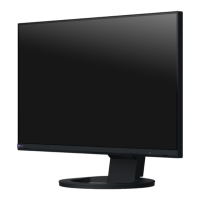
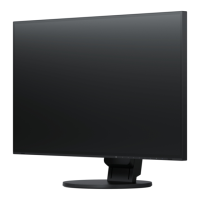
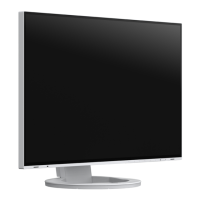
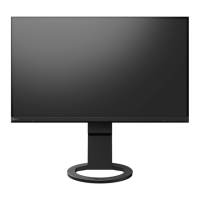
Eizo FlexScan EV2216WFS3 - User Manual

Eizo FlexScan EV2216WFS3
72 pages
Print Icon
To Next Page IconTo Next Page
Loading...
Important
Please read PRECAUTIONS, this Users Manual, and the Setup Guide
(separate volume) carefully to familiarize yourself with safe and
effective usage.
Please refer to the Setup Guide for basic information ranging from
connection of the monitor to a PC to using the monitor.
The latest Users Manual is available for download from our web site:
http://www.eizoglobal.com

Table of Contents

Questions and Answers

  • J
    Jennifer MyersSep 18, 2025
    What to do if interference patterns remain on Eizo FlexScan EV2216WFS3 Monitor screen?
    • M
      Michelle WatsonSep 18, 2025
      If you notice interference patterns or pressure marks on your Eizo monitor screen, leave the monitor displaying a white or black screen. This symptom may disappear over time.
  • S
    Sonya FigueroaAug 25, 2025
    What to do if Eizo FlexScan EV2216WFS3 Monitor shows input signal out of range message?
    • J
      Joseph WashingtonAug 25, 2025
      If your Eizo monitor displays a message indicating that the input signal is out of the specified frequency range, it means the signal isn't being input correctly. Ensure that your PC is configured to meet the monitor's resolution and vertical scan frequency requirements. You can also try rebooting your PC or selecting an appropriate setting using the graphics board’s utility.
  • W
    woodardkristaAug 25, 2025
    How to fix no picture on Eizo FlexScan EV2216WFS3 Monitor?
    • K
      Katie JenkinsAug 26, 2025
      If your Eizo monitor displays no picture, try these steps: * Ensure the power cord is properly connected. * Turn on the main power switch. * Press the power button. * If the issue persists, turn off the main power, wait a few minutes, and turn it back on. * Increase the “Brightness”, “Contrast”, or “Gain” in the Setting menu. * Switch the input signal. * Move the mouse or press any key on the keyboard. * Check that your PC is turned on. * If EcoView Sense is enabled, the monitor may be in power-saving mode; move closer to the monitor or press a key. * If the monitor doesn't recover from power saving mode, turn it off and on again. * If using DisplayPort, the connected device may have a problem. Resolve the device issue, then turn the monitor off and on again.
  • S
    Sarah BrownAug 26, 2025
    What to do if Eizo Monitor says input signal is out of range?
    • M
      Michael Ward DDSAug 27, 2025
      If you see a message on your Eizo monitor indicating that the input signal is out of the specified frequency range, it means the signal being sent to the monitor isn't compatible. * Verify that your PC's resolution and vertical scan frequency meet the monitor's requirements. * Reboot your PC. * Use your graphics board's utility to select an appropriate setting.
  • X
    xlucasSep 23, 2025
    Why does noise appear on the screen of Eizo Monitor?
    • G
      garciacassandraSep 23, 2025
      When entering HDCP signals, the normal images may not be displayed immediately on Eizo Monitor.
  • C
    ccaseyDec 1, 2025
    How to fix Eizo FlexScan EV2216WFS3 Monitor when there is no picture?
    • J
      Jesse AndersonDec 1, 2025
      If your Eizo monitor isn't displaying a picture, here are some things to check: * Ensure the power cord is properly connected and the main power switch is turned on. * Press the power button on the monitor. * Try turning the main power off, waiting a few minutes, and then turning it back on. * Increase the “Brightness”, “Contrast”, or “Gain” in the Setting menu. * Switch the input signal. * Move the mouse or press any key on the keyboard to wake the monitor. * Verify that your PC is turned on. * If EcoView Sense is enabled, the monitor might be in power-saving mode; approach the monitor, move the mouse, or press a key. If that doesn't work, try turning the monitor off and on again. As an alternative, press the power button to turn off the monitor, then hold down the button...
  • R
    Russell AlvarezSep 12, 2025
    Why my USB devices connected to Eizo Monitor do not work?
    • J
      Jeffery JoyceSep 12, 2025
      If USB devices connected to your Eizo monitor aren't working: * Make sure the USB cable is properly connected. * Try a different USB port. If changing the port resolves the issue, contact your local EIZO representative. * Reboot your PC. * Check that your PC and operating system are USB compliant. Consult their manufacturers for USB compliance of the respective devices. * Check the PC’s BIOS setting for USB when using Windows.
  • C
    Cory KiddSep 12, 2025
    How to prevent afterimages on Eizo FlexScan EV2216WFS3 Monitor?
    • C
      chelseahendersonSep 12, 2025
      Afterimages are a characteristic of LCD monitors. To minimize afterimages on your Eizo monitor: * Avoid displaying the same static image for extended periods. * Utilize a screen saver or the power save function to prevent prolonged display of the same image.
  • H
    Heather HansenSep 4, 2025
    How to remove interference patterns or pressure marks on Eizo FlexScan EV2216WFS3 Monitor screen?
    • M
      Michelle CrawfordSep 5, 2025
      If you notice interference patterns or pressure marks on your Eizo monitor screen, leave the monitor displaying a white or black screen. This symptom may disappear over time.
  • L
    lammichaelSep 3, 2025
    How to fix vertical bars or flickering on Eizo FlexScan EV2216WFS3?
    • H
      hpetersSep 3, 2025
      If you see vertical bars on the screen or part of the image is flickering on your Eizo monitor, use the “Clock” setting in the Setting menu to adjust it.

Eizo FlexScan EV2216WFS3 Specifications

General IconGeneral
Screen Size22 inches
Resolution1680 x 1050
Panel TypeIPS
Brightness250 cd/m²
Contrast Ratio1000:1
Response Time5 ms
ConnectivityDVI-D, DisplayPort, VGA
Weight5.2 kg
BacklightLED
Aspect Ratio16:10
Viewing Angle (Horizontal/Vertical)178°/178°
SpeakersNo
Color Depth16.7 million
Power Consumption0.5 W (standby)
Viewing Angles178°/178°

Related product manuals