EasyManua.ls Logo

Eizo FlexScan EV2730Q - User Manual

Eizo FlexScan EV2730Q
62 pages
Print Icon
To Next Page IconTo Next Page
Loading...
Important
Please read PRECAUTIONS, this Users Manual, and the Setup Guide
(separate volume) carefully to familiarize yourself with safe and
effective usage.
Please refer to the Setup Guide for basic information ranging from
connection of the monitor to a PC to using the monitor.
The latest Users Manual is available for download from our web site:
http://www.eizoglobal.com
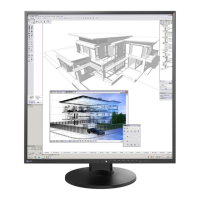
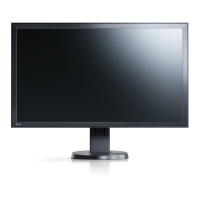
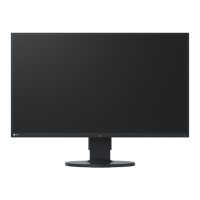
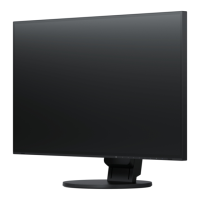
Color LCD Monitor
Users Manual

Table of Contents

Questions and Answers

  • R
    Renee CooperSep 23, 2025
    Why does my Eizo FlexScan EV2730Q Monitor configuration change to single under multiple monitor configuration?
    • B
      Bradley RojasSep 23, 2025
      When two monitors are connected to one PC using DisplayPort, and the power to one of the monitors is turned off with the power button, the screen setting may be changed to the single monitor configuration. In such a case, enable the “DP HotPlug” function with the following procedures: 1. Press the power button to turn off the monitor. 2. Hold down the menu button while pressing the power button to turn on the monitor.
  • C
    Charles WhiteAug 23, 2025
    How to adjust brightness on Eizo FlexScan EV2730Q Monitor?
    • D
      Dana SandersAug 25, 2025
      If your Eizo Monitor screen is too bright or too dark, use the Brightness or Contrast settings in the Setting menu to adjust it. If the screen is too bright, you can also try turning on the Auto EcoView feature.
  • E
    emilyjohnsAug 25, 2025
    Why doesn't the setting menu appear on my Eizo FlexScan EV2730Q?
    • S
      Stephanie WilsonAug 26, 2025
      If the Setting menu does not appear on your Eizo Monitor, check whether the operation lock function is active.
  • A
    Amy NealAug 26, 2025
    Why is my Eizo Monitor screen too bright?
    • R
      Ryan JohnsonAug 27, 2025
      If your Eizo Monitor screen appears too bright or too dark, use the “Brightness” or “Contrast” settings in the Setting menu to adjust it to a comfortable level. Additionally, you can turn on the Auto EcoView feature, which automatically adjusts the screen brightness based on the environmental brightness.
  • S
    Sharon MccarthyAug 27, 2025
    Why are my USB devices not working on my Eizo FlexScan EV2730Q?
    • N
      Nancy ObrienAug 27, 2025
      If you're experiencing issues with USB devices connected to your Eizo Monitor, first, check that the USB cable is correctly connected. Try changing the USB port to another one. Reboot your PC. Also, verify that both your PC and OS are USB compliant, and check the PC’s BIOS setting for USB.
  • A
    Angela BlankenshipSep 15, 2025
    Why does my Eizo FlexScan EV2730Q Monitor have dead pixels?
    • J
      James LeeSep 15, 2025
      This is due to LCD panel characteristics and is not a failure.
  • J
    Jim JacksonSep 12, 2025
    Why does my Eizo Monitor change to single display with DisplayPort?
    • J
      Jose JohnsonSep 12, 2025
      If your Eizo Monitor configuration changes to single under the multiple monitor configuration when DisplayPort is connected, and two monitors are connected to one PC using DisplayPort, turning off one monitor's power may cause this. To resolve this, enable the “DP HotPlug” function: press to turn off the monitor, then hold down while pressing to turn it on. Note that enabling this function may increase power consumption.
  • J
    Jeremy JohnsonSep 14, 2025
    How to troubleshoot Eizo FlexScan EV2730Q Monitor no audio?
    • M
      Mary LittleSep 14, 2025
      If you are not getting any audio output from your Eizo Monitor, first check whether the stereo mini jack cable is connected properly. Then, ensure that the volume is not set to 0. Also, check the audio settings on your PC and within the audio playback software. If you are using a DisplayPort signal input, verify the “Source” setting.
  • E
    Elizabeth SullivanSep 5, 2025
    How to fix Eizo FlexScan EV2730Q no picture?
    • T
      tracy54Sep 5, 2025
      If your Eizo Monitor displays no picture, make sure the power cord is properly connected and the main power switch is turned on. Try pressing the power button. If that doesn't work, turn off the main power and turn it back on after a few minutes. You can also try increasing the “Brightness”, “Contrast”, or “Gain” in the Setting menu or switch the input signal. Ensure your PC is turned on, and if EcoView Sense is enabled, approach the monitor or move the mouse. If using DisplayPort, troubleshoot the connected device, then turn the monitor off and on again.
  • S
    Stephanie MontgomerySep 2, 2025
    Why are USB devices not working on my Eizo FlexScan EV2730Q?
    • J
      Jeffrey ClaytonSep 3, 2025
      If USB devices connected to your Eizo monitor aren't working, verify that the USB cable is correctly connected. Try changing the USB port. Reboot your PC. Check whether the PC and OS are USB compliant and also check the PC’s BIOS setting for USB when using Windows.

Summary

Chapter 1: Introduction

1-2. Controls and Functions

Describes the physical controls, buttons, and their functions on the monitor.

Chapter 2: Adjusting Screens

2-1. Compatible Resolutions

Lists supported display resolutions for DVI-D and DisplayPort inputs.

2-2. Setting the Resolution

Provides step-by-step instructions for changing the screen resolution on various operating systems.

2-3. Adjusting Color

Explains how to select display modes and perform advanced color adjustments.

Chapter 4: Power Saving Functions

Power Saving Modes

Explains how to enable and configure power saving features for the monitor.

Brightness and EcoView Settings

Covers automatic brightness adjustment and EcoView Sense functionality.

Chapter 5: Troubleshooting

5-1. No Picture Issues

Provides solutions for problems related to the monitor not displaying an image or signal errors.

5-2. Imaging Problems

Addresses issues like screen brightness, blurred characters, and afterimages.

Chapter 6: Reference

Appendix and Compliance

Limited Warranty

Outlines the terms, conditions, and duration of the product's limited warranty.

Eizo FlexScan EV2730Q Specifications

General IconGeneral
BrandEizo
ModelFlexScan EV2730Q
CategoryMonitor
LanguageEnglish

Related product manuals