Magic 260
17
Section 13: AUXILIARY BUTTONS (1-4)
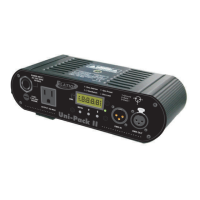
The AUXILIRARY buttons wi ll allow you to switch non DMX fix tures ON/OFF via a u niversal
DMX pack. Th is allows you to co ntrol up to 4 dance to sound ef fects and your intelligent lights
from M agic 260. It’s like havin g two controllers in one. Simply co nn ect the DMX pack to your
DMX link and addr ess it to DMX channel 26 4. If your pack incor porates di p switches, set dip
switc hes 1, 3 & 9 to the ON position. The four AUXILIARY butto ns will then control pack
chann els 1-4 . These auxi liary ch annels are not connected to the res t o f the controller.
Therefore, the BLACKOUT fun ction will not affect these four chan n els. They must be s witched
ON/OFF from the relevan t AUXILIARY but tons 1-4.
Section 14: HELP Button
The HELP button contains step by step instructions on recording scenes and shows in English and Spanish. These
instructions are read only files that should be used for reference after you’ve read this manual. This manual
contains more detailed information with regards to recording scenes and shows so it is strongly recommended
that you keep this manual for possible use later. When the HELP button is engaged, all functions of Magic 260 are
disabled. Follow the instructions in the display to view the relevant help file. Turn data wheel #4 to navigate
through each step. When you get to the last help step, the HELP LED will turn OFF. Press the MENU button to
exit.
Section 15: Lock/Unlock Memory
Once you’ve programmed all your presets, scenes and shows, you can lock the controller so no unauthorized
personnel change your settings.
(1) From the main screen, press and hold down the “DEL” button then press the “ENTER” button once. Your
display will read as follows:
Select a menu item then press enter.
- Lock/Unlock Memory -
(2) Press the ENTER button to check & change the status if desired.
Memory Status
Unlocked
The current status will be displayed after pressing ENTER. To change the setting turn DATA
wheel #1, then press “ENTER”. The display will momentarily read “DONE” confirming that
status has changed. Repeat steps 1 & 2 to change status as desired.








 To Next Page