46 / EN
User Menu
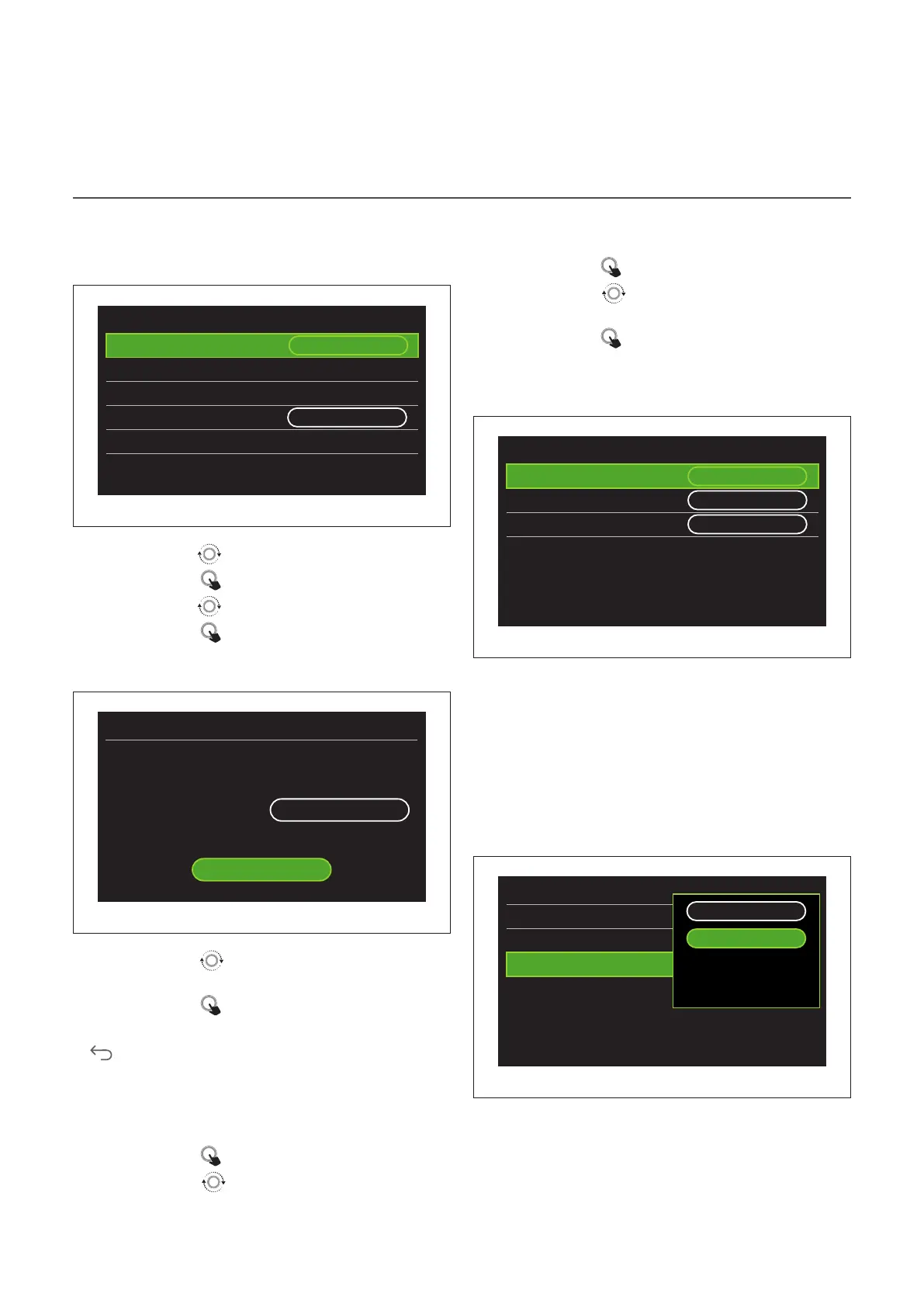
Screen settings
LANGUAGE
Screen settings
Language
English
Time & Date
>
Home screen >
Screen brightness
50%
Standby settings >
Fig. 59
– Turn the selector
to highlight the “Language” item
– Press the selector
to enter the edit mode.
– Turn the selector
to choose the desired language.
– Press the selector
to confirm.
TIME & DATE
Time & Date
Date
30 / 05 / 2021
Time
15 : 20
Legal hour
Auto
Save
Fig. 60
– Turn the selector
to change the value of the selected
field.
– Press the selector
to skip to the next item.
– To change a previously set value, press the “Back” button
.
HOME SCREEN
From this menu you can set the type of home page.
– Press the selector
to enter the edit mode.
– Turn the selector
to choose one of the available set-
tings: “Complete”, “Base”, “Customizable” and “Hp Water
Heater”.
SCREEN BRIGHTNESS
From this menu you can change the brightness of the display.
– Press the selector
to enter the edit mode.
– Turn the selector
to adjust the brightness of the dis-
play when it is in active mode (from 10% to 100%).
– Press the selector
to confirm.
STANDBY SETTINGS
Standby settings
Brightness in standby
70%
Standby timing
1 min
Screen saver selection
Room T
Fig. 61
– "Brightness in standby": allows to set the brightness of
the display when the device is in stand-by mode (from 10%
to 30%).
– "Standby timing": allows to set the time interval (from 1
to 10 minutes) from the last operation made on the device,
after which the screen enters stand-by mode and its bright-
ness is reduced to the value set for the stand-by mode.
– "Screen saver selection": allows to select the type of
screen to be displayed in stand-by mode.
Standby settings
Brightness in standby
70%
Standby timing
1 min
Screen saver selection
Room T
OFF
Fig. 62
– "OFF": displays the selected home page.
– "Room T": displays the current room temperature.


 To Next Page
 Loading...