48
Operation in registration mode
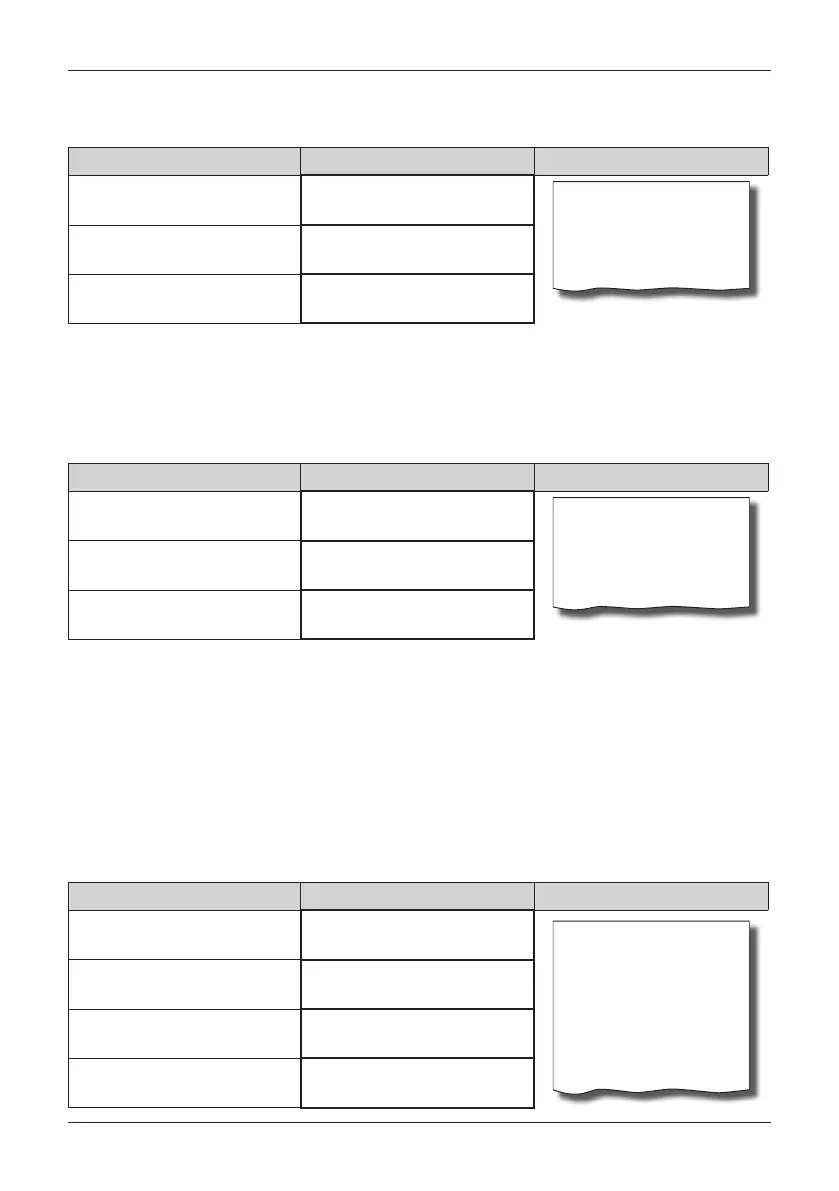
Procedure for applying a programmed percent discount: (condition: programmed values in the P-mode
for surcharges and discounts, see the chapter „Programming the cash register - Surcharges and discounts“).
We want to apply a programmed 10% discount on Cheese Encian:
Sequence of steps Display Receipt
1*Cheese Encian
7.00
Cheese Encian
1*7.00 =7.00 A
Discount
10.00% -0.10A
Discount %-
-0.10
Cash
6.90 EUR
• the procedure for applying a surcharge is similar, only in place of the key
(PERCENT DISCOUNT) we
press
(PERCENT SURCHARGE).
Procedure for manually entering a percent discount: (conditions: programmed limits in the P-mode for
surcharges and discounts, see the chapter „Programming the cash register - Surcharges and discounts“).
We want to apply a discount on
Cheese Encian (if a surcharge or discount is more than the limit for manual
entry, an error message is shown):
Sequence of steps Display Receipt
1*Cheese Encian
7.00
Cheese Encian
1*7.00 =7.00 A
Discount
-0.10 A
Discount %-
-0.10
Cash
6.90 EUR
• the procedure for applying a manually entered percent surcharge is similar, only in place of the key
(PERCENT DISCOUNT) we press
(PERCENT SURCHARGE).
Percent surcharge/discount on a subtotal
Procedure: If all items in a single transaction (purchase) are subject to the same discount or surcharge, it is
possible to register the discount or surcharge at one time for the entire transaction (purchase). Once the entire
sale has been registered (all items), press
SUBTOTAL and then apply the programmed surcharge or dis-
count or to do so by manual entry.
Example: for discretionary items sold with a total price, for example, of 258.00 EUR we apply a programmed
10% discount:
Sequence of steps Display Receipt
items sold
Subtotal 258.00
Discount on subtotal
10.00% -25.80
------------------------
Total 232.20
Rounding -0.20
Cash 232.00
Subtotal
258.00 EUR
Zľava %-
-25.80
Hotovosť
232.00 EUR


 To Next Page