
 Need help?
Do you have a question about the Eluktronics LPP G2 and is the answer not in the manual?
Key warnings, notes, and precautions regarding product usage, warranty, and environmental conditions.
Steps to prepare the LPP G2 unit, including placement and tube connection.
Detailed steps for connecting the LPP G2 to your laptop and important safety guidelines for tube handling.
Instructions on how to fill the LPP G2 unit with distilled water and monitor levels.
Steps for operating the LPP G2, including Bluetooth pairing, and checking liquid levels.
Procedure for safely disconnecting the LPP G2 unit from the laptop and software.
Steps to safely disconnect the liquid tubes from the LPP G2 and laptop, with safety advice.
Guidance on periodic water changes and unplugging tubes for travel, with leakage checks.
Identification of LPP G2 components and explanation of LED color indicators.
Solutions for common problems like leakage, pairing issues, pump malfunctions, and abnormal sounds.
Recommendations for regular maintenance, including water replacement and sub-zero temperature precautions.
Key reminders about reading the manual, checking for leaks, warranty, and seeking support.
Details on CE compliance and EU directives applicable to the LPP G2 device.
FCC interference statement, compliance limits, and RF exposure safety guidelines.
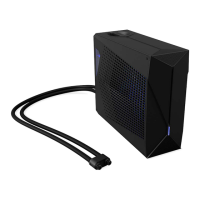
The Eluktronics LPP G2 is a liquid cooling unit designed to enhance the thermal performance of compatible Eluktronics laptops. It functions by circulating liquid through a closed-loop system, drawing heat away from the laptop's internal components and dissipating it through a radiator and cooling fan within the LPP G2 unit. This external cooling solution helps maintain optimal operating temperatures for the laptop, particularly during demanding tasks such as gaming or intensive content creation, thereby potentially improving performance and longevity of the laptop's hardware.
The LPP G2 is designed for straightforward setup and operation. Before use, users are instructed to read the quick guide or user manual to ensure proper handling. The unit should be placed on a flat and level surface to ensure stable operation and prevent spills.
Connecting the LPP G2 to the laptop involves attaching liquid tubes with Mag-Valve connectors to the back of the LPP G2 horizontally. It is crucial to avoid twisting the tubes during this process. The Mag-Valve connectors are designed to provide a firm and secure connection to the laptop's liquid ports, indicated by an audible "click" sound when properly inserted. Users are advised to insert the connectors parallel into the laptop and to use the connector end itself for insertion and removal, rather than pulling or pushing on the tubing, to prevent damage.
Powering the LPP G2 and the laptop is also integrated. The laptop's power adapter connects to the LPP G2's DC port, and an LPP G2 DC cable then connects from the LPP G2 to the laptop's DC port. It's important not to power on the laptop until all connections are made.
A critical step in preparing the LPP G2 for operation is filling it with distilled water. The unit features a liquid tank with MAX and LOW level indicators. To fill, the lid on the LPP G2 unit is opened, and distilled water is added up to the MAX level. After filling, the power button on the LPP G2 must be held for 4-5 seconds to activate "Liquid Injection Mode," indicated by a purple glow. During this mode, the water level should be monitored, and additional water may be added above the MAX indicator for the first time. The manual emphasizes that under normal circumstances, the Mag-Valve connector will not leak water. After filling, the rubber lid must be recapped securely to prevent leakage, and the unit should not be tilted.
Operating the LPP G2 involves a few steps. First, the laptop's power cord is plugged into an outlet. The laptop is then turned on, ensuring Bluetooth is also active. Pressing the power button on the LPP G2 will cause its LED indicator to glow. The LPP G2 and the laptop then pair via Bluetooth; once connected, the fan and water pump will activate, and the LED will display a solid blue light ("BT Paired"). Users are advised to check all ports for leakage in the initial minutes of operation. If leakage occurs, the power should be turned off, and the port reconnected. The liquid level may drop during standard operation, necessitating the addition of more distilled water to keep it above the low marker indicator.
Disconnecting the LPP G2 involves first disconnecting it via the Eluktronics Control Center under the "Liquid Propulsion Package (LPP) Control" tab, then pressing the power button on the LPP G2 to turn it off. To remove the liquid tubes, the LPP G2 must be turned off to prevent water leakage. Users should always check that the connector's temperature is not too hot before removal, allowing the device to cool for a few minutes if necessary.
The LPP G2 features a power button/LED indicator, a power-IN port (from the wall), a power-OUT port (to the laptop), Mag-Valve liquid ports, an RGB cooling fan, a liquid tank with MAX/LOW level indicator marks, and a liquid tank cap/fill port. The LED indicator provides visual feedback on the unit's status: blinking purple for liquid injection mode, blinking blue for Bluetooth searching, solid blue for Bluetooth paired, and blinking orange for a liquid cooling system error (pump idling in orange color).
Regular maintenance is crucial for the LPP G2's optimal performance and longevity. Users are advised to replace the distilled water in the LPP G2 water tank every 60 to 90 days to prevent water clogs.
For fan cleaning and maintenance, a hex key tool is included to access the side of the unit. This allows users to keep the cooling fan free of dust and debris, ensuring efficient heat dissipation.
When unplugging the water tubes, it is important to always check for any water leakage and clean it immediately with a towel if it occurs. This proactive approach helps prevent potential damage to the device or surrounding surfaces.
Special attention is required if the LPP G2 will be exposed to sub-zero temperatures. In such cases, the water must be completely drained after every use to prevent frost damage to the pipes and internal components.
The manual also provides troubleshooting guidance for common issues. If water leakage occurs, users should immediately disconnect the device and check if the LPP G2 ports are firmly connected. For pairing issues, users are guided to check power connections, verify the Eluktronics Control Center installation, ensure Bluetooth is on, and restart both the laptop and LPP G2. If the LPP G2 pump malfunctions, indicated by a flickering red power button and automatic shutdown, users are advised to contact Eluktronics support. Abnormal sounds from the unit, potentially due to trapped oxygen, can be remedied by disconnecting the liquid tubing, using the provided drain tool to release air and residual liquid, gently squeezing and releasing the left tube, and tilting the LPP G2 to the left or backward for three seconds before returning it to its original position, ensuring the liquid tank cap is securely screwed down.
For "Flow State Error" indications (blinking orange LED or message in Eluktronics Control Center), users should turn off the LPP G2, exit the Control Center, remove and reconnect the magnetic liquid pipe connectors on both ends, then power the LPP G2 back on and reopen the Control Center. If the issue persists, a full restart of the computer and LPP G2 is recommended.
The manual also includes important reminders, such as checking all ports for liquid leakage before powering up the device and noting that unauthorized changes or modifications, as well as the use of unauthorized extension cables/tubes, will void the warranty. Users are encouraged to contact support for assistance or questions not covered in the manual or quick guide.
 General
| Category | Laptop |
|---|---|
| RAM | 32GB |
| Display Size | 15.6 inches |
| Display Type | IPS |
| Operating System | Windows 10 Home |
| LAN | Gigabit Ethernet |
| Storage | 1TB NVMe SSD |
| Display Resolution | 2560 x 1440 |
| Wireless | Wi-Fi 6 |
| Webcam | 720p |
| Ports | HDMI |
| Battery | 62Wh |

 To Next Page