E8 Series User Manual Page 21 of 32
12.0 Recording Video
12.1 Entering DV (Digital Video) Mode
To record Video, tap the Camera icon on the Desktop then tap Video Recorder
twice.
12.2 Basic Video Shooting Operations
To record video:
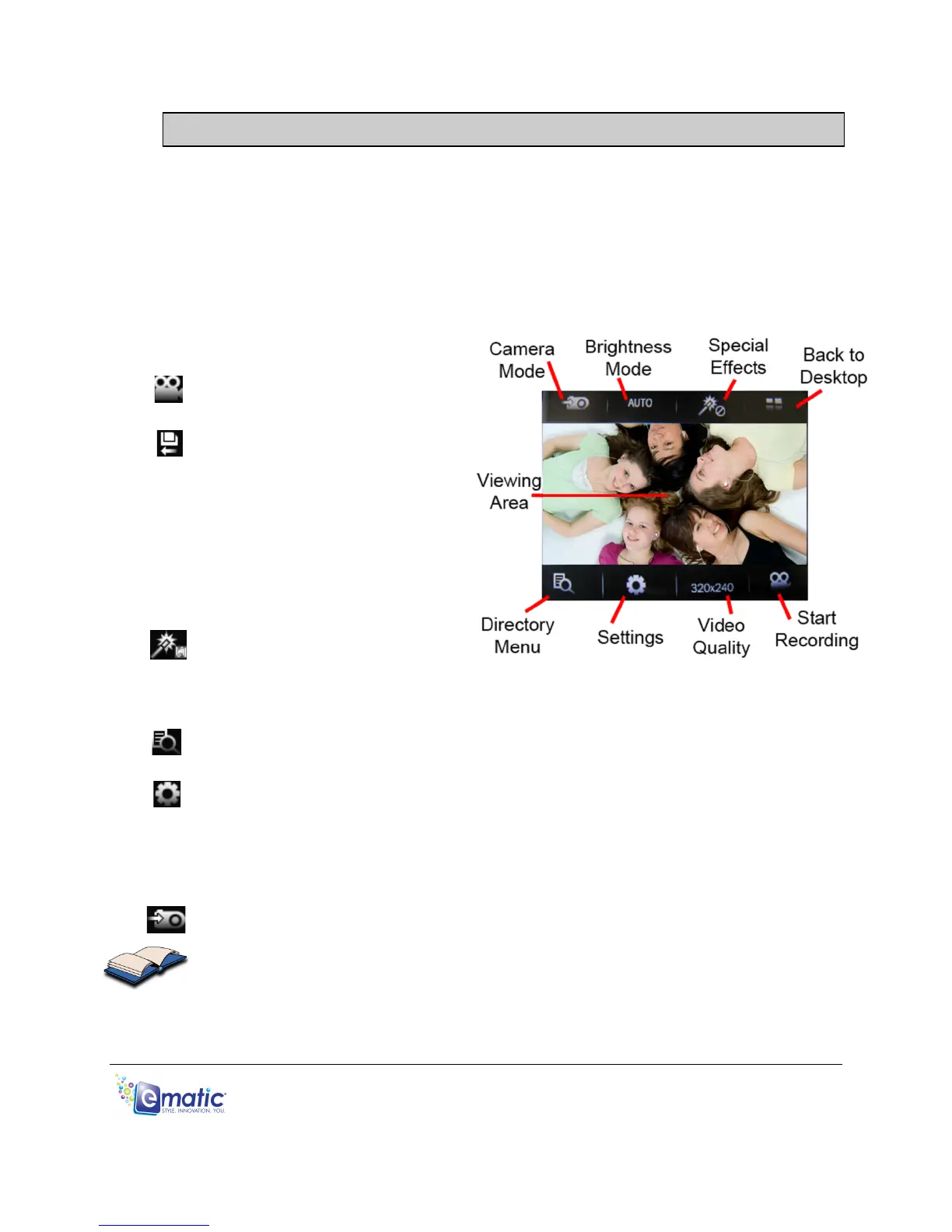
1. Use the Viewing Area as a
Viewfinder.
2. Begin recording by tapping
the Start Recording icon.
3. End a recording by tapping
the Save File and Exit icon.
(Your videos will be saved
to the VIDEO folder.)
• Brightness Mode allows
you to select brightness
settings to compensate for
certain lighting conditions.
• Tap Special Effects to
record using various special
effects such as Black &
White, Negative, and Sepia.
• Tapping the Directory Menu lets you access a list of recordings you’ve
made.
• Settings allows you to further tweak the brightness settings as well as
change the directory in which files are saved.
• Tapping Video Quality lets you choose the recording quality of your
videos. Bigger numbers indicate higher quality videos that take up more
space in memory.
• Camera Mode lets you switch the player to photo capturing mode.
• Once you've finished a recording, you can return to the Desktop by
pressing the EXIT button or by tapping the Desktop icon.


 To Next Page