15 | Understanding Your FunTab
Action Response
Touch and Hold
Touch and hold in place
approximately 2 seconds and
then release.
Displays an options window.
Moves applications from the All
Application screen to the HOME screen
or a folder.
Downloads Android applications direct
from a website.
Deletes email accounts and contacts.
ScreenOrientation
With the Auto-Rotate function enabled, the orientation of the screen
automatically changes between Portrait and Landscape when the device
is rotated.
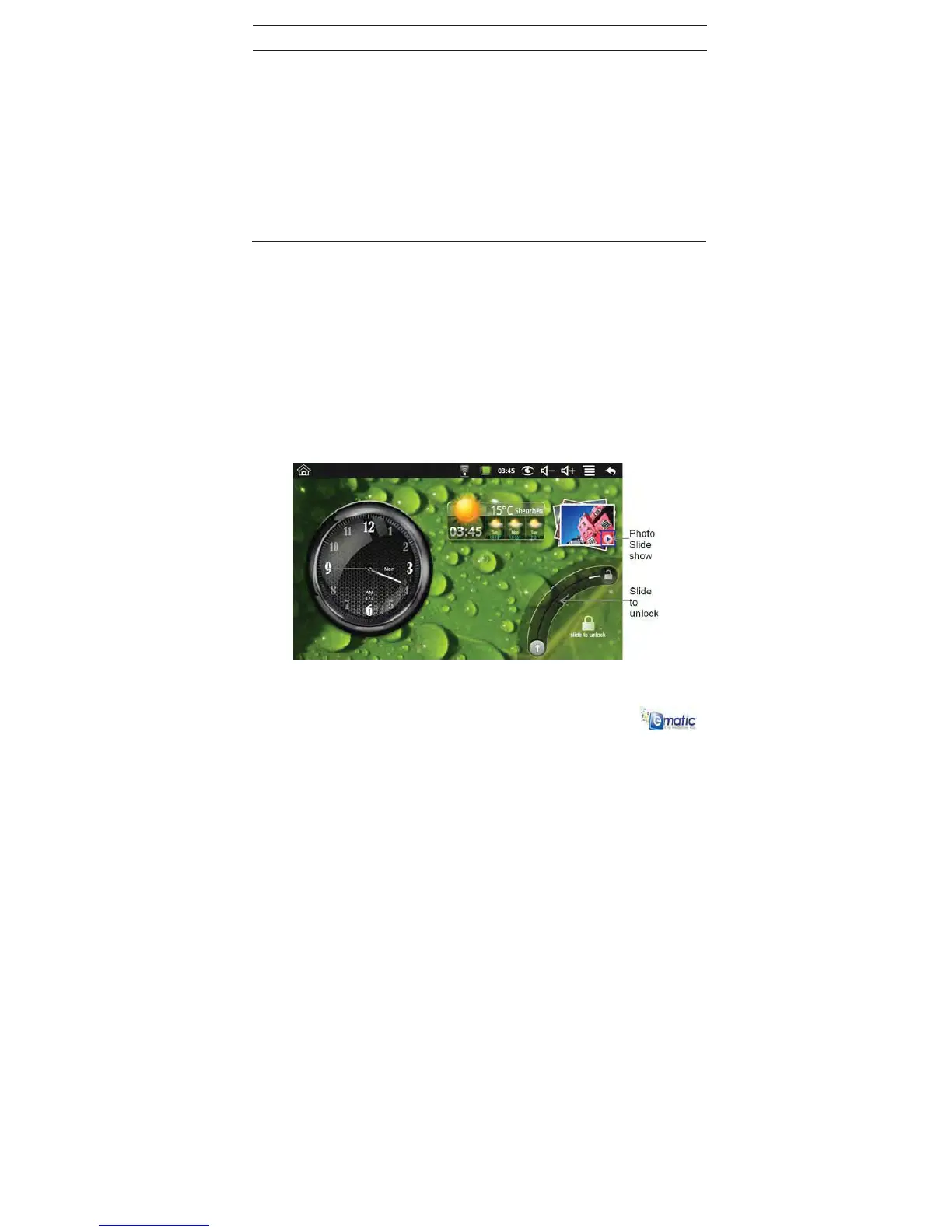
ScreenLock
The screen lock feature can be set to lock automatically through the
settings menu or manually locked by quickly pressing and releasing the
power button.



 To Next Page