Applications | 30
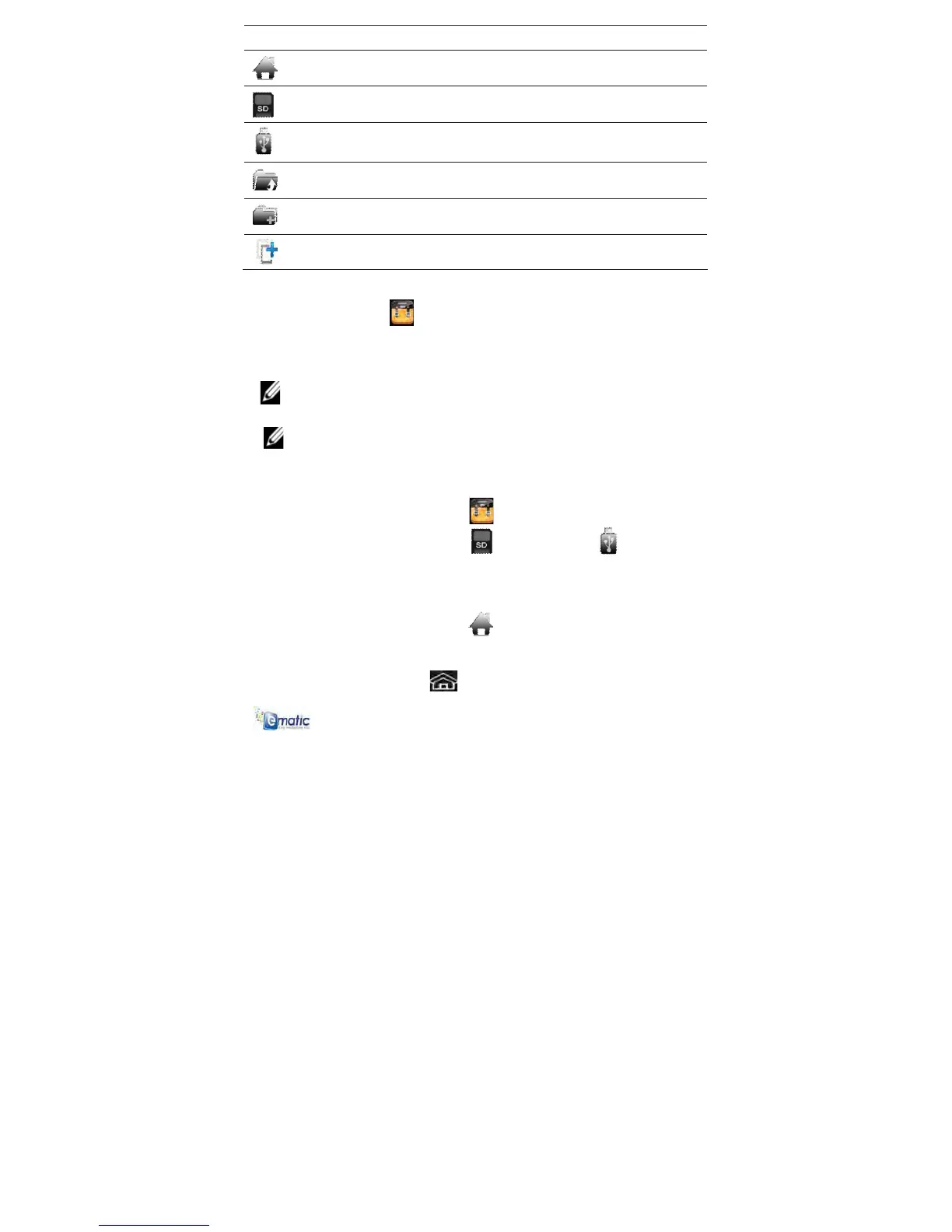
Function Description
Local disk (Internal memory)
Your MicroSD Card
U-disk/USB flash drive (using the
transfer box)
Display previous folder
Create a new folder
Allows you to multi-select items
To copy media between a computer and the device:
Use the File Browser
to copy files between an external storage
device and your tablet. You must first copy the desired files onto a
MicroSD card or USB device.
NOTE: The internal device storage is titled “LocalDisk”, a memory
card “sdcard”, and a USB storage device is titled “udisk”.
NOTE: The instructions below are for copying from a MicroSD card
or USB storage device into the tablet. To copy files between your
computer and the device, connect the tablet to your computer with
the USB Cable. Then drag & drop your files to/from the tablet
Remove Storage Device located in “My Computer”.
1 Tap the File Browser icon
.
2 Tap the MicroSD card icon
or the USB icon to display
the contents of your storage device.
3 Tap and hold in the folder/file you want to copy.
4 Tap Copy.
5 Tap on the Local disk icon
.
6 Tap on the folder into which you want to copy the file.
7 Tap Paste.
8 Tap the HOME icon
to return to the HOME screen.



 To Next Page