address as 255.255.255.0. (Select Use the following IP Address radio button). Once the
computer has been prepared, proceed to setting up the ECB150.
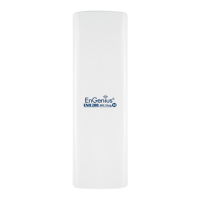
ECB150 Setup
1) To configure ECB150, open a web browser (example: Microsoft Internet Explorer, Mozilla Firefox,
Google Chrome, etc.).
2) In the address bar of the web browser, enter 192.168.1.1 (the default IP address of the ECB150)
and hit enter.
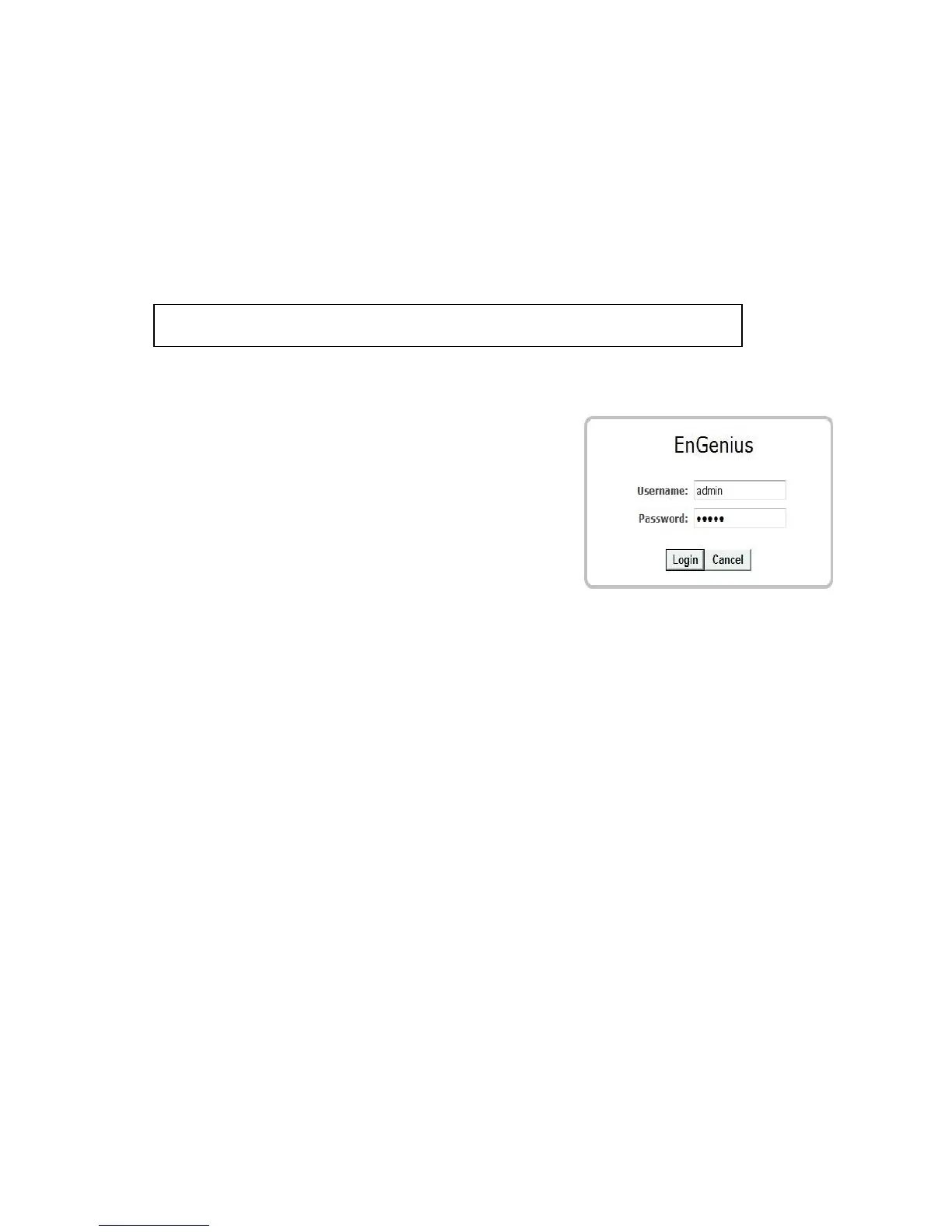
3) A login screen will appear. By default, the username of the ECB150 is admin and the password is
admin. Enter the current username and password of the ECB150 and then click Login. Refer to
the ECB150 user manual on how to change the
username and password.
4) After clicking Login with the correct username and
password, the ECB150 Main Menu will appear. If you are
successful, proceed to setting up the wireless connection.
Switching Between Operating Modes
This device can operate in the following modes: Access Point, Client Bridge, WDS, Repeater, AP Router.
1) Click on the Operation Mode link under the System navigation drop-down menu.
2) Operating Mode: Select an operating mode from the list (Access Point, Client Bridge, or Repeater)
and then click on the Apply button.
3) All basic setup is completed. Note: The wireless connection is not secure. To setup security on the
ECB150, refer to the ECB150 User Manual.





 To Previous Page