7
3. UnderstandingtheHardware
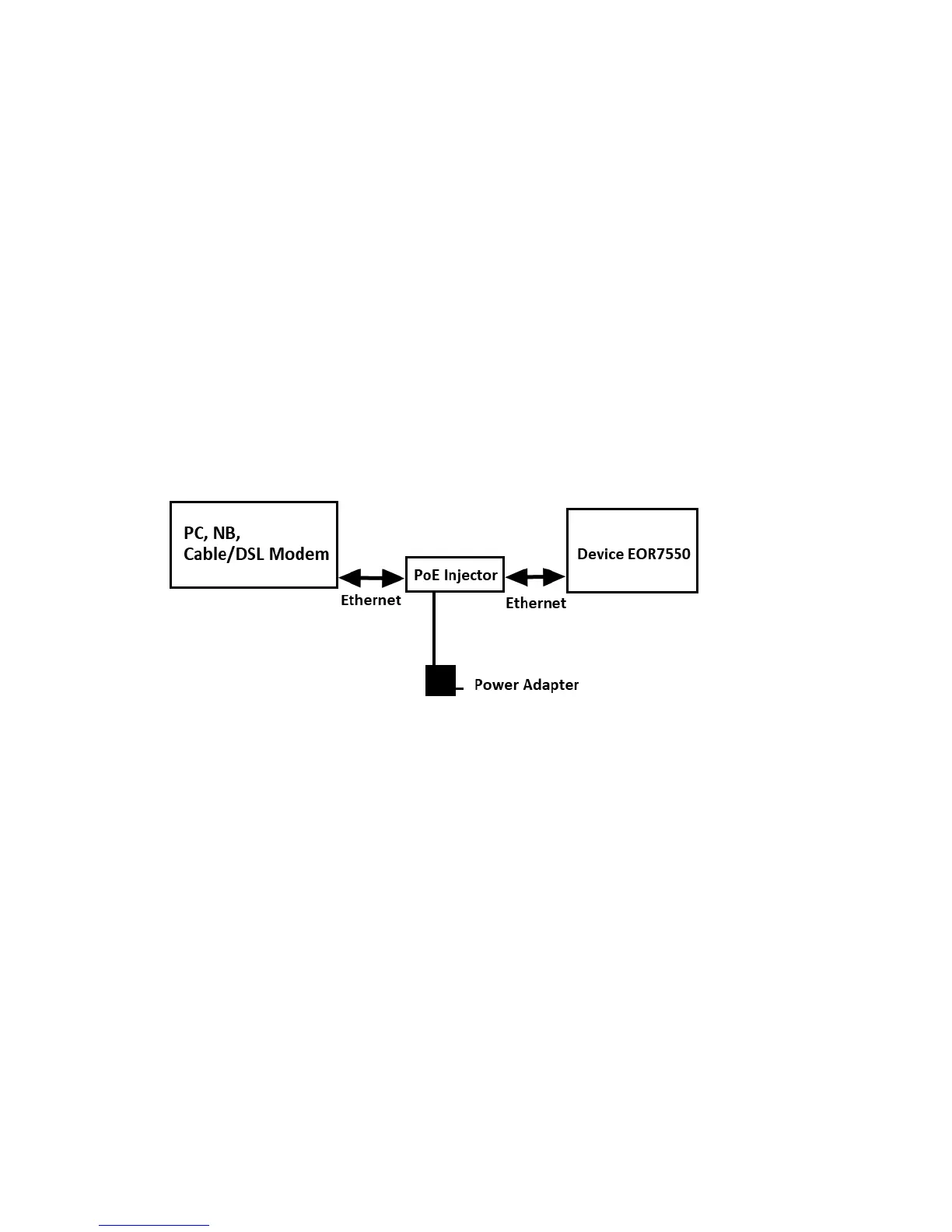
3.1. HardwareInstallation
1. Placetheunitinanappropriatelocationafterconductingasitesurvey.
2. PlugoneendoftheEthernetcableintotheNetworkportofthePoEinjectorandanotherend
intoyourPC/Notebook.
3. PlugoneendofanotherEthernetcabletoAP/BridgeportofthePoEinjectorandtheotherend
intoyoucable/DSLmodem(Internet)
4. InserttheDC‐inletofthepoweradapterintothe48VportofthePoEinjectorandtheother
endintothepowersocketonthewall.
5. Thisdiagramdepictsthehardwareconfiguration
3.2. IPAddressConfiguration
ThedefaultIPaddressofthedeviceis192.168.1.2.Inordertologintothisdevice,youmustfirst
configuretheTCP/IPsettingsofyourPC/Notebook.
1.Inthecontrolpanel,doubleclickNetworkConnectionsandthendoubleclickontheconnection
ofyourNetworkInterfaceCard(NIC).Youwillthenseethefollowingscreen.
2.SelectInternetProtocol(TCP/IP)andthenclickonthePropertiesbutton.Thiswillallowyouto
configuretheTCP/IPsettingsofyourPC/Notebook.
3.SelectUsethefollowingIPAddressradiobuttonandthenentertheIPaddress(192.168.1.21)
andsubnetmask(255.255.255.0).EnsurethattheIPaddressandsubnetmaskareonthesame
subnetasthedevice.
4.ClickontheOKbuttontoclosethiswindow,andonceagaintocloseLANpropertieswindow.


 To Next Page