3
. Checking the progress of a time lapse
You can check the status of each scheduled timelapse sequences by clicking on it from the mosaic
sequences menu.
‘’Medium and long-term’’ sequences can be searched, edited and removed.
‘’Short-term’’ sequences can be searched and removed, but not edited.
When a sequence is in progress you can know how much images have been shot and if you have set
up the connection.
. Checking the status of your Tikee
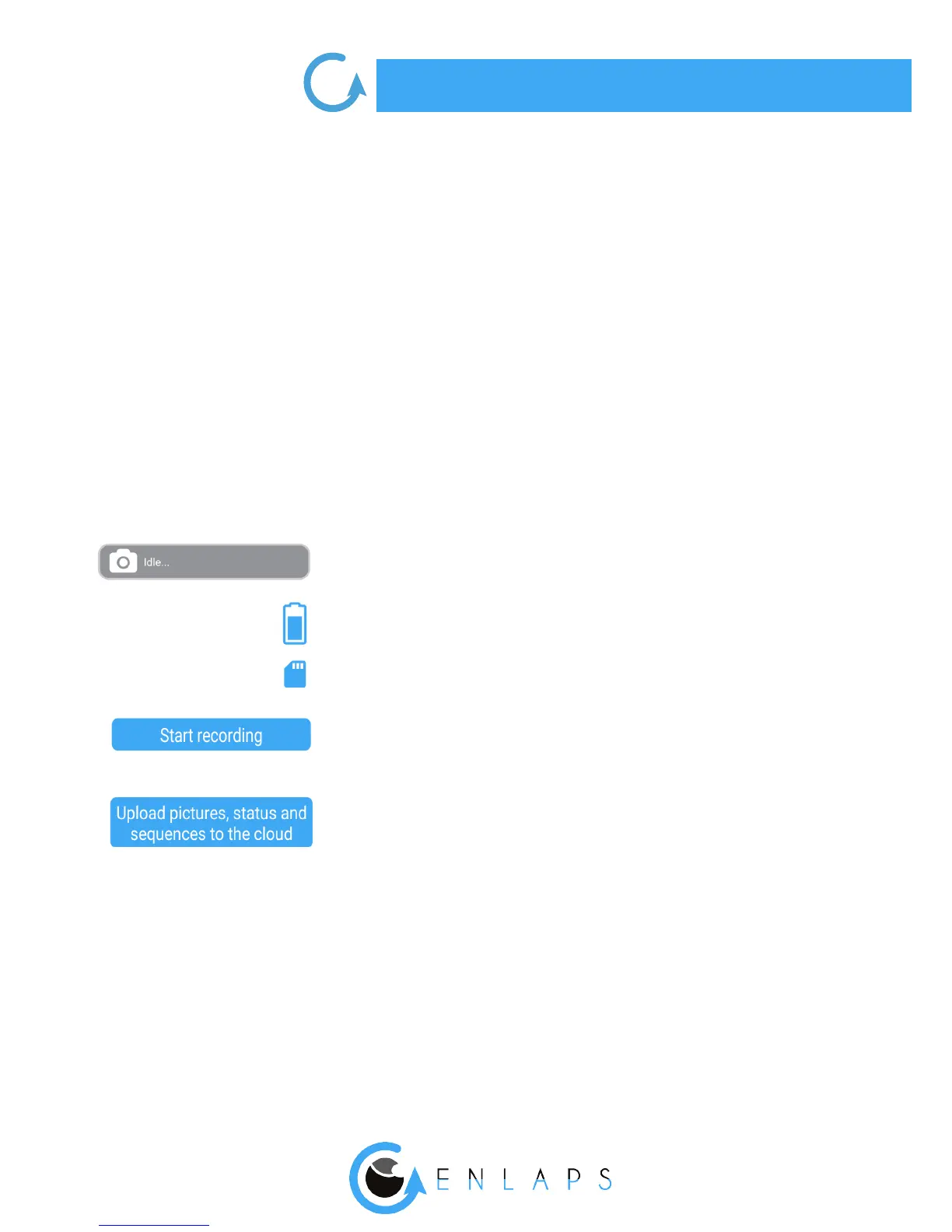
You can check the status of your Tikee by clicking on: on the left top of the mobile app.
Indicates the remaining battery percentage
Indicates the available space on the memory card
Click on this button after setting up a timelapse sequence to start
recording
Allows uploading of photos from the microSD card to web app.
This function may not be available (during a in progress timelapse
sequence for example) and could appear shaded.
Indicates the status of your Tikee.
The dierent status are: idle, waiting, timelapse in progress and time
lapse done.
In the same way, you cannot start recording a time lapse
sequence when the mobile app is uploading images.
. Setting up the connection of your Tikee to
My Enlaps web app
If you want use your Tikee’s WiFi modem or 4G LTE modem (TikeePRO only) to regularly upload photos
to My Enlaps web application, you have to complete the following settings.
Active connectivity mode is displayed on the mobile application screen.


 To Next Page