3
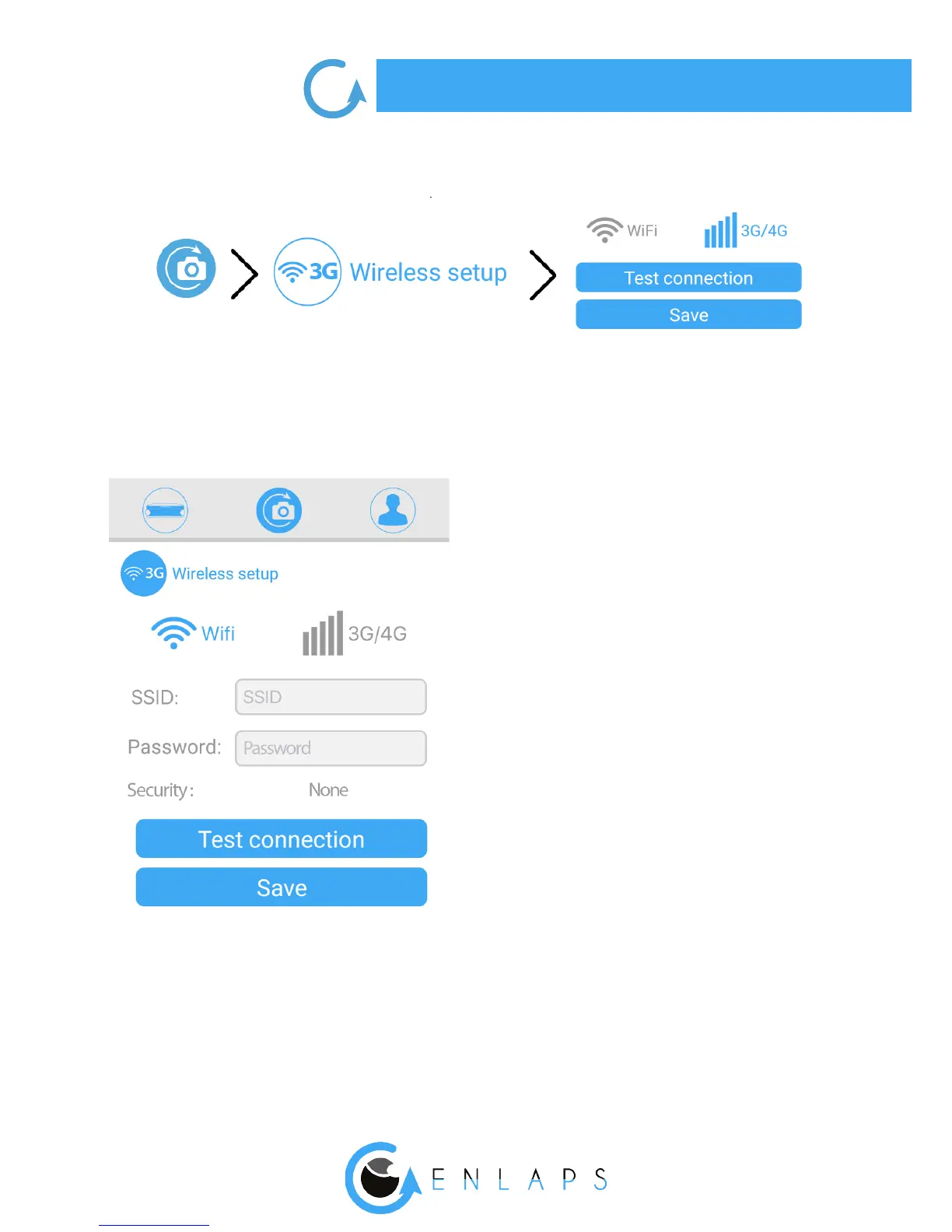
To view the active connectivity mode, follow this path on the mobile application:
Connecting to WiFi (Tikee and TikeePRO)
Note: The WiFi connection is not possible on WiFis that require a connection to a web portal (which
is often the case on an industrial site or on free networks WiFis).
SSID: name of the WiFi to which you want to be
connected to
Password or security key: enter the password/se-
curity key of the wireless network
Security type: choose from the drop-down menu
the type of wireless network security
Once the parameters lled to save them
click on: Save
We recommand to test the connection of your
Tikee once the parameters are set up.
For that click on ‘’Test connection’’.
This step may take several minutes because the
Tikee will check all of the steps to be connected to
My Enlaps web application server.
At the end of the test you will receive a notication
about the success or not of the test.
In case of failure: check if the quality of the wireless network is sucient (for example you can test the
connection on your smartphone beforehand).


 To Next Page