3
Connecting to a 3G/4G telecom network (TikeePRO)
Previously you have to insert a microSIM into the dedicated slot of your Tikee.
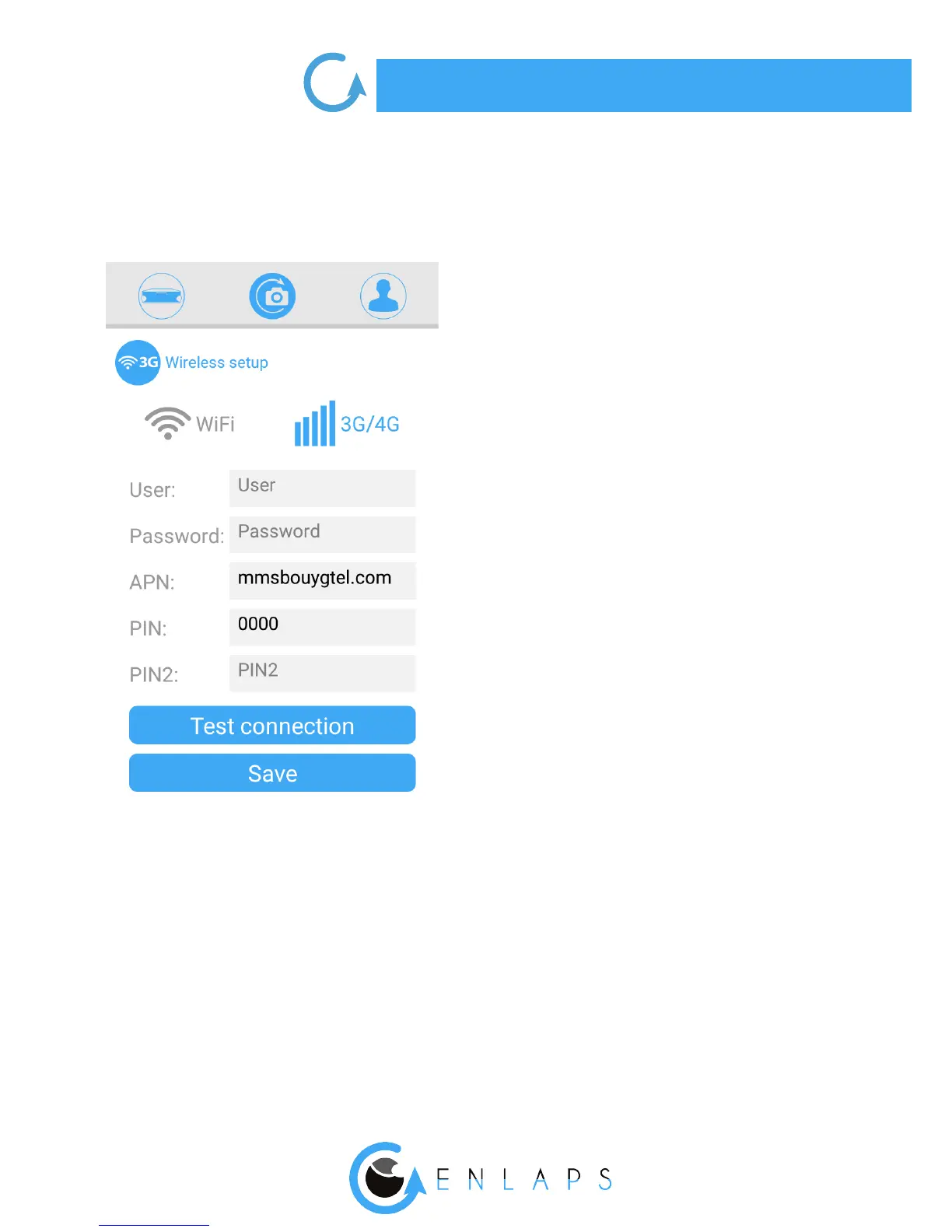
Username: this eld is optional
Password: this eld is optional
APN : this eld is required - most of the time you
can nd it on the website of your telecom service
provider
PIN 1 : mandatory - this is the PIN code of the SIM
card
PIN 2 : this eld is optional
Once the parameters lled to save them
click on: Save
We recommand to test the connection of your Tikee
once the parameters are set up.
For that click on ‘’Test connection’’.
This step may take several minutes because the Tikee
will check all of the steps to be connected to My
Enlaps web application server.
At the end of the test you will receive a notication
about the success or not of the test.
Click here for additional information.
Not connecting your Tikee
If no network is in range or if you do not want the photos being automatically uploaded to My Enlaps
web application, you can select the WiFi or 3G/4G icon, then clear the elds and save the settings.
. Advanced settings
Formatting the microSD card
We recommend to format the microSD card before rst use.
You can format it directly from the mobile application.


 To Next Page