3
Updating your Tikee
Check at enlaps.io/update if a new version of the rmware of your Tikee is available. You can also
ll in your email address on this page to get an email when a new version of rmware is available.
If an update is available, download it from a computer and then copy it on the microSD card pre-
viously formated (see chapter about formating) of your Tikee. The update may take several minutes.
Insert the microSD card into the dedicated slot.
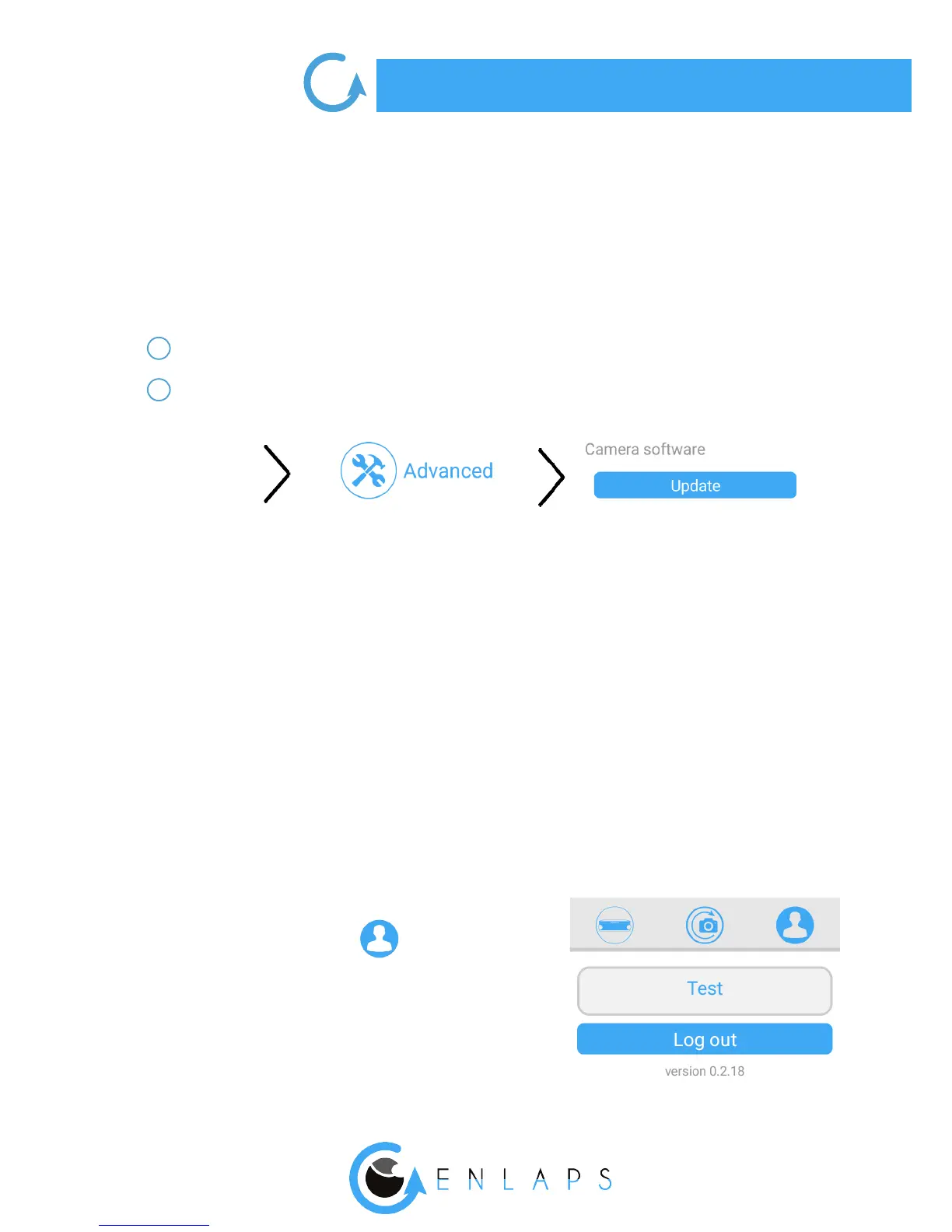
Turn on your Tikee and go to:
The update may take several minutes. Once completed, you will receive a notication on the
mobile app.
Your Tikee will then restart automatically (the Power LED will turn o and then will ash before
being steady again).
After the update is complete, you can reconnect to the mobile application.
The update le is automatically deleted from the micro SD card once it is done.
We recommended to connect your Tikee to a USB plug. The update is only done if the battery level
is higher than 50%.
1
2
. User account
Version of the mobile app
You can check the version of the mobile app installed on
your smartphone by clicking on:
Disconnecting from the mobile app
The mobile app will keep your user’s ID from the rst
connection.
If you want to log o from the mobile application, go to
My Account (opposite image).


 To Next Page