To get the sharing link: go to the page where you can view your timelapse.
Under the viewing screen you can manage sharing parameters.
By clicking on you copy the link.
By clicking on ‘’Share on Facebook’’, the Facebook post is automatically formatted and directly
shareable on your Facebook account.
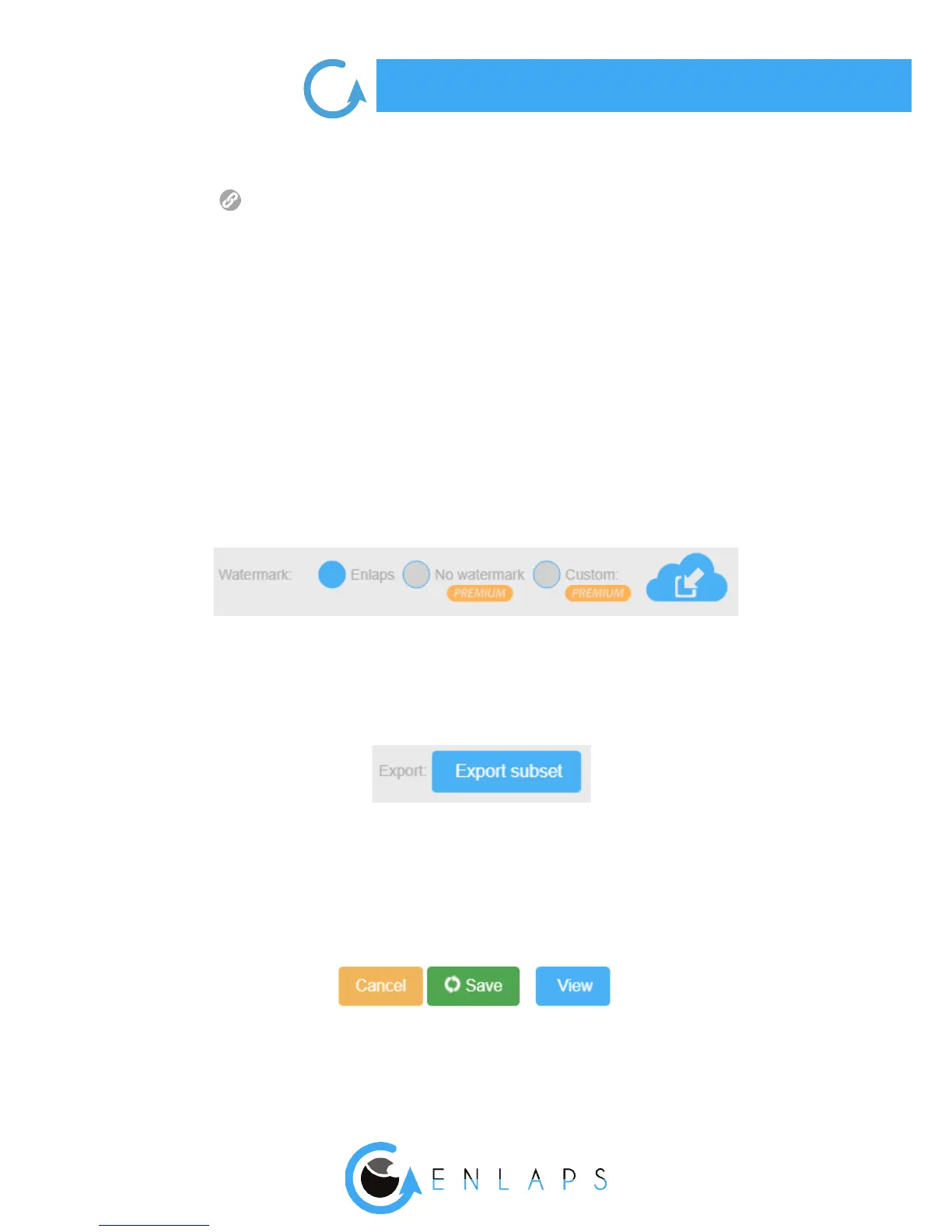
Watermark
Enlaps watermark
When creating your timelapse, a watermark with the logo Enlaps will appear highlighted on your
video. This watermark can be disabled in the case of a PREMIUM membership.
No Enlaps watermark and/or custom logo (PREMIUM)
With a PREMIUM account, you can choose to not watermark when creating your timelapse or to
ax your custom logo.
Downloading the ltered photoset (PREMIUM)
With a PREMIUM account, you can select your ltered photoset and download it by selecting
‘Export subset’ in the ‘Extra‘ menu.
After a few minutes, you will receive an email with the download link of the archive containing all
of the ltered photos.
Saving your timelapse
Once your timelapse is edited, you can save it by clicking on ‘’Save’’.
It will then start the generation of your Full HD video which will be available in the display screen or
by clicking on ‘View’, either from the mosaic of the projects.


 To Next Page